Logo

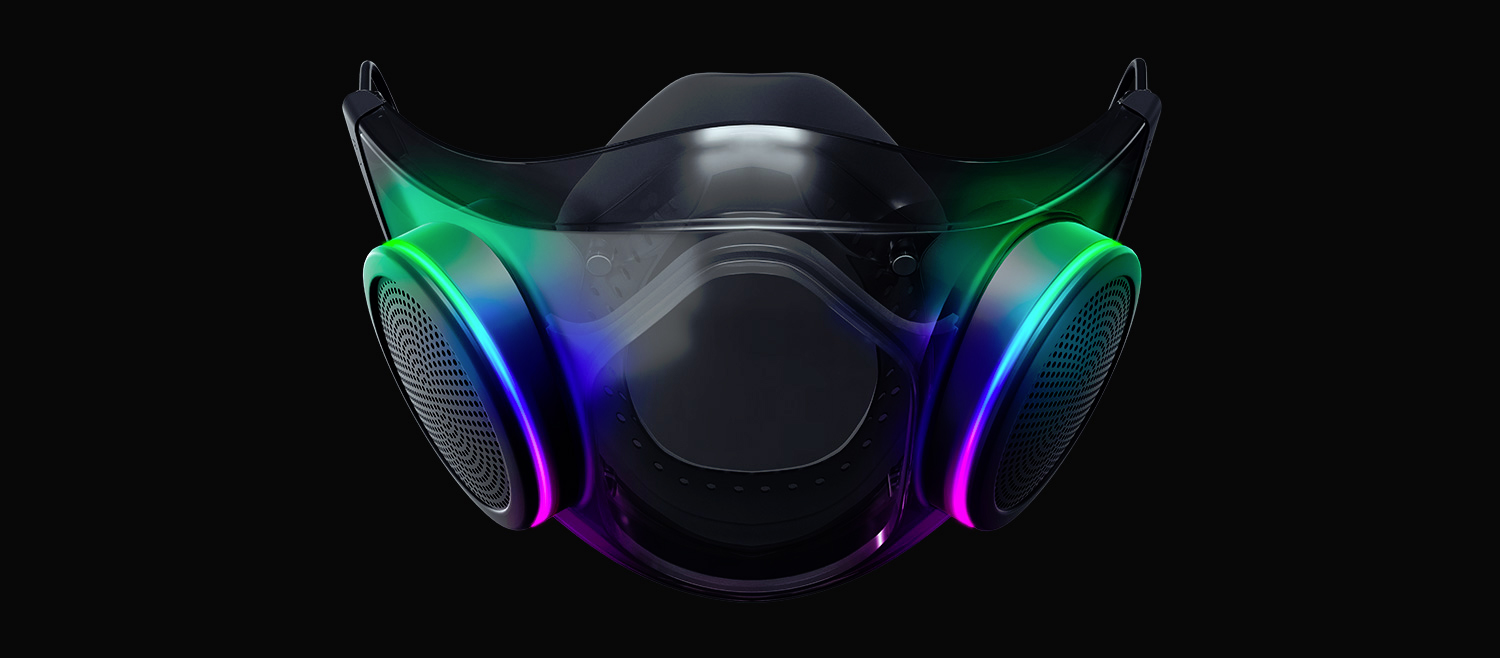
Razer Hazel, an RGB mask for max protection

Razer HazelThe world today is still sadly under pandemic and by the looks of it, COVID-19 is here to stay, well at least for some time in the near future. Razer seems to think so as well since their upcoming gear is not really what you would expect.

Enter Hazel, a new and upcoming Razer smart mask.

Protection

Hazel mask has a high bacterial surgical N95 filter with fluid resistance that will protect you against large droplets and splashes. A detachable active ventilator regulates airflow and is capable of filtering around 95% of airborne particles. Mask comes with a special charging case that has an auto sterilization UV light that will kill bacteria and viruses inside the case interior while it charges.

When the mask is recharging it will change color from red to green visually showing the level of the current charge. Mask of course has easy to replace filters inside ventilators and Razer is standing by that fully charged mask will last enough for full-day use.

An active ventilation system brings cool air while releasing breathing heat at the same time drastically reducing CO2 inside the mask that could produce dizziness and headache.

Silicon guard is on its edge gluing to around your face in order to prevent exterior air sneaking inside the mask and positioning it firmly so it does not rest on your lips in order for easier and clearer communication.

Hazel personalization and technical features

Hazel has a clear and transparent design making it better for social interaction since other people will be able to see your lips and smiles thus making it more natural. A low light mode that turns on automatically when it is dark outside is also aimed for easier communication.

Speaking of communication, the mask comes with voice Amp technology that has a built-in mic and amplifier thus making your voice lines clear so you are not muffled when wearing the mask itself. Your friends and other people will be able to hear you like you are not wearing a mask at all.

Thicker air loops apply less pressure on ears and can be adjusted for a more secure fit, while the mask itself can be custom-made to fit your face shape.

And of course Hazel comes with 16.8 million colors and a suite of effects with Razer Chroma RBG

Do You Need Help with Your Device?

Our Team of Experts May Help
Troubleshoot.Tech Experts are There for You!
Replace damaged files
Restore performance
Free disk space
Remove Malware
Protects WEB browser
Remove Viruses
Stop PC freezing
GET HELP
Troubleshoot.Tech experts work with all versions of Microsoft Windows including Windows 11, with Android, Mac, and more.

Share this article:

You might also like

How to Fix Windows 10 Error 0x80240016

Error Code 0x80240016 - What is it?

Error Code 0x80240016 is an error that appears when the Windows Update tool is unable to complete its operation. While it most commonly occurs in Windows 10, versions of this error are also present in past Windows systems, as well. The steps to resolve the error are the same for each of these systems. Common symptoms include:
  • Inability to complete the Windows Update process
  • Sluggishness or freezing
  • Crashing of your programs
  • The message that states “IMAP_LOGINFAILURE”
There are a number of different issues that can cause Error Code 0x80240016, so it is important to follow the steps below to address each of them in turn. While basic users can implement several of the methods, some of the methods may require advanced skills or knowledge. If needed, always get in touch with a qualified Windows repair professional to assist you in the process of error resolution.

Solution

Restoro box imageError Causes

Error Code 0x80240016 happens when the system believes that another installation is already occurring on your device while the Windows Update tool is attempting to run the installation of its own updates. While there may not always be an actual installation going on that prohibits Windows Update from running, several programs can leave traces of background activity that prevent Windows from proceeding as necessary.

Malicious software can also cause your system to believe that files are in use, so several of the methods to fix the error can address this particular set of issues.

Further Information and Manual Repair

There are a number of different background issues that can cause Error Code 0x80240016 to appear on your machine. Follow the steps below to address each aspect of the error code, making sure to restart your computer after each attempt. If you have difficulty in completing these steps, contact a qualified technician to assist you.

Here are the top methods to resolve Error Code 0x80240016:

Method One:  Use the Troubleshooting Tool in Windows Update

The first step to addressing Error Code 0x80240016 is to open up the Windows Update tool and click on the option to run the Troubleshooting Wizard. This can identify many of the issues associated with the error. If this tool makes any changes, make sure to restart your computer after it finishes.

Method Two:  Run the Registry Repair Tool

The registry repair tool can be a great resource for Error Code 0x80240016. Use it to run a scan on all of your registry entries and to repair any that may be extraneous, faulty, or missing. This step may take some time, so be prepared to wait a while for it to finish. Always restart your computer after running the registry repair tool so that any necessary changes can fully take effect and be recognized by your device.

Method Three:  Scan Your Computer for Malicious Software

Use the Microsoft Security Essentials tool to perform a scan of your computer to see if any malicious software has changed or corrupted your system files. Once all the files had been scanned and problems have been addressed, you can restart your computer to see if the error has been successfully resolved. You can also download a powerful automated tool to rectify Windows 10 error code 0x80240016.

Method Four:  Update Your Drivers and Perform Updates for Your Software and Operating System

Another method that can help to address Error Code 0x80240016 is to open up your driver settings from the control panel and scan to see if any updates are needed. If there are updates waiting to be installed, go ahead and perform those updates first, then restart your computer.

Next, check your Windows Update tool to see if there are any program or system updates that need to be performed. Allowing updates to stack up can cause a number of errors on your system, so it is important to keep your updates in check. Restart your computer after you finish this process.

Method Five:  Backup Your Files, Then Reinstall Your Operating System Version

If none of the above methods have completely fixed the problem, you may need to reinstall your operating system. Before doing so, make sure that you have a backup copy of any important programs and files so that you don’t lose anything during the fresh installation.

Read More
Chrome automatically opens a new tab
Recently, a number of users reported that their Google Chrome browsers keep on opening new tabs no matter what they do. This issue could be due to lots of reasons but the main ones are corrupt installation, background applications, adware, dubious browser extensions, malware, and so on. Although there are a lot of possible causes for this particular issue in Chrome, its potential fixes are straightforward so you should not have any problem following the given options below.

Option 1 – Get rid of any conflicting browser extensions

As mentioned, shady browser extensions can cause unusual behavior in a browser. Chances are, these extensions or toolbars might be conflicting with the loading of the website. Thus, you have to get rid of these unwanted extensions and toolbars to fix the issue.
  • Open Chrome and press Alt + F keys.
  • Go to More tools and click Extensions to look for any suspicious browser extensions or toolbars.
  • Click the Recycle bin and select Remove.
  • Restart Chrome and press Alt + F keys again.
  • Proceed to On Startup and mark Open a specific page or set of pages.
  • To check if the browser hijacker is still active, click Set pages, if it is active, overwrite the URL.

Option 2 – Try to disable applications from running in the background

  • Open Google Chrome and then click on the menu button located in the top-right corner.
  • From the drop-down, select Settings and then scroll down until you see the Advanced button. Click on it.
  • Next, turn off the toggle for “Continue running background apps when Google Chrome is closed” under the System section.
  • Now restart Chrome and check if it is working properly.

Option 3 – Try to configure the search settings of Chrome

  • Open Google Chrome and type any search query in the address bar and then tap Enter.
  • After that, it will open the Google search engine. From the top-right corner, click the Settings button.
  • Next, select Search settings from the drop-down menu.
  • Then scroll down to the new page that appears and make sure that the “Open New Window for each result” option is set to Uncheck.
  • Once you’re done, save the changes made and restart Google Chrome.

Option 4 – Reset Chrome

Resetting Chrome can also help you fix the error. This means that you will be restoring its default settings, disabling all the extensions, add-ons and themes. Aside from that, the content settings will be reset as well and the cookies, cache, and site data will also be deleted. To reset Chrome, here’s what you have to do:
  • Open Google Chrome, then tap the Alt + F keys.
  • After that, click on Settings.
  • Next, scroll down until you see the Advanced option, once you see it, click on it.
  • After clicking the Advanced option, go to the “Restore and clean up option and click on the “Restore settings to their original defaults” option to reset Google Chrome.
  • Now restart Google Chrome.

Option 5 – Try to clean reinstall Chrome

There are instances when programs leave files behind after you’ve uninstalled them and the same thing can happen to Chrome so before you reinstall Chrome, you have to make sure that you have deleted the User Data folder. To do so, refer to the following steps:
  • Hit the Win + R keys to open the Run dialog box.
  • Next, type “%LOCALAPPDATA%GoogleChromeUser Data” in the field and hit Enter to open the User Data folder.
  • From there, rename the default folder and name it something else, e.g. “Default.old”.
  • After that, install Google Chrome again and check if the issue is now fixed.

Option 6 – Try scanning your computer using Windows Defender

As mentioned, the error when accessing the security settings or properties of a folder or file might be due to a virus or malware. It could be that it had made some modifications that prevents you from accessing security settings or properties. To eliminate it, you have to scan your computer using security programs like Windows Defender.
  • Tap the Win + I keys to open Update & Security.
  • Then click on the Windows Security option and open Windows Defender Security Center.
  • Next, click on Virus & threat protection > Run a new advanced scan.
  • Now make sure that Full Scan is selected from the menu and then click the Scan Now button to get started.
Read More
How to remove FindYourMaps from Windows

FindYourMaps is a Google Chrome Browser Extension developed by Mindspark. This extension hijacks your home page and new tab page changing them to MyWebSearch.com in order to display ads more efficiently.

While using this extension you will see additional pop-up ads, sponsored content, and unwanted ads (that are sometimes not ever relative to your search query) displayed throughout your browsing sessions, cluttering up the pages and sometimes even going over page parts, making some pages unreadable.

Several anti-virus applications have marked this Extension as a Browser Hijacker due to its data mining behaviors and ad injections and were marked for removal by most of them.

About Browser Hijackers

Browser hijacking is a very common type of internet fraud where your web browser configurations are modified to allow it to do things you never intend. Practically most browser hijackers are made for advertising or marketing purposes. These are typically used to force visitors to a specific website, manipulating web traffic to generate ad revenue. However, it is not that innocent. Your web safety is jeopardized and it is extremely annoying. What’s more, hijackers will make the whole infected system fragile – other harmful malware and viruses would use these opportunities to get into your system very easily.

Indications of browser hijack

There are many symptoms that indicate the browser is highjacked: your home page is reset to some unknown site; you observe new unwanted favorites or bookmarks added, typically directed to ad-filled or porn websites; The default search page of your web browser is modified; you see many toolbars on the browser; you observe numerous ads show up on the browsers or display screen; your browser has instability issues or displays frequent errors; you cannot go to specific sites such as home pages of security software.

How it infects your computer

A browser hijacker could be installed on your PC when you check out an infected website, click an e-mail attachment, or download something from a file-sharing website. They also come from add-on programs, also known as browser helper objects (BHO), web browser plug-ins, or toolbars. A browser hijacker could also come bundled up with some free application which you inadvertently download and install the browser hijack, compromising your PC security. Browser hijackers can record user keystrokes to gather potentially invaluable information leading to privacy concerns, cause instability on computers, drastically disrupt user’s browsing experience, and ultimately slow down the system to a point where it will become unusable.

How to fix a browser hijack

The one thing you can try to remove a browser hijacker is to locate the malware inside the “Add or Remove Programs” list of the Windows Control Panel. It may or may not be there. When it is, uninstall it. But, many hijacking codes aren’t very easy to remove manually, as they go much deeper into your operating system. On top of that, manual removal demands you to carry out several time-consuming and tricky procedures that are very hard to carry out for novice computer users. Anti-malware application is incredibly efficient when it comes to picking up and eliminating browser hijackers that standard anti-virus software has overlooked. Safebytes Anti-Malware features a state-of-the-art anti-malware engine to help you avoid browser hijacking in the first place, and clean up any pre-existing problems. Along with the anti-virus tool, a system optimizer, like SafeBytes’s Total System Care, could help you in deleting all associated files and modifications in the computer registry automatically.

What you can do if Virus Stops You From Downloading Or Installing Anything?

Viruses may cause a great deal of damage to your computer. Certain malware goes to great lengths to stop you from downloading or installing anything on your computer system, particularly antivirus programs. If you’re reading this now, you have probably realized that a malware infection is a reason behind your blocked net connectivity. So how to proceed when you want to download and install an anti-virus application such as Safebytes? Do as instructed below to get rid of the malware by alternate methods.

Start Windows in Safe Mode

If any virus is set to load automatically when Windows starts, stepping into Safe Mode could very well block this attempt. Since only the minimum applications and services start-up in Safe Mode, there are seldom any reasons for conflicts to occur. Below are the steps you have to follow to remove malware in Safemode. 1) At power-on/startup, press the F8 key in one-second intervals. This should bring up the Advanced Boot Options menu. 2) Use the arrow keys to choose Safe Mode with Networking and hit ENTER. 3) When this mode loads, you should have an internet connection. Now, utilize your browser to download and install Safebytes. 4) As soon as the application is installed, allow the scan run to remove trojans and other threats automatically.

Obtain the anti-malware program in an alternate internet browser

Some malware might target vulnerabilities of a specific browser that obstruct the downloading process. If you are not able to download the security program using Internet Explorer, this means malware is targeting IE’s vulnerabilities. Here, you must switch to another internet browser like Chrome or Firefox to download the Safebytes application.

Run anti-virus from your pen drive

Another option would be to create a portable antivirus program onto your USB stick. Adopt these measures to employ a flash drive to fix your infected computer system. 1) Download the anti-malware program on a virus-free computer. 2) Plug the Flash drive into the uninfected computer. 3) Double-click the Setup icon of the anti-malware software to run the Installation Wizard. 4) Choose the USB flash drive as the location for saving the file. Follow the directions to finish the installation process. 5) Now, plug the thumb drive into the infected computer. 6) Double-click the Safebytes Anti-malware icon on the pen drive to run the program. 7) Click on “Scan Now” to run a complete scan on the affected computer for viruses.

Highlights of SafeBytes Anti-Malware

These days, an anti-malware program can protect your laptop or computer from different forms of online threats. But how do choose the right one amongst several malware protection software that’s available out there? Perhaps you might be aware, there are numerous anti-malware companies and tools for you to consider. A few of them are great and some are scamware applications that pretend as legitimate anti-malware programs waiting around to wreak havoc on your personal computer. You have to be careful not to pick the wrong application, particularly if you purchase a paid software. One of the highly recommended software by industry experts is SafeBytes Anti-Malware, well-known security software for Windows computers. Safebytes is among the well-established PC solutions firms, which offer this comprehensive anti-malware program. Through its cutting-edge technology, this software will help you protect your computer against infections caused by different types of malware and similar internet threats, including spyware, adware, trojans, worms, computer viruses, keyloggers, potentially unwanted program (PUPs), and ransomware.

SafeBytes has great features when compared with various other anti-malware programs. These are some of the great features included in the tool.

Real-time Threat Response: SafeBytes delivers complete and real-time security for your PC. They are extremely efficient in screening and getting rid of different threats because they are continuously revised with the latest updates and safety measures. World-class AntiMalware Protection: By using a critically acclaimed anti-malware engine, SafeBytes offers multilayered protection which is made to find and eliminate viruses and malware which are hidden deep in your computer’s operating system. Web Filtering: Safebytes allots all websites a unique safety rating that helps you to have an idea of whether the webpage you’re about to visit is safe to view or known to be a phishing site. Very Low CPU and RAM Usage: SafeBytes is a lightweight tool. It consumes a very small amount of processing power as it runs in the background so you are free to use your Windows-based computer the way you want. 24/7 Assistance: SafeBytes provides 24/7 technical support, automatic maintenance, and upgrades for the best user experience. To sum it up, SafeBytes Anti-Malware offers outstanding protection combined with very low system resource usage with great malware prevention and detection. You can rest assured that your PC will be protected in real-time once you put this software program to use. You will get the very best all-around protection for the money you pay on SafeBytes anti-malware subscription, there is no doubt about it.

Technical Details and Manual Removal (Advanced Users)

If you don’t wish to use an automated tool and prefer to eliminate FindYourMaps manually, you could do so by going to the Windows Add/Remove Programs menu in the control panel and deleting the offending software; in cases of web browser add-ons, you can remove it by visiting the browser’s Add-on/Extension manager. It’s also advised to factory reset your web browser settings to their default state. To ensure the complete removal, manually examine your hard drive and Windows registry for all of the following and remove or reset the values as needed. Please be aware that this is for experienced users only and might be challenging, with incorrect file removal causing additional PC errors. Furthermore, some malware is capable of replicating itself or preventing deletion. Completing this task in Safe Mode is recommended.
Read More
Windows 10 tips and tricks for easy work
Hello everyone and welcome to our new Windows 10 tips and tricks article. Today we will be focusing on small Windows tricks that could prove very useful in everyday workflow and hopefully make your life easier by implementing them in your daily routine. I am very excited to share this with you all and I hope that you will use them from now on. That being said let us begin.

Tip 1: Minimize all open windows except one.

Daily to the daily routine can involve many opened windows on a desktop and sometimes things can get messy, if you want to minimize all windows to the taskbar except one do this: Click on one window thus selecting him, click and hold the left mouse button on that windows title bar, now shake it up and down and all other windows will escape down to taskbar leaving only one you are shaking on the desktop.

Tip 2: Open the Secret Windows menu.

Through our tutorials on various errors and fixes, we have used this method already but here it is again since it is worth mentioning. If you want to open the command prompt easy and fast, or device manager, event viewer, shut down, etc. In order to open this secret menu all you need to do is press ⊞ WINDOWS + X.

Tip 3: Create an Event without opening the calendar application.

You can easily create an event without opening a calendar application, all you have to do is left-click on the clock in the taskbar, click once on a date for the event, and under calendar in event field type event description. The event will show in the calendar application like it was entered there.

Tip 4: Taking a screenshot.

This one is my favorite and it speeds up workflow very very much. Typically you take screenshots by pressing the PrntScr button on your keyboard. Now, the problem with this approach is that the screen is placed in computer memory, in the clipboard and you will need another picture processing application in order to save it. Now if you would press ⊞ WINDOWS + PrntScr, the picture would be automatically saved in your pictures/screenshots folder. And if that is not enough, you can press ⊞ WINDOWS + S + SHIFT to start Snip & Sketch tool and select the area which you would like to screen capture, this method will also place pictures in the clipboard.

Tip 5: Open pinned applications in your taskbar with your keyboard.

We have covered this one in our Windows keyboard shortcuts tips and tricks here, but if you missed that article here is the tip again. By pressing ⊞ WINDOWS + number 1,2,3...0 you will start the application from your taskbar counted from left to right.

Tip 6: Check how much Hard drive space installed applications are taking.

Applications and temporary files grow over time and can slow the system and cause some other unpleasant experiences. Go to Settings > System > Storage, click on the Hard drive on which you have installed applications, and see how much each one is taking, you can remove it from this screen also freeing some space.

Tip 7: Remove ads from the START menu.

Windows has so-called suggestions in the START menu, no matter how Microsoft is calling them, let's face it, they are ads and in my opinion, they do not belong in my START menu. To turn them off, go to Settings > Personalization > Start. Toggle the setting called Show suggestions occasionally in Start to the off position.

Tip 8: Shut down background applications.

Some applications are running in the back and are taking system resources and can send telemetry information, if you want to turn them all off go to Settings > Privacy > Background apps. To stop all apps from running in the background, toggle Let apps run in the background to off. You can choose which apps to run in the background individually by going down the list on the same page.

Tip 9: Use Background scrolling.

Did you know that you can scroll on inactive windows? To do this, just hover over the inactive background window and roll your mouse when the content of the window should be scrolling even if it's not one you are working on. If by any chance this is not happening, go to Settings > Devices > Mouse, and toggle Scroll inactive windows when I hover over them to On.

Tip 10: Show file extensions in File Explorer.

By default extensions of files are hidden, so let's say that for example, you are in a folder with pictures, you have plenty of pictures there but you do not know are they JPG or JPEG for example, do not worry there is an easy fix to bring showing extensions back. Start File Explorer, click on view top menu item, click on options, Uncheck the box that says Hide extensions for known file types. Click Apply, and OK.

Tip 11: Use focus assist.

Set it up by going to Settings > System > Focus assist. Choose from three options: Off (get all notifications from your apps and contacts), Priority (see only selected notifications from a priority list that you customize, and send the rest to your action center), and Alarms only (hide all notifications, except for alarms). You can also choose to automatically turn this feature on during certain hours, or when you're playing a game.

Tip 12: Rotate your screen.

If you have multiple screens set up or you have the rotatable screen press and hold CTRL + ALT together, then use a directional arrow to flip the screen. The right and left arrows turn the screen 90 degrees, while the down arrow will flip it upside down. Use the up arrow to bring the screen back to its normal position.

Tip 13: Enable GOD mode.

Have you always felt limited with Windows settings? Don't be, Right-click on the desktop and select New > Folder. Re-name the new folder with this bit of code: GodMode.{ED7BA470-8E54-465E-825C-99712043E01C} To enter the "God Mode" window, double-click the folder.

Tip 14: Use Virtual Desktops.

Click on Task View (the icon next to the search box). This will separate all your open windows and apps into icons. You can then drag any of them over to where it says "New desktop," which creates a new virtual desktop. Once you click out of Task View, you can toggle between virtual desktops by pressing the ⊞ WINDOWS + CTRL + right/left arrows. To remove the virtual desktops, just go back into task view and delete the individual virtual desktops, this will not close out the apps contained within that desktop, but rather just send them to the next lower desktop.

Tip 15: Customize the command prompt.

Yes, you can customize the command prompt, in order to do so, open it and right-click on its title bar, choose properties and go wild. Special badge if you make it look like commodore 64 BASIC.

Tip 16: Dictate, not type.

If you have speech recognition ON, pressing ⊞ WINDOWS + H will bring up a voice recorder, just speak and see how you can easily "write" emails, etc.

Tip 17: Use sandbox.

In Windows you have a sandbox option, which will open another Windows instance inside Windows, what do you need this? Well once the sandbox is closed everything in it is closed and if you catch the virus or other dangerous software, closing the sandbox will destroy it not affecting your actual Windows. Use it for safety testing and enjoy an easy life. Enable Windows Sandbox inside the Control Panel.

Tip 18: Use a hidden game bar.

Press the ⊞ WINDOWS + G, you can pull up the new-and-improved Game Bar. This lets you switch your Windows PC into gaming mode, which pools system resources to the game, turns off notifications, and lets you record and broadcast your gaming, along with added panels for controlling your audio, monitoring FPS, and tracking achievements. And that's it, Our 18 tips and trick to make your Windows 10 life easier, more productive, and overall more enjoyable. I certainly hope you have enjoyed reading this article same as I was writing it. Until next time if I do not see you, good afternoon, good evening, and good night.

Read More
Babylon Removal Tutorial

What is Babylon?

Babylon is a self-published computer dictionary and translation program. Babylon is a tool used for translation and conversion of currencies, measurements, and time, and for obtaining other contextual information. The program also uses a text-to-speech agent so users hear the proper pronunciation of words and text. Babylon’s translation software adds the Babylon toolbar identified as a browser hijacker. This toolbar may modify the homepage of the browser. It adds a Scheduled Task, Startup file, and Registry Keys that allow it to run at any time. A Windows Firewall exception is also added for the software, allowing it to connect to the internet without content.

About Browser Hijackers

Browser hijacking is actually a type of unwanted software program, commonly a browser add-on or extension, which causes modifications in browser settings. Browser hijackers will do a number of things on your computer. Often, hijackers will force hits to internet sites of their choice either to increase targeted traffic generating higher ad revenue, or to obtain a commission for each and every user visiting there. It could seem harmless, but the majority of these websites aren’t legitimate and can present a significant risk to your online safety. Additionally, hijackers can make the entire infected system fragile – other harmful malware and viruses will take hold of these opportunities to get into your PC effortlessly.

Signs of browser hijacker malware

There are several symptoms of browser hijacking. Here are a few of them: the home page of your browser is changed all of a sudden; new bookmarks pointing to porn websites are added to your favorite pages; the default browser settings have been modified and/or your default search engine is altered; unsolicited new toolbars are added to your internet browser; you notice a lot of pop-ups on your computer screen; your web browser gets sluggish, buggy, crashes frequently; you cannot go to certain sites such as homepages of anti-malware software.

How it infects your computer

Browser hijackers may use drive-by downloads or file-sharing networks or perhaps an email attachment in order to reach a targeted computer system. They may also originate from any BHO, browser extension, toolbar, add-on, or plug-in with malicious intent. Sometimes you might have accidentally accepted a browser hijacker as part of a software bundle (usually freeware or shareware). Examples of well-known browser hijackers include Fireball, GoSave, Ask Toolbar, CoolWebSearch, Babylon Toolbar, and RocketTab. The existence of any browser hijacker on your system will considerably diminish the browsing experience, monitor your online activities that lead to troublesome privacy issues, produce system stability issues and finally cause your PC to slow down or to a nearly unusable state.

Browser hijacker removal tips

Some hijackers can be easily removed by deleting the free software they were included with or by eliminating any add-ons you’ve recently added to your computer system. Sadly, most of the software packages used to hijack a web browser are intentionally designed to be hard to eliminate or detect. And there’s no denying the fact that manual fixes and removal can be quite a difficult task for an inexperienced PC user. Besides, there are numerous risks associated with fiddling around with the pc registry files. Anti-malware application is extremely efficient when it comes to picking up and eliminating browser hijackers that regular anti-virus program has overlooked. To get rid of any kind of browser hijacker from your PC, you could download this top-notch malware removal tool – Safebytes Anti-Malware.

What To Do If You Cannot Install Safebytes Anti-Malware?

Practically all malware is inherently unsafe, but certain types of malicious software do much more damage to your computer than others. Certain malware types alter browser settings by adding a proxy server or modify the PC’s DNS configurations. In such cases, you will be unable to visit some or all websites, and thus unable to download or install the required security software to clear out the infection. So what you should do if malware prevents you from downloading or installing Anti-Malware? Even though this sort of problem can be tougher to get around, there are some actions you can take.

Boot Windows in Safe Mode

If the malware is set to run at Windows start-up, then booting in Safe Mode should prevent it. Just the minimum required applications and services are loaded when you start your laptop or computer into Safe Mode. To launch your Windows XP, Vista, or 7 computers in Safe Mode with Networking, follow the instructions below. 1) After switching on the computer, hit the F8 key before the Windows splash screen begins to load. This should bring up the Advanced Boot Options menu. 2) Use the arrow keys to select Safe Mode with Networking and press ENTER. 3) Once this mode loads, you should have the internet. Now, make use of your internet browser normally and navigate to https://safebytes.com/products/anti-malware/ to download Safebytes Anti-Malware. 4) Immediately after installation, do a full scan and allow the software to delete the threats it detects.

Obtain the antivirus software using a different browser

Certain malware may target vulnerabilities of a particular browser that obstruct the downloading process. The best way to overcome this problem is to opt for a web browser that is well known for its security measures. Firefox comprises built-in Phishing and Malware Protection to help keep you secure online.

Install security software on a flash drive

Another option is to store and run an antivirus program completely from a Thumb drive. Try these simple actions to clear up your affected computer using a portable antivirus. 1) Use another virus-free computer to download Safebytes Anti-Malware. 2) Mount the USB drive onto the same PC. 3) Double-click the exe file to run the installation wizard. 4) When asked, choose the location of the pen drive as the place in which you would like to store the software files. Do as instructed on the screen to finish up the installation process. 5) Remove the flash drive. You may now utilize this portable anti-malware on the infected computer. 6) Double-click the antivirus software EXE file on the pen drive. 7) Press the “Scan Now” button to start the virus scan. If all the previously mentioned methods are not able to help you in downloading and installing the anti-malware, then you have no option but to reinstall the computer’s operating system to wipe out all of the data, including the harmful programs which are obstructing the anti-malware installation. If you are unclear regarding which method works best for you, simply call 1-844-377-4107 to speak to our computer professionals who can walk you through the process to fix your infected computer system.

SafeBytes AntiMalware Overview

Today an anti-malware program can protect your PC from different kinds of internet threats. But how to decide on the best one among countless malware protection application that is available in the market? You may be aware, there are several anti-malware companies and products for you to consider. A few of them do a good job in eradicating malware threats while many will harm your computer themselves. While looking for an anti-malware program, pick one which provides dependable, efficient, and total protection against all known computer viruses and malware. With regards to commercial application options, many people select popular brands, like SafeBytes, and they are quite happy with it. Safebytes is among the well-established computer solutions firms, which offer this all-inclusive anti-malware program. When you have installed this software, SafeBytes' sophisticated protection system will make sure that no viruses or malware can seep through your PC. SafeBytes anti-malware provides a myriad of enhanced features which set it apart from all others. The following are some of the great features included in the tool. Optimum AntiMalware Protection: With its enhanced and sophisticated algorithm, this malware removal tool can detect and remove the malware threats hiding within your computer system effectively. Real-time Active Protection: SafeBytes offers entirely hands-free real-time protection and is set to monitor, block, and destroy all computer threats at its very first encounter. They’re highly efficient in screening and getting rid of numerous threats because they’re regularly revised with new updates and safety measures. Web Filtering: Through its unique safety score, SafeBytes notifies you whether a site is safe or not to visit it. This will ensure that you’re always certain of your online safety when browsing the world wide web. Light-weight: This program is not “heavy” on the computer’s resources, so you’ll not notice any performance difficulties when SafeBytes is operating in the background. 24/7 Guidance: You can obtain totally free 24/7 technical assistance from their IT experts on any product queries or PC security concerns. SafeBytes has put together an excellent anti-malware solution to help you conquer the latest computer threats and virus attacks. There is no doubt that your computer system will be protected in real-time as soon as you put this software to use. So if you’re trying to find a comprehensive antivirus program that’s still easy to use, SafeBytes Anti-Malware is exactly what you need!

Technical Details and Manual Removal (Advanced Users)

If you wish to manually remove Babylon without the use of an automated tool, it may be possible to do so by removing the program from the Windows Add/Remove Programs menu, or in cases of browser extensions, going to the browsers AddOn/Extension manager and removing it. You will likely also want to reset your browser. To ensure the complete removal, manually check your hard drive and registry for all of the following and remove or reset the values accordingly. Please note that this is for advanced users only and may be difficult, with incorrect file removal causing additional PC errors. In addition, some malware is capable of replicating or preventing deletion. Doing this in Safe Mode is advised. The following files, folders, and registry entries are created or modified by Babylon
Files: $APPDATABabylonToolbarBabylonToolbar $APPDATABabylonToolbar $PROGRAMFILESBabylonToolbarBabylonToolbar $PROGRAMFILESBabylonToolbar Registry: key HKEY_CLASSES_ROOT named Babylon.dskBnd. key HKEY_CLASSES_ROOT named Babylon.dskBnd key HKEY_CLASSES_ROOT named bbylnApp.appCore. key HKEY_CLASSES_ROOT named bbylnApp.appCore key HKEY_CLASSES_ROOT named bbylntlbr.bbylntlbrHlpr. key HKEY_CLASSES_ROOT named bbylntlbr.bbylntlbrHlpr key HKEY_CLASSES_ROOT named bbylntlbr.xtrnl” key HKEY_CLASSES_ROOT named bbylntlbr.xtrnl key HKEY_CLASSES_ROOT named escort.escortIEPane. key HKEY_CLASSES_ROOT named escort.escortIEPane key HKEY_CLASSES_ROOT named escort.escrtBtn. key HKEY_CLASSES_ROOT named esrv.BabylonESrvc. key HKEY_CLASSES_ROOT named esrv.BabylonESrvc key 09C554C3-109B-483C-A06B-F14172F1A947 at HKEY_CLASSES_ROOTTypeLib. key 2EECD738-5844-4a99-B4B6-146BF802613B at HKEY_CLASSES_ROOTCLSID. key 2EECD738-5844-4a99-B4B6-146BF802613B at HKEY_LOCAL_MACHINESOFTWAREMicrosoftWindowsCurrentVersionExplorerBrowser Helper Objects. key 3718D0AF-A3B8-4F5E-86F3-FAD8D02043BE at HKEY_CLASSES_ROOTInterface. key 4E1E9D45-8BF9-4139-915C-9F83CC3D5921 at HKEY_CLASSES_ROOTTypeLib. key 6E8BF012-2C85-4834-B10A-1B31AF173D70 at HKEY_CLASSES_ROOTTypeLib. key 706D4A4B-184A-4434-B331-296B07493D2D at HKEY_CLASSES_ROOTInterface. key 78868069-5D96-4B47-BE52-3D625EE3D7CB at HKEY_CLASSES_ROOTInterface. key 78888F8B-D5E4-43CE-89F5-C8C18223AF64 at HKEY_CLASSES_ROOTInterface. key 8B8558F6-DC26-4F39-8417-34B8934AA459 at HKEY_CLASSES_ROOTInterface. key 94C0B25D-3359-4B10-B227-F96A77DB773F at HKEY_CLASSES_ROOTInterface. key 98889811-442D-49dd-99D7-DC866BE87DBC at HKEY_CLASSES_ROOTCLSID. key 9E393F82-2644-4AB6-B994-1AD39D6C59EE at HKEY_CLASSES_ROOTInterface. key A3A2A5C0-1306-4D1A-A093-9CECA4230002 at HKEY_CLASSES_ROOTInterface. key AD25754E-D76C-42B3-A335-2F81478B722F at HKEY_CLASSES_ROOTAppID. key AD25754E-D76C-42B3-A335-2F81478B722F at HKEY_CLASSES_ROOTTypeLib. key B0B75FBA-7288-4FD3-A9EB-7EE27FA65599 at HKEY_CLASSES_ROOTInterface. key B12E99ED-69BD-437C-86BE-C862B9E5444D at HKEY_CLASSES_ROOTTypeLib. key B173667F-8395-4317-8DD6-45AD1FE00047 at HKEY_CLASSES_ROOTInterface. key B8276A94-891D-453C-9FF3-715C042A2575 at HKEY_CLASSES_ROOTCLSID. key BDB69379-802F-4eaf-B541-F8DE92DD98DB at HKEY_CLASSES_ROOTAppID. key BFE569F7-646C-4512-969B-9BE3E580D393 at HKEY_CLASSES_ROOTInterface. key C2434722-5C85-4CA0-BA69-1B67E7AB3D68 at HKEY_CLASSES_ROOTInterface. key C2996524-2187-441F-A398-CD6CB6B3D020 at HKEY_CLASSES_ROOTInterface. key C8D424EF-CB21-49A0-8659-476FBAB0F8E8 at HKEY_CLASSES_ROOTInterface. key D7EE8177-D51E-4F89-92B6-83EA2EC40800 at HKEY_CLASSES_ROOTTypeLib. key E047E227-5342-4D94-80F7-CFB154BF55BD at HKEY_CLASSES_ROOTInterface. key E3F79BE9-24D4-4F4D-8C13-DF2C9899F82E at HKEY_CLASSES_ROOTInterface. key E46C8196-B634-44a1-AF6E-957C64278AB1 at HKEY_CLASSES_ROOTCLSID. key E77EEF95-3E83-4BB8-9C0D-4A5163774997 at HKEY_CLASSES_ROOTInterface. key FFB9ADCB-8C79-4C29-81D3-74D46A93D370 at HKEY_CLASSES_ROOTCLSID. key BabylonToolbar at HKEY_CURRENT_USERSoftware. key BabylonToolbar at HKEY_LOCAL_MACHINESOFTWARE. key dhkplhfnhceodhffomolpfigojocbpcb at HKEY_LOCAL_MACHINESOFTWAREGooglechromeExtensions. key escort.DLL at HKEY_CLASSES_ROOTAppID. key esrv.EXE at HKEY_CLASSES_ROOTAppID. value 98889811-442D-49dd-99D7-DC866BE87DBC at HKEY_LOCAL_MACHINESOFTWAREMicrosoftInternet ExplorerToolbar.
Read More
Enabling the new Light Mode Theme in Windows
In case you don’t know, Windows now comes with an all-new Light Mode theme which gives a light accent color to the Taskbar, Start, and Notification Area. Aside from that, it also brings new improvements and features. This new theme is somewhere between dark and completely white and in this post, you will be guided on how you can enable this new feature in your Windows 10 computer. Although the Light Mode sure looks stunning and a lot of users love it, it actually switches all the apps plus the Taskbar and Start Menu to the light mode which was not the case before. In addition, the icons in the system tray area, as well as the notification center, are also inverted. To resolve that, there are several ways you can customize the light mode theme as well as activate it in the Windows 10 v1903. How? Refer to each one of the options given below.

Option 1 – Via Theme settings

Windows 10 brought a new theme called “Windows (Light)” which will enable the light mode automatically and will set the accent colors to automatic. This will also apply the new Windows 10 wallpaper on your desktop. To enable Windows (Light), all you have to do is right-click on the desktop and select Themes from the left menu. After that, select the Windows (Light) option under the Change Themes section. This will apply to the Windows (Light) mode.

Option 2 – Via Color settings

The second and more customizable way to activate the light mode is via Settings. Aside from the Light and Dark, Windows also introduced a Custom color option which allows you to decide the default Windows and App mode independently. To enable Light mode via Settings, refer to the steps below.
  • First, open Settings and go to Personalization.
  • After that, select “Colours” from the left menu.
  • Next, select Light under the “Choose your color” section to activate the light mode in Windows 10. This will activate light mode all over your computer.
Note: If after activating light mode, you find that you don’t like it and you want to keep things as they were before (Light App Mode and Dark Windows Mode), you can achieve that using the Custom option. All you have to do is select Custom from the drop-down menu to decide the default Windows and app mode independently. After that, select light under the default app mode and dark under the default Windows mode so that you can keep things as they were before the update. On the other hand, you can also try the opposite version of the light Windows mode and Dark app mode since Windows increased the level of customizability which allows users to use an option of a completely light mode.
Read More
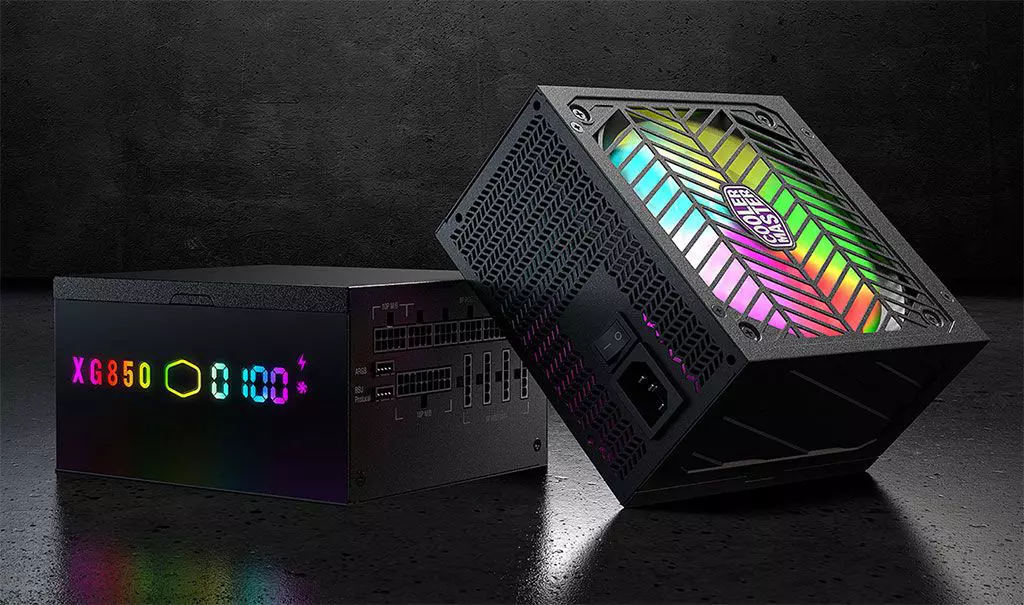
Cooler Master XG850 PLUS PLATINUM

Enter Cooler Master XG850 PLUS PLATINUM, a new, in-house designed power supply from Cooler Master. I will admit that in last years I was a big fan of Cooler Master and their components, well not all but power supply and PC cases were always products from them that I liked and used. The latest power supply from them does not disappoint and I must say that I like it very much, it is hi-quality, it is silent, it has a large LCD display where you can see its current state and also has some RGB lights so it looks cool in your case.

cooler master power supply XG850 PLUS PLATINUM

Technical specifications

So without further detours here are the technical specifications and then we will talk a little about it.

Model: MPG-8501-AFBAP-X
ATX Version: Intel ATX 12V Ver. 2.53
PFC: Active PFC
Input Voltage: 100-240V
Input Current: 12-6A
Input Frequency: 50-60Hz
Dimensions (L x W x H): 160 x 150 x 86 mm
Fan Size: 135mm
Fan Speed: 1800 RPM
Noise Level @ 100%: ≤ 25 dBA
Efficiency: ≥ 92% @ Typical Load
80 PLUS Rating: 80 PLUS Platinum
ErP 2014 Lot 3: Yes
Operating Temperature: 0-50°C
Power Good Signal: 100 - 150 ms
Hold Up Time: ≥ 16ms
MTBF: >100,000 Hours
Protections: OPP, OVP, OCP, UVP, SCP, OTP, Surge, and Inrush Protection
Regulatory: TUV, cTUVus, CE, BSMI, FCC, CCC, EAC, UKCA
ATX 24 Pin Connectors: 1
EPS 4+4 Pin Connectors: 1
EPS 8 Pin Connector: 1
SATA Connectors: 12
Peripheral 4 Pin Connectors: 4
PCI-e 6+2 Pin Connectors: 6
USB Protocol 10P: 1
Series: XG Series
80 Plus: Platinum
Modular: Full Modular
Wattage: Above 750W

Opinion about Cooler Master XG850 PLUS PLATINUM

If we put aside the technical characteristics of the power supply itself we are left with visual and real working experience. Now real working experience will not be covered here since yea it is working great but it needs some time and a long period of testing in order to be able to say that it is indeed reliable and great but considering I have never had any issues personally with power supplies from Cooler Master I will assume that this one is also very reliable and hi-quality.

That leaves us basically with looks and feels of supply itself and I must say that I like it, and I mean I like it a lot. It feels hi-quality and it looks hi-quality. The LCD display is very good looking and it is very crisp and readable. With power supply some proprietary software so you can choose what you want on display on the screen and also you can control RGB and display colors with it.

I have not opened the power supply to see how it looks inside but from what I could see I think this would be my new power supply if I were building a new PC now. I recommend it and if you decide to get it I hope it will serve you long long time.

Thank you for reading and I hope to see you next time.

Read More
Microsoft Office Windows 11 edition
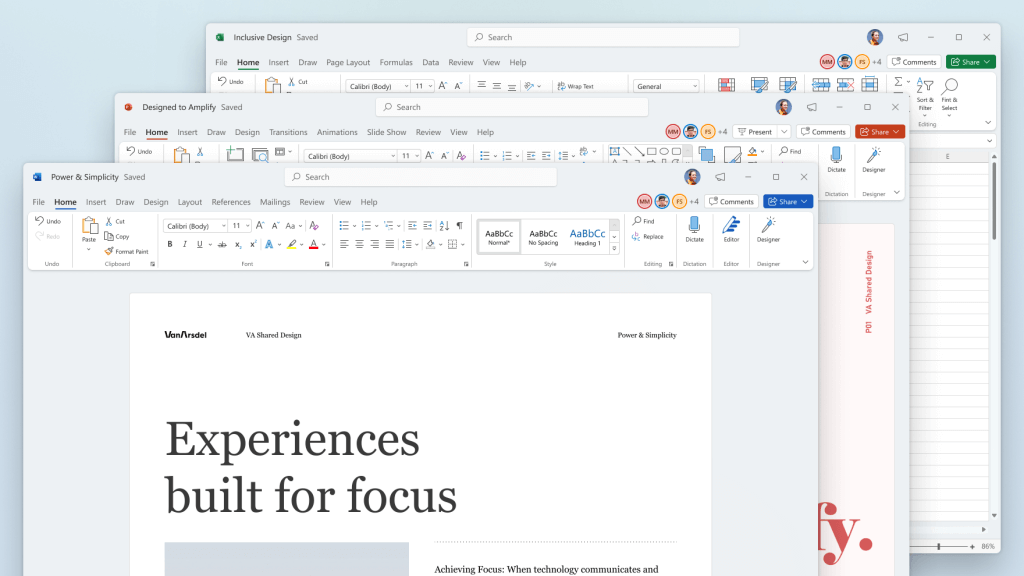
Microsoft has officially announced details about the newest upgrades to its office 365 suite moving forward along with its new OS release. It seems that Microsoft has listened to its user base and feedback since Word, Excel, and PowerPoint are getting much-needed redesign taking into account many suggestions from the community. The new office should feel more like an application suite guiding focus on the interconnection of applications themselves providing users with a much more natural experience of using them.

The new office features so far

From Microsoft themselves:
“This Office visual refresh is based on feedback from customers who asked for a more natural and consistent experience within and between your applications, specifically on Windows. With this update, we deliver an intuitive, coherent, and familiar user interface, using the Fluent Design principles, across all your applications: Word, Excel, PowerPoint, OneNote, Outlook, Access, Project, Publisher, and Visio. We aligned this visual refresh with the design of Windows 11 to provide seamless experiences on your PC.”
It is always refreshing to hear when a company listens to its user base and actually does what is needed instead of trying to invent the wheel.

office appsHow to switch

Since beta is already rolling and if you have an active 365 subscription to office suite visual refresh will be automatically available to all Office insiders running beta channel builds. It can be turned on and off using the coming soon feature in the top right corner of the menu in any application. Just click on the megaphone icon to open the coming soon pane and apply settings to all office apps. Note that The Coming Soon feature is not available in Access, Project, Publisher, or Visio. If you turn on the visual refresh in any of the 4 apps mentioned above (Work Excel, PowerPoint, or OneNote), it will also be available in these 4 apps.

Difference themselves

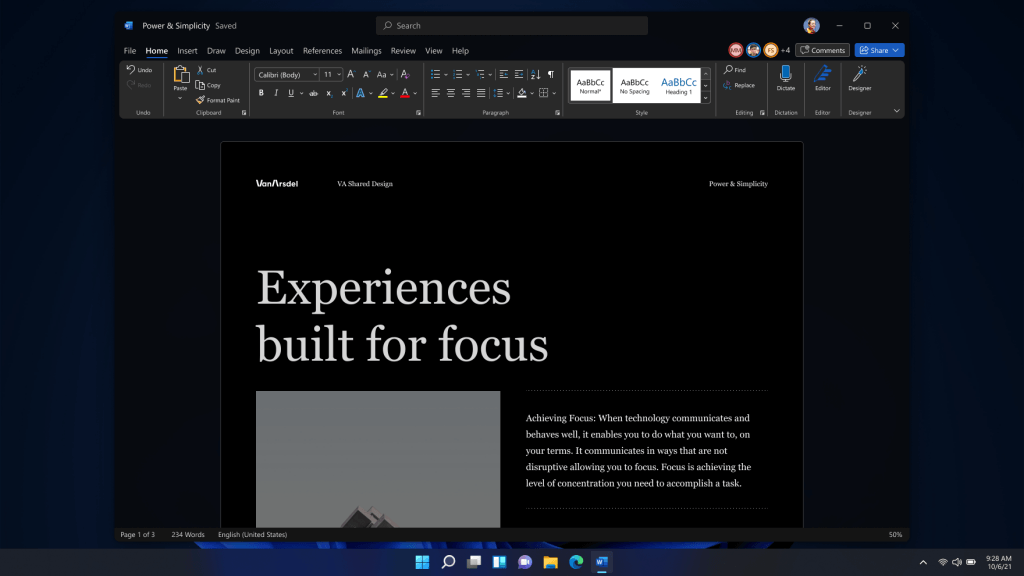
The Home tab menu still has a familiar look with a few tweaks. For example, accessing frequently used Word commands will be a lot easier. By navigating to Designer > Show Quick Access Toolbar, users can add a customizable shortcut ribbon to Word that houses conveniently placed options. Also, the office will not match your Windows operating system color theme so if you have a dark theme enabled, the office will also have a dark color theme. Color palettes are more neutral, corners are a bit softer but customizable ribbons are a win here for me.

office dark modeConclusion

There was not much said other than visual upgrades and small tweaks that were supposed to make your life easier but then again Windows 11 itself is in the same boat. I am not sure if this is a great update offering just some visual tweaks and focus on workflow mechanics or just being plain lazy and trying to cash in visuals as a completely new product.
Read More
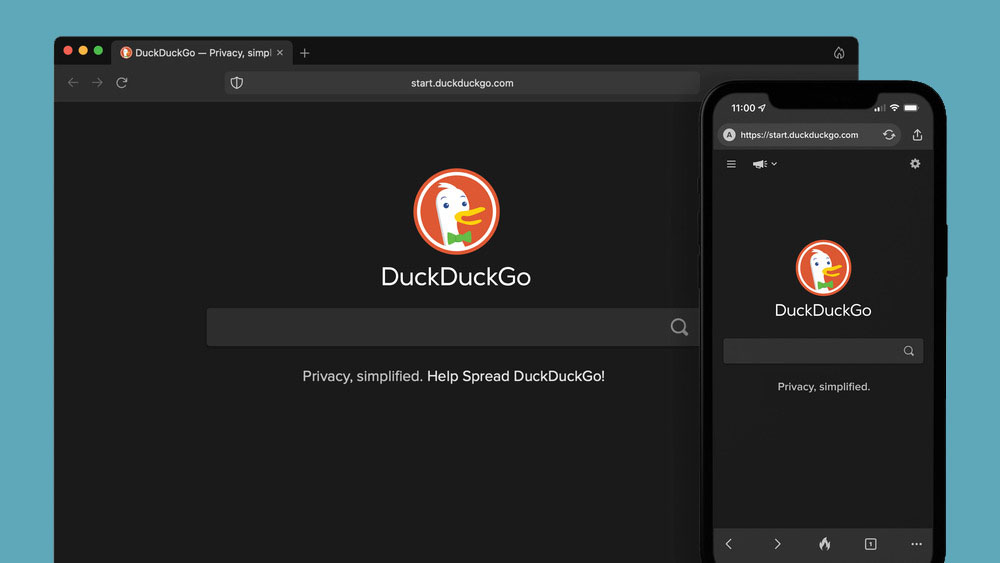
a New browser from DuckDuckGo is coming
DuckGoGo a popular private search engine is releasing its first browser soon that is focused on privacy like its search engine. duckduckgo browserFrom the recent blog, Gabriel Weinberg, CEO of DuckDuckGo, has stated:

“Like we’ve done on mobile, DuckDuckGo for desktop will redefine user expectations of everyday online privacy,”
From everything that we have learned so far, the browser will be focused on making privacy super easy and simple, eliminating tons of different settings about privacy, and making the whole environment robust privacy protection all set by default. Settings will be applied in all fields, across search, browsing, email, and more. Gabriel also said that aim of the browser is not just a privacy browser, it is meant to be built and used as your everyday browser, for everyday use that protects your privacy as a bonus. One interesting thing that was stated is that browser itself is built upon OS-provided rendering engines instead of typical Chromium. DuckDuckGo says this approach will strip away a lot of the unnecessary cruft and clutter that's accumulated over the years in major browsers. Also, the company stated that when compared to Chrome, the DuckDuckGo app desktop is cleaner, way more private and that early tests have found out that it is significantly faster as well. Is this just corporate advertising or reality? We will see once the browser is released, or once it is released for public testing. Until then take care and happy holidays.
Read More
Completely Remove MixGames from Your Windows PC

mixGames is an Extension for Google Chrome that adds “Games:” functions to Google Chrome. In our testing, this function did not work and only redirects you back to the extension page. There are two variations of mixGames: mixGames Search, which changes the Chrome homepage to one managed by their own advertising-driven search; and mixGames Start, which changes the homepage in Chrome. These extensions utilize Searchalo to change search engine functions from the default or user-set preferences to Yahoo, injecting additional advertising. Due to the browser function modifications, mixGames is classified as potentially unwanted and is flagged for detection and optional removal by some Antivirus programs.

About Browser Hijackers

Browser hijacking is a common type of online fraud where your web browser configuration settings are altered to allow it to do things you do not intend. They are created to disrupt web browser programs for a variety of reasons. These are typically used to force hits to predetermined sites, manipulating web traffic to generate ad revenue. Nevertheless, it isn’t that innocent. Your internet safety is jeopardized and it is also extremely annoying. What’s more, hijackers can make the entire infected system fragile – other dangerous malware and viruses would use these opportunities to get into your system very easily.

Indications of browser hijack

There are various symptoms that could indicate a browser hijacking: 1. the browser’s home page is modified 2. new bookmarks pointing to pornographic websites are added to your favorite pages 3. the main web browser settings are modified and unwanted or unsafe resources are added to the trusted websites listing 4. you’re getting new toolbars you have never noticed before 5. your browser will display constant pop-up windows 6. your internet browser starts running sluggishly or exhibits frequent errors 7. you cannot go to certain sites like home pages of antivirus software.

Exactly how browser hijacker finds its way onto your computer

Browser hijackers infect computers by numerous means, including through a file-share, a drive-by download, or an infected e-mail attachment. Many internet browser hijackings come from add-on programs, i.e., browser helper objects (BHO), toolbars, or plug-ins added to web browsers to give them extra capabilities. A browser hijacker can be installed as a part of freeware, demoware, shareware, and fake programs. A good example of a well-known browser hijacker is the latest Chinese malicious software known as “Fireball”, which has infected 250 million computer systems globally. It works as a hijacker but can be turned into a full-functioning malware downloader later on. Browser hijacking can cause severe privacy problems and even identity theft, disrupt your web browsing experience by taking command over outbound traffic, substantially slows down your personal computer by depleting a lot of resources, and result in system instability at the same time.

How you can fix a browser hijack

Some hijackers can be easily removed by uninstalling the free software they were included with or by eliminating any extension you’ve recently added to your browser. But, the majority of hijacking codes aren’t easy to remove manually, since they go deeper into your operating system. Besides, browser hijackers can modify the Windows registry therefore it can be quite hard to restore all of the values manually, especially if you’re not a very tech-savvy individual.

How To Install Safebytes Anti-Malware On An Infected PC

All malware is bad and the consequences of the damage will vary according to the specific kind of malware. Certain malware types modify web browser settings by including a proxy server or change the computer’s DNS settings. In such cases, you will be unable to visit certain or all internet sites, and therefore unable to download or install the required security software to remove the infection. If you are reading this, you may have affected by a virus that stops you from downloading a computer security application like Safebytes Anti-Malware. Do as instructed below to remove malware by alternate methods.

Get rid of viruses in Safe Mode

In Safe Mode, you could modify Windows settings, uninstall or install some applications, and remove hard-to-delete viruses. In the event the malware is blocking internet access and affecting your computer, running it in Safe Mode allows you to download anti-malware and run a diagnostic scan while limiting possible damage. To get into Safe Mode or Safe Mode with Networking, press the F8 key while the PC is starting up or run MSConfig and find the “Safe Boot” options in the “Boot” tab. Once you are in Safe Mode, you can try to download and install your antivirus software program without the hindrance of the malware. Following installation, run the malware scanner to get rid of standard infections.

Switch over to an alternative browser

Some malware only targets specific internet browsers. If this sounds like your situation, make use of another internet browser as it could circumvent the computer virus. The ideal way to avoid this issue is to pick a web browser that is well known for its security features. Firefox contains built-in Malware and Phishing Protection to keep you secure online.

Create a portable USB antivirus for removing malware

Another option would be to make a portable antivirus program on your USB flash drive. Do these simple steps to clean up your affected computer using a portable antivirus. 1) On a clean computer, download and install Safebytes Anti-Malware. 2) Plug the USB drive into the uninfected computer. 3) Double-click the executable file to open the installation wizard. 4) Choose the drive letter of the pen drive as the location when the wizard asks you where you want to install the antivirus. Follow activation instructions. 5) Transfer the flash drive from the clean PC to the infected PC. 6) Double-click the EXE file to run the Safebytes program from the pen drive. 7) Run Full System Scan to detect and get rid of all types of malware.

Protect Your Computer & Privacy With SafeBytes Anti-Malware

These days, an anti-malware tool can protect your computer from different kinds of online threats. But how do choose the best one among several malware protection software that’s available on the market? You may be aware, there are lots of anti-malware companies and tools for you to consider. Some are well worth your money, but most aren’t. You have to be very careful not to choose the wrong application, especially if you purchase a paid software. Among few good applications, SafeBytes Anti-Malware is the highly recommended program for the security-conscious user. SafeBytes anti-malware is a powerful, very effective protection software intended to assist users of all levels of IT literacy in identifying and removing harmful threats out of their personal computers. Using its outstanding protection system, this software will quickly detect and remove the majority of the security threats, which include browser hijackers, viruses, adware, ransomware, PUPs, and trojans. SafeBytes anti-malware takes PC protection to a whole new level with its enhanced features. The following are some of the best ones: World-class AntiMalware Protection: Using its enhanced and sophisticated algorithm, this malware removal tool can identify and eliminate the malware threats hiding in your computer effectively. Active Protection: SafeBytes delivers complete and real-time security for your PC. It’ll constantly monitor your pc for hacker activity and also provides users with superior firewall protection. Website Filtering: Through its unique safety rating, SafeBytes alerts you whether a site is safe or not to visit it. This will assure that you’re always certain of your online safety when browsing the web. Faster Scan: This tool has one of the fastest and most efficient virus scanning engines in the industry. The scans are very accurate and take a short amount of time to complete. Low Memory/CPU Usage: SafeBytes is really lightweight software. It consumes an extremely small amount of processing power as it works in the background therefore you will not see any computer performance problems. 24/7 Assistance: You can get totally free 24/7 technical support from their computer experts on any product queries or computer security issues.

Technical Details and Manual Removal (Advanced Users)

If you do not wish to use malware removal software and like to remove mixGames manually, you may accomplish this by going to the Windows Add/Remove Programs menu in the control panel and removing the offending program; in cases of browser extensions, you could uninstall it by going to the browser’s Add-on/Extension manager. It is also suggested to factory reset your browser settings to their default state. Lastly, examine your hard disk for all of the following and clean your Windows registry manually to remove leftover application entries following an uninstallation. But bear in mind, this is a complicated task and only computer experts can perform it safely. In addition, certain malware is capable of replicating or preventing deletion. Completing this task in Safe Mode is recommended.
Registry: HKEY_CURRENT_USERSoftwareMicrosoftInternet ExplorerMain Default_Page_URL HKEY_LOCAL_MachineSoftwareClassesmixGame HKEY_CURRENT_USERSoftwareMicrosoftWindowsCurrentVersionRun .exe HKCUSoftwareMicrosoftWindowsCurrentVersionInternet Settingsrandom HKEY_LOCAL_MACHINESOFTWAREMicrosoftWindowsCurrentVersionrunrandom HKEY_CURRENT_USERSoftwareMicrosoftWindowsCurrentVersionInternet Settings CertificateRevocation = ’0
Read More
1 2 3 171
Logo
Copyright © 2023, ErrorTools. All Rights Reserved
Trademark: Microsoft Windows logos are registered trademarks of Microsoft. Disclaimer: ErrorTools.com is not affiliated with Microsoft, nor claims direct affiliation.
The information on this page is provided for information purposes only.
DMCA.com Protection Status