Logo

Fix Feature Update failed, error 0x8007000e

In every task carried out in the Windows 10 operating system, some of them don’t go smoothly and it could encounter a couple of errors along the way. One of these errors you could encounter is the Windows Update error code 0x8007000e. This particular error was reported to occur a lot when downloading and installing a Feature update via Windows Updates. And recently, it has been reported to occur a couple of times for the Windows 10 1903 May 2019 update. According to security experts, this error could be caused by a lack of memory or disk space as well as issues in the Windows Update mechanism. Whatever the cause is, troubleshooting this problem shouldn’t be hard as this post will give you some potential fixes you can check out.

To fix this error, here are some options you need to consider:

Option 1 – Clear up temporary or junk files

The error could be caused by some temporary or junk files in your computer and so you need to clear them up to fix the problem. You can achieve that using the Storage Sense feature.

  • Open Setting > System > Storage from the WinX Menu.
  • From there, you will see a list of all the local and connected storage devices along with the details on the free space. Make sure that Storage Sense is on.
  • Next, find a link that says “Free Up Space” and click it to open.
  • After that, a screen which is the built-in program in Windows 10 will appear and will scan your computer for the following junk files so you can free up disk space:
    • Windows Upgrade Log Files
    • System created Windows Error Reporting Files
    • Thumbnails
    • Temporary Internet Files
    • Previous Windows Installation Files
    • Delivery Optimisation Files
    • DirectX Shader Cache
  • Choose the files you want to get rid of and then click on the remove files option. Note that you’ll have an idea of the total size as you select any of the junk files listed above.
  • Now go to the “Free Up Space Now” section and click the Clear Now button. This will get rid of all the temporary or junk files in your computer and should hopefully fix the Windows Update error 0x8007000e.

Option 2 – Reset the Windows Update components

If by any chance that the second option didn’t work, resetting the Windows Update components could also help you resolve the problem. How? Refer to the following steps:

  • Open Command Prompt with admin privileges.
  • After that, type each one of the following commands and hit Enter after you key in one after the other.
    • net stop wuauserv
    • net stop cryptsvc
    • net stop bits
    • net stop msiserver

Note: The commands you entered will stop the Windows Update components such as Windows Update service, Cryptographic services, BITS and MSI Installer.

  • After disabling WU components, you need to rename both the SoftwareDistribution and Catroot2 folders. To do that, type each one of the following commands below and don’t forget to hit Enter after you type one command after the other.
    • ren C:/Windows/SoftwareDistribution/SoftwareDistribution.old
    • ren C:/Windows/System32/catroot2/Catroot2.old
  • Next, restart the services you’ve stopped by entering another series of commands. Don’t forget to hit Enter after you key in one command after the other.
    • net start wuauserv
    • net start cryptsvc
    • net start bits
    • net start msiserver
  • Close Command Prompt and reboot your PC.

Option 3 – Try configuring the Windows Update-related Services

  • Tap the Win + R keys to open the Run dialog box.
  • Then type “cmd” in the field and tap Enter to open an elevated Command Prompt.
  • Next, execute the following commands. Note that you have to type and enter each the command one after the other.
    • SC config wuauserv start= auto
    • SC config bits start= auto
    • SC config cryptsvc start= auto
    • SC config trustedinstaller start= auto
  • The commands you executed will make sure that the Windows Update-related services are available. Once it’s done, restart your computer and see if the Windows Update error is now fixed.

Option 4 – Try running the Windows Update troubleshooter

Windows 10 have various troubleshooters that can help you resolve many system issues. So if you’re dealing with Windows Update errors like Error 0x8007000e, you can run the Windows Update troubleshooter to resolve it.

To run it, go to Settings and then select Troubleshoot from the options. From there, click on Windows Update and then click the “Run the troubleshooter” button. After that, follow the next on-screen instructions and you should be good to go.

Option 5 – Try to use the Media Creation tool

The Media Creation tool in Windows allows you to use the ISO installation file to make a bootable device that you can use to install Windows on your PC. Note that this is kind of different from the usual installation process as it could erase your computer’s current settings and data on the primary drive. Thus, before you proceed, you need to backup all your data into some removable drive and then use the Media Creation tool to make a bootable drive.

  • After making the bootable drive, you need to plug it in your computer and then reboot.
  • Next, tap the F10 or Esc key to open the boot options.
  • Now set the boot priority of the removable drive the highest. Once the setup comes forth, follow the next onscreen instructions and install Windows without any problems.

Do You Need Help with Your Device?

Our Team of Experts May Help
Troubleshoot.Tech Experts are There for You!
Replace damaged files
Restore performance
Free disk space
Remove Malware
Protects WEB browser
Remove Viruses
Stop PC freezing
GET HELP
Troubleshoot.Tech experts work with all versions of Microsoft Windows including Windows 11, with Android, Mac, and more.

Share this article:

You might also like

Your computer is running low on resources
Signing in to a computer that runs a Windows 10 version OS is usually fast and straightforward. However, there are instances when signing in takes too long especially if there are a lot of programs in the Startup. So if many things are loading as soon as you log into your computer, it will slow down the sign-in process. Aside from programs in Startup, it is also possible that there are too many users that are logged in to the account. In such a case, you will most likely encounter an error that says, “Your computer is running low on resources, so no new users can sign in. Please use an account that has already been signed in”. If you’ve encountered such an error when you try to log into your computer, read on as this post will be guiding you on how you can fix it. Each time a user signs in to Windows 10, it will allocate resources in order to work smoothly. But, in many cases, the system is running low on resources which is why this error pops up and blocks a sign-in of a new user. To fix it, you can try to log out the existing users, or perform a Cold Boot, as well as run both the DISM tool and System File Checker scan.

Option 1 - Try to logout existing users

The first thing you can do is to log out the existing users. If you have a shared Windows 10 computer, you have to check if someone hasn’t logged out. It could be that some background task or there is an existing program that is still running under that account. So you have to make sure to ask the same user to log out in case there is some unsaved work. On the other hand, if that user is not around, then you reboot the computer right away.

Option 2 - Try Performing a Cold Boot

You could also try to perform a Cold Boot to fix the problem. A Cold Boot is a process that makes sure that the Windows 10 Kernel shuts down properly and releases all the resources held by any account. To perform a Cold Boot, just press and hold the physical power button on your CPU until it goes off. After that, boot your computer regularly and see if you can now log into your account without any error.

Option 3 - Try to run a System File Checker scan

System File Checker is a built-in command utility in Windows that helps in restoring corrupted files as well as missing files. It replaces bad and corrupted system files to good system files that might be the cause why you’re getting the error when you log into your computer. To run the SFC command, follow the steps given below.
  • Boot your computer into the Advanced Recovery mode and from there open Command Prompt.
  • After opening Command Prompt, type in sfc /scannow
The command will start a system scan which will take a few whiles before it finishes. Once it’s done, you could get the following results:
  1. Windows Resource Protection did not find any integrity violations.
  2. Windows Resource Protection found corrupt files and successfully repaired them.
  3. Windows Resource Protection found corrupt files but was unable to fix some of them.
 Now restart your computer and see if the problem is fixed or not.

Option 4 - run the dism tool

You might also want to run the DISM tool. This tool is known to repair potentially corrupted files in your system as having them could also system issues like the “Your computer is running low on resources, so no new users can sign in” error. To repair these corrupted system files, you can run the DISM commands:
  • Go to the Advanced Recovery mode and select Command Prompt.
  • After that, input each one of the commands listed below sequentially to execute them:
    • Dism /Online /Cleanup-Image /CheckHealth
    • Dism /Online /Cleanup-Image /ScanHealth
    • Dism /Online /Cleanup-Image /RestoreHealth
  • Once you’ve executed the commands given above, restart your computer and check if the problem is now fixed.
Read More
Start Search is not displaying results
If you have just installed the latest Cumulative Update on your Windows 10 computer and you find that since then, the Windows 10 Start Search is not displaying any results when you try to use it to search for something in your computer, then this post might help as it will give you some suggestions to fix the problem. This problem might be caused by some bugs brought in by the new cumulative update you’ve installed. It is also possible that Cortana is having some issues or that the Windows Search service hasn’t been initialized. Whatever the cause is, here are some suggestions you need to follow to fix this issue. You can try running the Search and Indexing troubleshooter or configure the
  1. Run Search and Indexing Troubleshooter
  2. Configure the Windows Firewall
  3. Reinstall Cortana.

Option 1 – Try to run the Search and Indexing troubleshooter

The first thing you can do is to run the Search and Indexing troubleshooter in Windows 10 as it checks whether the settings for Cortana are in place and automatically corrects any issues if the update or software installation has changed the settings. To run it just click on the Start button and select Settings > Updates and Security > Troubleshoot. From there, select the Search and Indexing Troubleshooter.

Option 2 – Restart Cortana’s process in the Task Manager

Restarting Cortana’s process in the Task Manager could also help you resolve the problem. Refer to the steps given below to do so.
  • Tap the Ctrl + Alt + Del keys to open the Security options window.
  • From there, look for the Task Manager in the given list and open it.
  • Next, look for the process of Cortana and right-click on it, and then select the End Task option to end its process.
  • After that, the Cortana process will restart by itself and re-initialize.

Option 3 – Try resetting Cortana

  • Open Cortana and go to the Settings section where you’ll see the “Turning off Cortana clears what Cortana knows on this device, but won’t delete anything from the Notebook. After Cortana is off, you can decide what you’d like to do with anything still stored in the cloud” option. Turn this option off.
  • Restart your PC.
  • After your computer boots, launch Cortana again and check.

Option 4 – Try to configure the Windows Firewall

  • Tap the Win + Fn + Shift (Pause) keys to open Control Panel.
  • From there, open the Windows Defender Firewall applet and click on the Advanced Settings to open the Windows Firewall with the Advanced Security panel.
  • Next, click on the Outbound Rules section and look for Cortana and then double click on it to open its Properties.
  • After that, make sure that the “Allow the connection” is selected although this is the default working setting.

Option 5 – Try to reinstall Cortana

If none of the options given above works, you must consider reinstalling Cortana.
  • First, right-click on the Taskbar and select the Task Manager.
  • Next, select File menu > Run new task and type “Powershell” in the field and then select the “Create this task with administrative privileges” option.
  • Click on OK to open the PowerShell console.
  • After that, type the following command and hit Enter to execute it:
Get-AppXPackage -Name Microsoft.Windows.Cortana | Foreach {Add-AppxPackage -DisableDevelopmentMode -Register "$($_.InstallLocation)AppXManifest.xml"}
  • Restart your computer and check if the Windows Start Search is now working.
Read More
Fix Windows Update Error 0x80070103
This post will guide you in fixing the error 0x80070103 when installing Windows Update. According to users who encountered this problem, Windows Update (WU) fails to install several different updates. This kind of Windows Update error is can mostly be seen in the Windows Update screen inside the update reports although it is also known to occur when a user attempts to install a peripheral driver – only if the Windows Update offers to update the driver through a prompt and when you click Yes. There are several possible causes for this error, it could be that Windows Update is trying to install a particular driver for the second time already which happens when it gets confused by an additional piece of identical hardware like the graphics adapter. Aside from that, the Windows Update might have already installed the driver which is known to occur with unsuitable versions of the already installed driver. In addition, the error could also be due to a third-party program interference like a security program or a utility program that is using the same driver and conflicts with the Windows Update. Here are some suggestions that might help in fixing the Windows Update error 0x80070103.

Option 1 – Install the updates in a Clean Boot State

You might want to try putting your computer in a Clean Boot state and then install Windows Updates again without any trouble. During this state, you can start the system with a minimum number of drivers and startup programs that will surely help you in isolating the root cause of the issue.
  • Log onto your PC as an administrator.
  • Type in MSConfig in the Start Search to open the System Configuration utility.
  • From there, go to the General tab and click “Selective startup”.
  • Clear the “Load Startup items” check box and make sure that the “Load System Services” and “Use Original boot configuration” options are checked.
  • Next, click the Services tab and select the “Hide All Microsoft Services” check box.
  • Click Disable all.
  • Click on Apply/OK and restart your PC. (This will put your PC into a Clean Boot State. And configure Windows to use the usual startup, just simply undo the changes.)
  • After that, try to install the Windows Updates or upgrade again.

Option 2 – Try installing the failing driver without using Windows Update

If installing the updates in a clean boot state didn’t help, you can try a manual approach to yield much better results using the Device Manager or by downloading the driver from the manufacturer’s website manually.
  • Tap the Win + R keys to launch Run.
  • Type in msc into the box and tap Enter or click OK to open the Device Manager.
  • After that, a list of device drivers will be displayed. Look for the device driver you and then select either “Update driver” or “Uninstall device”. And if you find any “Unknown device”, you need to update it as well.
  • Select the “Search automatically for updated driver software” option and then follow the instructions to complete the process.
  • If you have chosen to uninstall the driver, follow the screen options to complete the process and then restart your PC.
Note: You also have the option to go directly to the website of your device driver manufacturer and go to the section called Drivers then check if there’s a new available update – if there is, download and install it.

Option 3 – Try to run the Windows Update Troubleshooter

You might also want to run the built-in Windows Update Troubleshooter in Windows that could help you in resolving the Windows Update error 0x80070103. All you have to do is go to Settings > Update& security > Troubleshoot > Windows Update. From there, click on the Run the troubleshooter button and follow the next one-screen instructions that appear. After that, restart your computer and check if the error is now fixed or not by trying to install the update once again.
Read More
Remove or join a Domain from Windows
As you know, networks that are domain-based are common in organizations and companies. These domain-based networks require multiple computers to be controlled through a single node known as a server. And the one that sets certain policies and restrictions on every system that is joined to the domain is the server administrator. So if you want to add your computer to a domain, you need to have the following information available:
  • The domain name
  • A user account name that’s registered in the active directory associated with the server
  • Windows Enterprise, Pro, or education version
In this post, you will be guided on how you can join or remove a domain. To get started, follow the given instructions below.

Option 1 – Joining a domain

  • First, you need to connect your computer to the network associated with the server since your computer and the server have to be on the same network.
  • Next, click the Start button and then click on the gear-like icon for Settings to open it.
  • After that, navigate to this path: Accounts > Access work or school.
  • Then click on Connect. This will open a new dialog box and from there, select the “Join this device to a local Active Directory domain” option.
  • Afterward, you will be asked to enter the username and password of your domain account.
  • Now select your Account type and when you proceed, you have to restart your computer. Your domain account should now be created.

Option 2 – Removing a domain

  • You need to open the Windows 10 Settings app.
  • And from there, go to this path: Accounts > Access work and school.
  • Next, select the account you want to remove from the domain and then click on Disconnect.
  • A prompt will then appear that says, “Are you sure you want to remove this account? This will remove your access to resources like email, apps, network, and all content associated with it. Your organization might also remove some data stored on this device”. Just click on Yes.
  • This will give you a Disconnect from the organization prompt.
  • Now click on Disconnect and select Restart now to restart your computer. This will complete the removal process of the domain.
Read More
Fix “Diskpart failed to clear disk attributes”
If you encounter the “Diskpart failed to clear disk attributes” error when you try to change the read-only state of a storage device using the Diskpart application and the request is denied, worry not for this post will give you a couple of fixes to resolve the problem. As you know, Diskpart is used for resolving read-only storage devices by changing their attribute via the command line. So if it is not able to change the attribute of the storage device, then you will most likely encounter an error such as this one. This kind of error is not uncommon and as long as there are no damaged physical attributes, you can resolve it right away. There are tons of reasons why you’re getting this error while using Diskpart, it could be that the storage device has a physical write-protected switch or the disk is hidden or has bad sectors. It could also be because the storage drive might be in RAW format or that you are running the Diskpart application without admin privileges. Whatever the cause may be, here are some options you can try to fix the problem but before you proceed, make sure that you log on to your PC as an administrator.

Option 1 – Check if there is a physical switch on the storage device

There are some USB devices and SD card readers that have a write-protected physical switch that disables all the writable options on the storage device and so if it is turned on, Diskpart won’t be able to change the disk attribute to writable. To check, simply look for the physical switch on both sides of the device and once you found it, make sure that it is toggled off and then plug the storage device back in then try running Diskpart once again.

Option 2 – Modify the WriteProtected key in the Registry Editor

Before you proceed, you have to create a System Restore Point first.
  • Tap the Win + R keys to open Run and type “Regedit” in the field and hit Enter to open the Registry Editor.
  • Next, navigate to the following path:
HKEY_LOCAL_MACHINESYSTEMCurrentControlSetControlStorageDevicePolicies
  • After that, look for the “WriteProtect” registry entry which is located on the left side of the window, and then double click on it.
  • Change its value to “0” and click OK to save the changes made and exit the Registry Editor.

Option 3 – Run CHKDSK to check the drive for errors

When it comes to some issues concerning the hard drive or removable devices, there is a utility in Windows that might help which is called “chkdsk”. This error check utility can help with several issues in the system including the “Diskpart failed to clear disk attributes” error.
  • Tap the Win + S keys to open the Search box.
  • Then type “command prompt” in the field and from the search results that appear, right-click on Command Prompt and select “Run as administrator”.
  • After opening an elevated command prompt, copy and paste the following command and hit Enter:
CHKDSK [volume [[path] filename]] [/F] [/V] [/R] [/X] [/C] [: size]]
Note: In the command given above, “[/F]” will try to fix the system errors while “[/R]” will be the one to fix the bad sectors.
  • Now if you are prompted to run CHKDSK after your reboot your PC, just tap Y and reboot your PC.
  • If CHKDSK is not able to find any errors, tap the Win + E keys and navigate the access window. From there, right-click on the concerned drive and click on Properties.
  • After opening Properties, click on the tab Tools and then click on the “Check” button under the Error-checking section.
  • Wait until the process is completed and then restart your computer.

Option 4 – Clear the attributes on RAW

  • Tap the Win + S keys then type “diskpart” in the field.
  • Click the Diskpart application and if a User Account Control dialog box pops up, click Yes to proceed.
  • After opening an elevated Command Prompt, type in the commands listed below and make sure to tap Enter right after you key in one command after the other.
    • list volume
    • select volume ‘n’ (In this command, you have to replace ‘n’ with the volume number of the drive)
    • format fs=fat32 quick (In this command you also have the flexibility to change the format to ‘ntfs’ or ‘exfat’)
  • After executing the commands given, unplug the removable storage device and wait for a couple of seconds and then plug it back in.
  • Now try any normal write operations and see if the error no longer appears.

Option 5 – Try checking the hardware components

On the other hand, it is also possible that the issue has something to do with a hardware problem and so you need to check the hardware components on your computer to determine that.
Read More
Remove GIFables - Malware Removal Guide

Gables is a browser extension developed by MindSpark Inc. This browser extension lets you create gifs and memes with a few simple clicks. This extension usually comes bundled up with the ASK toolbar.

While active this extension monitors your browser activity and records website visits, clicked links, and potentially personal data. This data is later forwarded to MindSparks ad servers where it is used to better target ads.

This extension hijacks your browser home screen, as well as your default search provider, and changes them to MyWay.com. This extension has been marked as a Browser Hijacker by several anti-virus scanners, and due to its behavior, it is not recommended to keep it on your computer for security reasons.

About Browser Hijackers

Browser hijacking means that a malicious program code has taken control over and altered the settings of your browser, without your approval. Browser hijacker malware is designed for a number of reasons. It redirects you to the sponsored websites and injects adverts on your internet browser that helps its creator generate earnings. Most people believe that these sites are legitimate and harmless but that is not true. Nearly every browser hijacker poses an existent threat to your online safety and it’s important to categorize them under privacy dangers. In a worst-case scenario, your internet browser could be hijacked to download malicious software that will do a lot of damage to your computer system.

Indications of browser hijack

There are numerous signs of web browser hijacking: your browser’s home page has been reset to some mysterious site; you find yourself regularly directed to some other web page than the one you actually meant; The default search page of web browser is modified; unwanted new toolbars are added to your browser; unstoppable flurries of popup advertisements appear on your computer screen; your browser has instability problems or displays frequent errors; You cannot access certain websites, in particular anti-virus sites.

Exactly how browser hijacker finds its way to your PC

Browser hijackers infect computers in numerous ways, including through a drive-by download, a file-share, or an infected email. They can be included with toolbars, add-ons, BHO, plugins, or browser extensions. Other times you may have mistakenly accepted a browser hijacker as part of an application bundle (generally freeware or shareware). A good example of a popular browser hijacker is the most recent Chinese malicious software called “Fireball”, which has infected 250 million computers globally. It works as a hijacker but can be turned into a full-functioning malware downloader later on. Browser hijackers could affect the user’s browsing experience significantly, record the websites frequented by users and steal personal information, cause difficulty in connecting to the internet, and ultimately create stability issues, making software programs and computers crash.

Learn how to get rid of browser hijackers

Some browser hijacking could be easily stopped by identifying and removing the corresponding malware program from your control panel. Often, it could be a challenging job to discover and delete the malicious program because the associated file will be running as part of the operating system process. Also, browser hijackers could modify the Computer registry so that it can be extremely difficult to restore all of the values manually, particularly if you are not a tech-savvy individual.

What To Do If You Cannot Install Any Antivirus?

Malware can cause a great deal of damage to your computer. Some malware is designed to hinder or block things that you wish to do on your computer system. It may well not allow you to download anything from the web or it will prevent you from accessing some or all of the sites, in particular the antivirus sites. If you’re reading this article, odds are you’re stuck with a malware infection that is preventing you to download and install Safebytes Anti-Malware software on your computer system. Refer to the instructions below to remove malware by alternate methods.

Use Safe Mode to resolve the problem

Safe Mode is a special, basic version of Microsoft Windows in which only essential services are loaded to prevent viruses and other problematic applications from loading. In the event, the virus is set to load immediately when PC boots, shifting to this particular mode may prevent it from doing so. To enter into Safe Mode or Safe Mode with Networking, press the F8 key while the PC is starting up or run MSCONFIG and locate the “Safe Boot” options under the “Boot” tab. Once you are in safe mode, you can attempt to install your antivirus software program without the hindrance of the malware. At this point, you could run the anti-malware scan to get rid of computer viruses and malware without hindrance from another malicious application.

Download the security software using an alternate browser

Some malware mainly targets specific internet browsers. If this sounds like your case, make use of another web browser as it might circumvent the malware. The best way to avoid this problem is to opt for a web browser that is known for its security features. Firefox has built-in Phishing and Malware Protection to help keep you secure online.

Create a bootable USB antivirus drive

Here’s another solution which is creating a portable USB antivirus software package that can check your system for viruses without needing installation. Adopt these measures to run the anti-virus on the affected computer. 1) Make use of another virus-free computer to download Safebytes Anti-Malware. 2) Plug the Flash drive into the clean computer. 3) Run the setup program by double-clicking the executable file of the downloaded application, which has a .exe file format. 4) Select the drive letter of the pen drive as the location when the wizard asks you exactly where you want to install the anti-malware. Follow the on-screen instructions to complete the installation. 5) Now, transfer the pen drive to the infected computer. 6) Double click the Safebytes Anti-malware icon on the USB drive to run the application. 7) Run Full System Scan to detect and clean-up up all kinds of malware.

How SafeBytes Anti-Malware Keep your Computer Virus Free

Do you wish to install the best anti-malware program for your system? There are many applications on the market that come in paid and free versions for Windows computers. Some are worth your money, but most aren’t. You really should select a company that creates industry-best anti-malware and has earned a reputation as reliable. While thinking about reliable applications, Safebytes AntiMalware is undoubtedly the highly recommended one. SafeBytes antimalware is a highly effective and user-friendly protection tool that is designed for end-users of all levels of IT literacy. This tool can easily identify, remove, and protect your computer from the latest malware intrusions including adware, spyware, trojan horses, ransomware, parasites, worms, PUPs, as well as other possibly damaging software programs. SafeBytes anti-malware takes computer protection to a whole new level with its enhanced features. Below are some of the good ones: World-class AntiMalware Protection: Using its advanced and sophisticated algorithm, this malware removal tool can detect and get rid of the malware threats hiding in your computer system effectively. Real-time Active Protection: SafeBytes gives round-the-clock protection for your computer limiting malware attacks instantly. It will continuously monitor your pc for hacker activity and also provides users with advanced firewall protection. Safe Browsing: Through its unique safety ranking, SafeBytes informs you whether a site is safe or not to visit it. This will ensure that you’re always certain of your online safety when browsing the online world. “Fast Scan” Features: This program has got one of the fastest and most powerful virus scanning engines in the industry. The scans are very accurate and take a little time to complete. Minimal CPU Usage: SafeBytes is renowned for its minimal influence on processing power and great detection rate of numerous threats. It runs quietly and efficiently in the background so you are free to use your PC at full power all of the time. Fantastic Technical Support: Support service is accessible 24 x 7 x 365 days through chat and email to answer your questions.

Technical Details and Manual Removal (Advanced Users)

If you wish to manually remove GIFables without the use of an automated tool, it may be possible to do so by removing the program from the Windows Add/Remove Programs menu, or in cases of browser extensions, going to the browsers AddOn/Extension manager and removing it. You will likely also want to reset your browser. To ensure the complete removal, manually check your hard drive and registry for all of the following and remove or reset the values accordingly. Please note that this is for advanced users only and may be difficult, with incorrect file removal causing additional PC errors. In addition, some malware is capable of replicating or preventing deletion. Doing this in Safe Mode is advised.

The following files, folders, and registry entries are created or modified by GIFables

Files: %UserProfile%Local SettingsApplication DataGoogleChromeUser DataDefaultSync Extension Settingsjahgjnedbefhiimghmiemdmgiegiddjg %LOCALAPPDATA%GoogleChromeUser DataDefaultLocal Extension Settingsjahgjnedbefhiimghmiemdmgiegiddjg %UserProfile%Local SettingsApplication DataGoogleChromeUser DataDefaultLocal Extension Settingsjahgjnedbefhiimghmiemdmgiegiddjg Search and Delete: chrome-extension_jahgjnedbefhiimghmiemdmgiegiddjg_0.localstorage-journal Search and Delete: chrome-extension_jahgjnedbefhiimghmiemdmgiegiddjg_0.localstorage

Read More
Microsoft removed password as a requirement
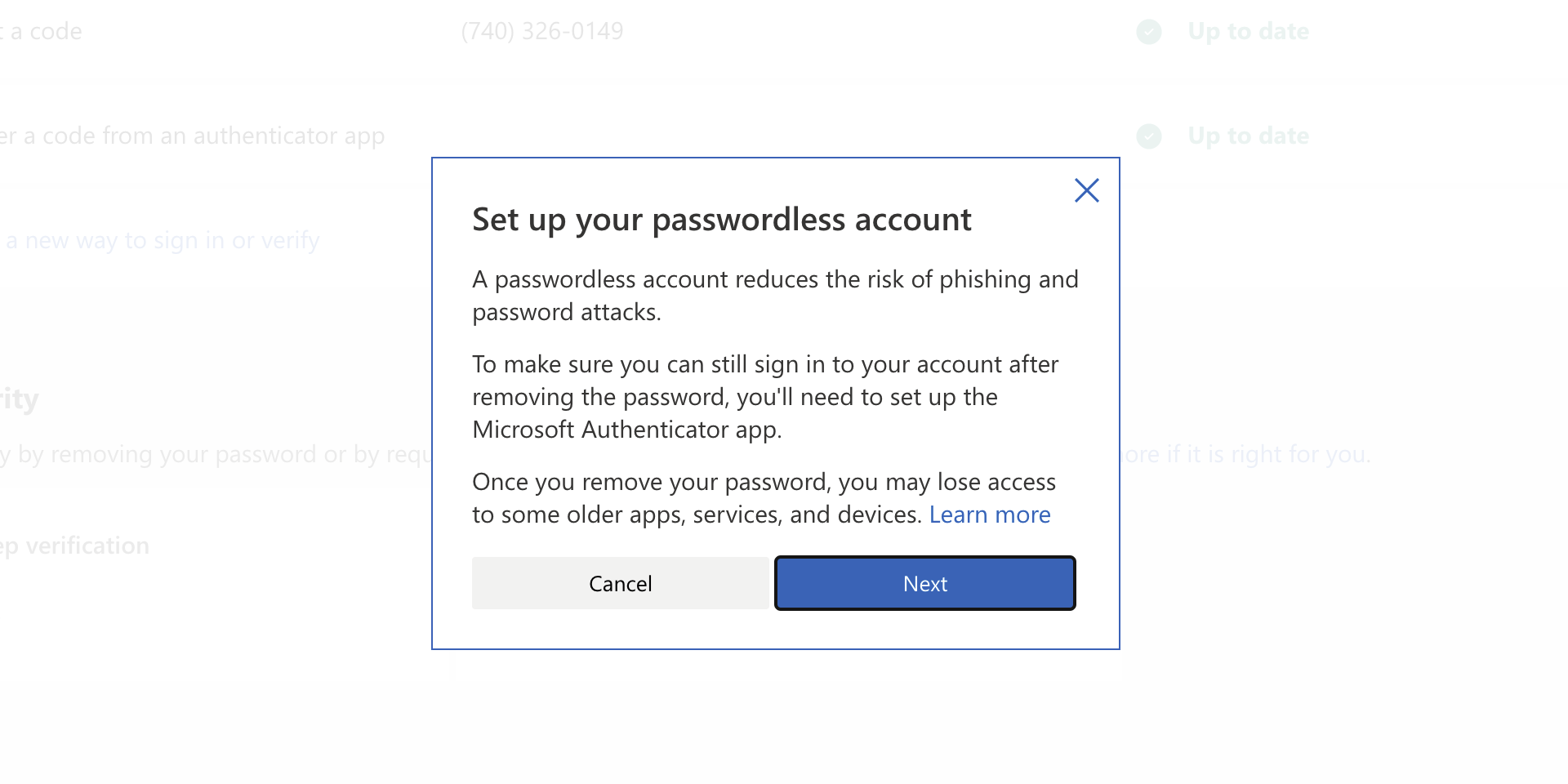
ms password goneAs of the time of writing this article you no longer need or are required to have a password if you plan to log in to your Microsoft account. Microsoft explored various options for account security and came to the conclusion that passwords are obsolete. Microsoft is letting you access your account through the Microsoft Authenticator app, Windows Hello, a security key, SMS verification, or email verification code. All of these methods are way better in terms of security than passwords.

How to turn these features on?

To get rid of your Microsoft password, the process is simple. You simply need to go to your Microsoft account, click “advanced security options,” then “enable passwordless accounts” under the Additional security section.
Read More
NewTabAid Malware Removal Guide

New Tab Aid is an extension for Google Chrome. It is published by Spigot Inc. It is classified as a potentially unwanted browser hijacker as it injects Yahoo search into your new tab windows. This extension also adds recently viewed tabs under the search bar. It also redirects all your searches to Yahoo instead of your default browser search engine. It is often found bundled with other software found on the internet and not installed directly by the user. For these reasons, numerous anti-malware utilities flag New Tab Aid as potentially unwanted or malicious.

About Browser Hijackers

Browser hijackers (sometimes called hijackware) are a kind of malicious software that changes internet browser configurations without the user’s knowledge or permission. These types of hijacks appear to be increasing at an alarming rate around the world, and they could be actually nefarious and often harmful too. Browser hijackers could do more than just modifying homepages. The idea is to force users to visit specific websites that are looking to improve their website visitor traffic and produce higher ad earnings. Even though it may seem naive, all browser hijackers are damaging and therefore always regarded as security risks. Browser hijackers can even allow other vicious programs without your knowledge to further damage your personal computer.

Major signs that your web browser has been hijacked

There are numerous signs of browser hijacking: 1. the home page of your respective web browser is changed all of a sudden 2. you see new unwanted bookmarks or favorites added, typically directed to advertisement-filled or pornography sites 3. the default web browser settings are changed and/or your default web engine is altered 4. unwanted new toolbars are added to your browser 5. you observe numerous ads show up on your browsers or computer screen 6. your web browser gets sluggish, buggy crashes regularly 7. Inability to navigate to particular websites, particularly anti-malware and other security software sites.

How does a browser hijacker infect a computer?

Browser hijackers might use drive-by downloads or file-sharing networks or even an email attachment in order to reach a targeted computer. Many web browser hijackings come from add-on applications, i.e., toolbars, browser helper objects (BHO), or plug-ins added to browsers to provide them additional features. Browser hijackers sneak into your computer in addition to free software application downloads also that you unintentionally install alongside the original. Popular examples of browser hijackers include Conduit, CoolWebSearch, Coupon Server, OneWebSearch, RocketTab, Searchult.com, Snap.do, and Delta Search. Browser hijacking can result in severe privacy issues and also identity theft, affect your browsing experience by taking control of outgoing traffic, substantially slows down your personal computer by consuming a lot of resources, and cause system instability also.

How to fix a browser hijack

Certain browser hijacking could be quite easily stopped by discovering and eliminating the corresponding malware software through your control panel. However, most hijackers are hard to get rid of manually. No matter how much you attempt to remove it, it may come back again and again. Moreover, browser hijackers could modify the Windows registry therefore it can be very hard to repair manually, particularly when you’re not a very tech-savvy individual.

Virus Blocking Access To Safebytes Site And Preventing Anti-Malware Downloads - What To Do?

Malware can cause all kinds of damage if they invade your computer, from stealing sensitive information to deleting files on your computer system. Certain malware goes to great lengths to stop you from installing anything on your computer system, especially anti-malware software programs. If you’re reading this, you probably have affected by malware that prevents you from installing a computer security application like Safebytes Anti-Malware. Although this sort of issue will be tougher to get around, there are a few actions you can take.

Eliminate malware in Safe Mode

If any malware is set to load immediately when Microsoft Windows starts, getting into Safe Mode could block this attempt. Just minimal required applications and services are loaded whenever you start your personal computer into Safe Mode. The following are the steps you need to follow to take out viruses in Safemode. 1) Tap the F8 key repeatedly as soon as your PC boots, however, before the large Windows logo shows up. This should bring up the Advanced Boot Options menu. 2) Select Safe Mode with Networking with arrow keys and hit ENTER. 3) When this mode loads, you should have the internet. Now, obtain the malware removal application you want by using the web browser. To install the software, follow the directions within the installation wizard. 4) Once the application is installed, let the diagnostic scan run to eliminate viruses and other threats automatically.

Switch over to an alternate browser

Malicious program code may exploit vulnerabilities on a particular browser and block access to all anti-malware software sites. The most effective solution to avoid this issue is to choose a browser that is well known for its security measures. Firefox contains built-in Malware and Phishing Protection to keep you safe online.

Install and run antivirus from your USB drive

Another way is to download and transfer an antivirus application from a clean computer to run a scan on the affected system. Do these simple measures to clean up your affected computer using a portable antivirus. 1) Download the anti-malware program on a virus-free computer. 2) Insert the USB drive on the same system. 3) Double-click the exe file to open the installation wizard. 4) When asked, select the location of the pen drive as the place in which you want to put the software files. Follow the instructions on the computer screen to finish off the installation process. 5) Now, transfer the USB drive to the infected computer. 6) Double-click the Safebytes Anti-malware icon on the pen drive to run the software. 7) Run Full System Scan to detect and get rid of all sorts of malware.

Ensure the Safety of Your PC by Installing SafeBytes Anti-Malware

These days, anti-malware software can protect your computer from various types of internet threats. But exactly how to decide on the best one among many malware protection application that is available on the market? As you might be aware, there are several anti-malware companies and products for you to consider. Some of them are good, some are ok types, and some will destroy your computer themselves! When searching for antimalware software, pick one that provides reliable, efficient, and full protection against all known viruses and malware. One of the highly recommended software by industry experts is SafeBytes Anti-Malware, the most dependable program for Microsoft Windows. SafeBytes anti-malware is a powerful, very effective protection tool designed to assist end-users of all levels of computer literacy in detecting and eliminating malicious threats out of their computer. This program could easily detect, remove, and protect your computer from the most advanced malware attacks including spyware, adware, trojan horses, ransomware, parasites, worms, PUPs, along with other possibly damaging software programs. SafeBytes has excellent features when compared to various other anti-malware programs. Let’s look into some of them below: Active Protection: Malware programs trying to get into the computer are discovered and stopped as and when detected by the SafeBytes real-time protection shields. This tool will constantly monitor your computer for any suspicious activity and updates itself continuously to keep current with the latest threats. Antimalware Protection: With its enhanced and sophisticated algorithm, this malware removal tool can identify and remove the malware threats hiding in your PC effectively. Web Security: Safebytes allots all websites a unique safety rating that helps you to get an idea of whether the webpage you’re about to visit is safe to browse or known to be a phishing site. Lightweight: SafeBytes is well known for its minimal impact on computer resources and great detection rate of diverse threats. It operates quietly and efficiently in the background so you are free to utilize your personal computer at full power all of the time. 24/7 Customer Service: For any technical concerns or product assistance, you can get 24/7 professional assistance through chat and email.

Technical Details and Manual Removal (Advanced Users)

If you wish to manually remove NewTabAid without the use of an automated tool, it may be possible to do so by removing the program from the Windows Add/Remove Programs menu, or in cases of browser extensions, going to the browsers AddOn/Extension manager and removing it. You will likely also want to reset your browser. To ensure the complete removal, manually check your hard drive and registry for all of the following and remove or reset the values accordingly. Please note that this is for advanced users only and may be difficult, with incorrect file removal causing additional PC errors. In addition, some malware is capable of replicating or preventing deletion. Doing this in Safe Mode is advised.

The following files, folders, and registry entries are created or modified by NewTabAid

Files: C:windowssystem32services.exe C:Windowswinsxsamd64_microsoft-windows-s..s-servicecontroller_31bf3856ad364e35_6.1.7600.16385_none_2b54b20ee6fa07b1services.exe C:WindowsInstallerbbee3ba2-89af-930c-bb78-1fb4e17db3cc C:DOCUME~1USER~1LOCALS~1Tempnsw1.tmp C:c0b5e060b7e0becc89a6b6111a8644db7612072dc9a02f5bd32dc25dc459d7 C:DOCUME~1USER~1LOCALS~1Tempnsw2.tmp C:DOCUME~1USER~1LOCALS~1Tempnsg3.tmp C:DOCUME~1USER~1LOCALS~1Tempnsg3.tmpSM.dll C:WINDOWSRegistrationR000000000007.clb C:WINDOWSsystem32rsaenh.dll C:c0b5e060b7e0becc89a6b6111a8644db7612072dc9a02f5bd32dc25dc459d7 C:DOCUME~1USER~1LOCALS~1Tempnsw2.tmp C:WINDOWSRegistrationR000000000007.clb C:WINDOWSsystem32rsaenh.dll c:autoexec.bat C:WINDOWSsystem32cmd.exe C:DOCUME~1USER~1LOCALS~1Temp~sp4.tmp.exe C:DOCUME~1USER~1LOCALS~1Tempnsb6.tmp C:DOCUME~1USER~1LOCALS~1Tempnsw2.tmp C:DOCUME~1USER~1LOCALS~1Tempnsg3.tmpSM.dll C:DOCUME~1USER~1LOCALS~1Tempnsg3.tmpSystem.dll C:DOCUME~1USER~1LOCALS~1Tempnsg3.tmp.dll C:DOCUME~1USER~1LOCALS~1Tempnsg3.tmpNSISdl.dll C:DOCUME~1USER~1LOCALS~1Tempnsg3.tmppixel C:DOCUME~1USER~1LOCALS~1Temp~sp4.tmp.exe C:DOCUME~1USER~1LOCALS~1Tempnsb6.tmp C:DOCUME~1USER~1LOCALS~1Tempnsb7.tmpSystem.dll C:DOCUME~1USER~1LOCALS~1Tempnsb7.tmpSM.dll C:DOCUME~1USER~1LOCALS~1Tempnsw1.tmp C:DOCUME~1USER~1LOCALS~1Tempnsg3.tmp C:DOCUME~1USER~1LOCALS~1Tempnsg3.tmpNSISdl.dll C:DOCUME~1USER~1LOCALS~1Tempnsg3.tmppixel C:DOCUME~1USER~1LOCALS~1Tempnsg3.tmpSM.dll C:DOCUME~1USER~1LOCALS~1Tempnsg3.tmpSystem.dll C:DOCUME~1USER~1LOCALS~1Temp~sp4.tmp C:DOCUME~1USER~1LOCALS~1Tempnsr5.tmp C:DOCUME~1USER~1LOCALS~1Tempnsb7.tmp C:DOCUME~1USER~1LOCALS~1Tempnsb7.tmpSM.dll Registry: HKEY_LOCAL_MACHINESOFTWAREWow6432NodeMicrosoftWindowsCurrentVersionRunRandom.exe HKCUSOFTWAREMicrosoftWindowsCurrentVersionRunRandom.exe HKEY_LOCAL_MACHINEsoftwaremicrosoftwindowscurrentversionpoliciesexplorerEnableShellExecuteHooks= 1 (0x1) HKEY_LOCAL_MACHINESOFTWAREMicrosoftWindowsCurrentVersionpoliciesExplorerrunRandom.exe
Read More
Display Stopped Responding and Has Recovered
The screen flickers into black, it comes back and on-screen there is a message Driver stopped responding and has recovered. If you have been through this you are aware that the issue is not serious but it can get pretty annoying fast since you are not aware when will it happen again, and it will happen again. In this guide, we will go through the usual reasons for this error and offer solutions to them. Follow the guide step by step in order to resolve the problem.
  1. Clean your PC Dirt and dust are your enemy no1, dirty graphic card can not be properly called and can cause overheating which can result in this particular error, make sure that your PC is clean and tidy in order to eliminate dust and dirt as a cause for malfunction.
  2. Turn off multiple applications and try running just one at a time Overburdening GPU can cause this error to appear since the graphic card can not handle all requests it gets from multiple active applications. Try to run just one application at a time for some time period to see if the error will appear again.
  3. Update driver Update your GPU driver to the latest version from the manufacturer's website, Display Driver Stopped Responding and Has Recovered Error in Windows 10 can be from outdated drivers not able to handle modern tasks
  4. Get newer GPU As hard as this advice is, sometimes the reason is an old graphic card that simply can not keep up with modern games and applications, upgrade it to a more modern GPU and watch errors go away.
Read More
Fix Error 0x8004230F when creating Restore
Creating a System Restore point is definitely a must especially when you are about to make some changes to your computer. This will help make sure that the system settings and files can go back to an earlier point, should something go wrong, without affecting any personal files. However, there are cases when creating a System Restore Point does not go smoothly and you encounter an error that says, “The shadow copy provider had an unexpected error while trying to process the specified operation ( ox8004230F )”. Aside from creating System Restore Point, you can also encounter this error when you create a system image or backup. According to reports, this error pops up when the required services are not running or not properly responding. And to fix it, there are several recommendations that will be provided in this post to fix the Error 0x8004230F when creating System Restore point in Windows 10. You can try to check the Volume Shadow Copy Services status or run the VSSADMIN tool. You could also check the status of the Microsoft Software Shadow Copy Provider Service or create System Restore Point in a Clean Boot State. For more details, refer to the provided options below.

Option 1 – Try checking the status of the Volume Shadow Copy Service

  • Tap the Win + R keys to launch the Run utility and type “services.msc” in the field and hit Enter to open the Windows Services Manager.
  • From the list of services, look for the Volume Shadow Copy service and double-click on it.
  • After that, this will open the Properties where you have to make sure that the Startup type is set to Automatic (Delayed Start) and then click on the Start button underneath it.
  • Once done, click on Apply and then OK to save the changes made.
  • Now try creating a System Restore Point again and see if the error is already fixed or not.

Option 2 – Try to run the VSSADMIN tool

In case you don’t know, the shadow copy provider is sensitive and some other backup, disk cloning, etc. can make it malfunction. To fix this, you can run the VSSADMIN tool by following these steps:
  • Tap the Win + R keys to open the Run dialog box and type “cmd” and hit Enter to open Command Prompt.
  • Next, execute this command to check if you have other third party VSS admin providers: vssadmin list providers
  • After that, if it finds any, you need to disable them but if it does not find anything, then proceed.

Option 3 – Try to check the Microsoft Software Shadow Copy Provider Service status

  • Tap the Win + R keys to launch the Run utility and type “services.msc” in the field and hit Enter to open the Windows Services Manager.
  • From the list of services, look for the Microsoft Software Shadow Copy Provider Service and double click on it.
  • After that, this will open the Properties where you have to make sure that the Startup type is set to Automatic (Delayed Start).
  • Once done, click Apply and OK to save the changes and then try creating System Restore Point again.

Option 4 – Troubleshot the problem in a Clean Boot State

It is possible that some third-party program installed in your computer might be the one that’s causing the ox8004230F when you try to create a System Restore point. Thus, you can try to boot your computer in a Clean Boot State and then try to perform the task again.
  • Log onto your PC as an administrator.
  • Type in MSConfig in the Start Search to open the System Configuration utility.
  • From there, go to the General tab and click “Selective startup”.
  • Clear the “Load Startup items” check box and make sure that the “Load System Services” and “Use Original boot configuration” options are checked.
  • Next, click the Services tab and select “Hide All Microsoft Services” check box.
  • Click Disable all.
  • Click on Apply/OK and restart your PC. (This will put your PC into a Clean Boot State. And to configure Windows to use the usual startup, just simply undo the changes.)
  • Once your computer has restarted try to create a System Restore Point again and if it now works, start to isolate the problem by checking which one of the programs you installed recently is the root cause of the problem.
Read More
1 2 3 171
Logo
Copyright © 2023, ErrorTools. All Rights Reserved
Trademark: Microsoft Windows logos are registered trademarks of Microsoft. Disclaimer: ErrorTools.com is not affiliated with Microsoft, nor claims direct affiliation.
The information on this page is provided for information purposes only.
DMCA.com Protection Status