Logo

Fix AMD driver crashing Windows 10

Graphic cards are essential to our computers but from time to time in the race to make better GPU and to grab a large portion of the market bad drivers get released and can create really unwanted and unpleasant experiences, from Windows freezes to the black screen of death, to AMD driver Windows crashing down and many more.

This article will cover basic troubleshooting with AMD drivers and offer you solutions on how to fix them.

  1. Rollback the previous version of the driver.

    Installing the new driver version is the reason for this particular error, so naturally rolling back the previous version which was stable and did not cause issues will solve the problem.
    To roll back the previous version of drivers follow the next steps:
    Open Start menu and click on settings, go to system and choose Apps and features
    Find: AMD Catalyst Install Manager, right-click on it, and choose to uninstall
    Go to AMD official website and download the previous driver version, install it on your computer
    Turn off automatic driver updates and reboot your system

  2. Reinstall the driver

    Sometimes it is not a bug in the released driver, it is a corruption of files because of file transfer or any other specific reason. The reinstalling driver will fix an issue if this is the case.
    To reinstall the driver Press ⊞ WINDOWS + X and choose Device Manager
    Expand Display adapters, right-click on AMD device and choose to uninstall
    Go to the official AMD website, download the latest driver and install it
    Reboot your system

  3. Disable browser extensions

    Some users have reported that error occurs only when they are watching videos online, if this is your case, go to your browser options and disable extensions to see if this will remove the problem.

  4. Remove Lucid Virty MVP

    If by any chance have this relic installed on your system, go to Applications and remove it. It is an old program shipped with old drivers and it is usually present in your Windows that was upgraded from 8.1 to 10. Uninstall it and see if this fixes your issue.

  5. Clean your graphic card

    Sometimes this error can happen due to excessive dust on your GPU, if you have the expertise, clean it or take it somewhere to be cleaned.

Do You Need Help with Your Device?

Our Team of Experts May Help
Troubleshoot.Tech Experts are There for You!
Replace damaged files
Restore performance
Free disk space
Remove Malware
Protects WEB browser
Remove Viruses
Stop PC freezing
GET HELP
Troubleshoot.Tech experts work with all versions of Microsoft Windows including Windows 11, with Android, Mac, and more.

Share this article:

You might also like

FreeDownloadManager Removal Tutorial

Free Download Manager is a software program developed by FreeDownloadManager.ORG. According to the publisher:

This software downloads files and converts videos. Its features include integration with all browsers, support of downloads from RapidShare, BitTorrent support, adjusting traffic usage, resuming broken downloads, and adds BitTorrent support, flash video download, upload manager, portable mode, and remote control.

During setup, the program creates a startup registration point in Windows in order to automatically start when any user boots the PC. It adds a browser extension to help it cache files you are downloading over your browser. The software is designed to connect to the internet and adds a Windows Firewall exception in order to do so without being interfered with. It also hooks up to start automatically and cache every download even if it's turned off.

This software comes bundled with video converters that some anti-virus programs marked as malware and therefore it is considered a potentially unwanted program.

About Potentially Unwanted Applications

If you’ve ever downloaded freeware or shareware, odds are high that your computer can get installed with a bunch of unwanted programs. These unwanted applications, officially known as Potentially Unwanted Programs (PUPs), often come bundled with other software and install themselves on user’s computers without their knowledge. They might not look like computer viruses to some individuals, but they can create huge annoyances and lead to serious difficulties for users. It’s clear by its name – unwanted programs – but did not really constitute “malware” in the traditional sense. What makes a PUP different from malware is the fact that when you download one, you’re doing it with your approval – even though in most cases unconsciously and unwillingly. Nevertheless, there is no doubt that PUPs continue to be bad news for PC users as they can be incredibly detrimental to your computer in several ways.

How does unwanted software affect you?

Unwanted programs come in various forms. Usually, they could be found in adware bundlers that are known to use aggressive and deceptive advertising. The majority of bundlers install multiple adware applications from a number of companies, each of which has its own EULA policy. Safebytes Anti-Malware entirely eliminates this threat and safeguards your PC against PUP or adware infection. They will also come in the form of web browser extension add-ons and toolbars. Not just they needlessly fill up space on your computer screen, toolbars could also manipulate search results, keep an eye on your web browsing activities, decrease your internet browser’s efficiency, and slow down your net connection to a crawl. Potentially unwanted programs utilize aggressive distribution methods to get in your computer. They will often include things like information gathering code that will collect and send your private information to other companies. Due to this unwanted program, your application may freeze, your security protections may get turned off that can leave your computer susceptible, your system could get damaged, and this list goes on and on.

Tips to prevent PUPs

• Always read the license agreement and privacy statement. Don’t agree unless you understand exactly what you are acknowledging. • Always choose “Custom” or “Advanced” installation and don’t blindly click the Next button, which will allow you to uncheck any foistware software programs you do not want. • Install an ad blocker/pop-up blocker; Add anti-malware products such as Safebytes Anti-Malware. These applications could establish a wall between the computer and cybercriminals. • Be alert if you install freeware, open-source programs, or shareware. Nowadays ‘freeware’ is not really freeware – but ‘crapware’ bundling nonsense. • Always download software from trusted sources like official websites instead of untrustworthy sharing space. Avoid file-hosting sites wherever possible.

Can't Install Safebytes Anti-malware due to the presence of Malware? Do This!

Malware could cause plenty of damage to your PC. Some malware types modify browser settings by including a proxy server or change the PC’s DNS configurations. In these cases, you’ll be unable to visit certain or all of the internet sites, and thus not able to download or install the required security software to remove the infection. If you are reading this article, you may have got infected by malware that stops you from installing a computer security program such as Safebytes Anti-Malware. There are some fixes you can attempt to get around with this obstacle.

Get rid of viruses in Safe Mode

In the event the malware is set to load at Windows startup, then booting in safe mode should avoid it. Only minimal required programs and services are loaded whenever you boot your PC in Safe Mode. To launch your Windows XP, Vista, or 7 computers in Safe Mode with Networking, do as instructed below. 1) Tap the F8 key continuously as soon as your PC boots, however, before the large Windows logo appears. This would conjure up the Advanced Boot Options menu. 2) Choose Safe Mode with Networking using arrow keys and hit Enter. 3) Once you get into this mode, you should have an internet connection once again. Now, use your browser normally and navigate to https://safebytes.com/products/anti-malware/ to download and install Safebytes Anti-Malware. 4) Following installation, run a complete scan and let the software program remove the threats it discovers.

Obtain the anti-malware program using an alternate browser

Web-based viruses could be environment-specific, targeting a particular web browser or attacking particular versions of the web browser. In case you suspect that your Internet Explorer has been hijacked by a computer virus or otherwise compromised by online hackers, the most effective thing to do would be to switch to a different browser like Chrome, Firefox, or Safari to download your chosen computer security program – Safebytes Anti-Malware.

Run antivirus from your pen drive

Here’s yet another solution which is creating a portable USB antivirus software package that can scan your computer for malicious software without the need for installation. Try these simple steps to clear up your infected computer by using a portable antivirus. 1) On a virus-free PC, download and install Safebytes Anti-Malware. 2) Put the pen drive into the clean PC. 3) Double click on the downloaded file to open the installation wizard. 4) Choose the drive letter of the flash drive as the location when the wizard asks you where you want to install the antivirus. Follow the directions to finish the installation process. 5) Unplug the pen drive. Now you can utilize this portable anti-virus on the affected computer system. 6) Run the Safebytes Anti-malware directly from the USB drive by double-clicking the icon. 7) Click on “Scan Now” to run a scan on the infected computer for malware.

Features and Benefits of SafeBytes Anti-Malware

If you are looking to purchase anti-malware for your computer system, there are numerous brands and applications for you to consider. A few of them do a good job in getting rid of malware threats while some will ruin your PC by themselves. You must choose a product that has gained a good reputation and detects not only viruses but other kinds of malware too. Among few good programs, SafeBytes Anti-Malware is the strongly recommended software for the security-conscious user. SafeBytes anti-malware is a very effective and easy-to-use protection tool that is created for users of all levels of IT literacy. Once you’ve got installed this software program, SafeBytes superior protection system will make sure that no viruses or malware can seep through your computer. SafeBytes anti-malware provides an array of advanced features that sets it aside from all others. The following are some of the good ones: World-class AntiMalware Protection: Safebytes is made on the very best virus engine in the industry. These engines can detect and remove threats even during the early stages of a malware outbreak. Real-time Active Protection: SafeBytes provides complete and real-time security for your personal machine. It will monitor your personal computer for suspicious activity at all times and shields your PC from unauthorized access. Fast Multi-threaded Scanning: Safebytes Anti-Malware, using its advanced scanning engine, provides super-fast scanning that can immediately target any active online threat. Safe Web Browsing: Through its unique safety rating, SafeBytes notifies you whether a website is safe or not to access it. This will ensure that you’re always certain of your safety when browsing the online world. Lowest Memory/CPU Usage: This software is lightweight and will work silently in the background, and that does not have an effect on your PC efficiency. 24/7 Live Expert Support: You can obtain high levels of support round the clock if you’re using their paid software.

Technical Details and Manual Removal (Advanced Users)

If you wish to manually remove FreeDownloadManager without the use of an automated tool, it may be possible to do so by removing the program from the Windows Add/Remove Programs menu, or in cases of browser extensions, going to the browsers AddOn/Extension manager and removing it. You will likely also want to reset your browser. To ensure the complete removal, manually check your hard drive and registry for all of the following and remove or reset the values accordingly. Please note that this is for advanced users only and may be difficult, with incorrect file removal causing additional PC errors. In addition, some malware is capable of replicating or preventing deletion. Doing this in Safe Mode is advised.

The following files, folders, and registry entries are created or modified by FreeDownloadManager

Files: C:WINDOWSsystem32netmsg.dll C:DocumentsUserLocalTempfdminst.exe C:DocumentsUserLocalTempis-FJKMF.tmpfdminst.tmp C:WINDOWSsystem32msctfime.ime C:DocumentsUserLocalTempis-FN3E3.tmp_isetup_shfoldr.dll C:WINDOWSsystem32shfolder.dll C:DocumentsUserLocalTempis-FN3E3.tmpfdminno.dll C:DocumentsUserLocalTempis-FN3E3.tmpnsProcessW_modified.dll C:WINDOWSsystem32shell32.dll C:Documents and SettingsUserStart Menudesktop.ini C:Documents and SettingsUserStart MenuProgramsdesktop.ini C:WINDOWSRegistrationR000000000007.clb C:WINDOWSwin.ini Registry: HKEY_CURRENT_USERSoftwareCodeGearLocales HKEY_LOCAL_MACHINESoftwareCodeGearLocales HKEY_CURRENT_USERSoftwareBorlandLocales HKEY_CURRENT_USERSoftwareBorlandDelphiLocales HKEY_LOCAL_MACHINESoftwareMicrosoftWindows NTCurrentVersionIMM HKEY_USERSS-1-5-21-1547161642-507921405-839522115-1004SoftwareMicrosoftWindows NTCurrentVersionAppCompatFlagsLayers HKEY_CURRENT_USERSOFTWAREMicrosoftCTF HKEY_LOCAL_MACHINESoftwareMicrosoftCTFSystemShared HKEY_LOCAL_MACHINESOFTWAREMicrosoftWindows NTCurrentVersionFontSubstitutes HKEY_LOCAL_MACHINESoftwareMicrosoftWindowsCurrentVersion HKEY_LOCAL_MACHINESOFTWAREMicrosoftWindows NTCurrentVersion HKEY_CURRENT_USERSoftwareFreeDownloadManager.ORGFree Download Manager 5 HKEY_LOCAL_MACHINESoftwareMicrosoftWindowsCurrentVersionPoliciesExplorer HKEY_CURRENT_USERSoftwareMicrosoftWindowsCurrentVersionPoliciesExplorer HKEY_LOCAL_MACHINESOFTWAREMicrosoftWindowsCurrentVersionShellCompatibilityObjects20D04FE0-3AEA-1069-A2D8-08002B30309D HKEY_CLASSES_ROOTHKEY_LOCAL_MACHINESoftwareClassesCLSID20D04FE0-3AEA-1069-A2D8-08002B30309DInProcServer32 HKEY_CLASSES_ROOTDriveshellexFolderExtensions HKEY_CLASSES_ROOTDriveshellexFolderExtensionsfbeb8a05-beee-4442-804e-409d6c4515e9 HKEY_CURRENT_USERSoftwareMicrosoftWindowsCurrentVersionExplorerUser Shell Folders HKEY_LOCAL_MACHINESoftwareMicrosoftWindowsCurrentVersionExplorerUser Shell Folders HKEY_LOCAL_MACHINESystemCurrentControlSetControlSession Manager HKEY_CURRENT_USERSoftwareMicrosoftWindowsCurrentVersionExplorerShell Folders HKEY_CURRENT_USERSoftwareMicrosoftWindowsCurrentVersionExplorerMountPoints2CPCVolume HKEY_CURRENT_USERSoftwareMicrosoftWindowsCurrentVersionExplorerMountPoints2CPCVolume475c7950-e3d2-11e0-8d7a-806d6172696f HKEY_CURRENT_USERSoftwareMicrosoftWindowsCurrentVersionExplorerMountPoints2CPCVolume475c7952-e3d2-11e0-8d7a-806d6172696f HKEY_CURRENT_USERSoftwareMicrosoftWindowsCurrentVersionExplorerMountPoints2475c7952-e3d2-11e0-8d7a-806d6172696f HKEY_CURRENT_USERSoftwareMicrosoftWindowsCurrentVersionExplorerMountPoints2475c7950-e3d2-11e0-8d7a-806d6172696f HKEY_CLASSES_ROOTDirectory HKEY_CLASSES_ROOTDirectoryCurVer HKEY_CLASSES_ROOTDirectory HKEY_CURRENT_USERSoftwareMicrosoftWindowsCurrentVersionExplorer HKEY_CURRENT_USERSoftwareMicrosoftWindowsCurrentVersionExplorer HKEY_CURRENT_USERSoftwareMicrosoftWindowsCurrentVersionPoliciesSystem HKEY_CURRENT_USERSoftwareMicrosoftWindowsCurrentVersionExplorerAdvanced HKEY_CLASSES_ROOTDirectoryShellExIconHandler HKEY_CLASSES_ROOTDirectoryClsid HKEY_CLASSES_ROOTFolder HKEY_CLASSES_ROOTFolderClsid HKEY_CURRENT_USERSoftwareMicrosoftwindowsCurrentVersionExplorerAutoComplete HKEY_LOCAL_MACHINESoftwareMicrosoftwindowsCurrentVersionExplorerAutoComplete HKEY_CURRENT_USERSoftwareMicrosoftWindowsCurrentVersionExplorerAutoComplete HKEY_LOCAL_MACHINESoftwareMicrosoftWindowsCurrentVersionExplorerAutoComplete HKEY_LOCAL_MACHINESoftwareMicrosoftCOM3 HKEY_USERSS-1-5-21-1547161642-507921405-839522115-1004_Classes HKEY_LOCAL_MACHINESoftwareClassesREGISTRYUSER HKEY_LOCAL_MACHINESoftwareClassesHKEY_LOCAL_MACHINESoftwareClassesCLSID0BB2765-6A77-11D0-A535-00C04FD7D062 HKEY_LOCAL_MACHINESoftwareClassesHKEY_LOCAL_MACHINESoftwareClassesCLSID0BB2765-6A77-11D0-A535-00C04FD7D062TreatAs HKEY_LOCAL_MACHINESoftwareClassesHKEY_LOCAL_MACHINESoftwareClassesCLSID0BB2765-6A77-11D0-A535-00C04FD7D062 HKEY_LOCAL_MACHINESoftwareClassesHKEY_LOCAL_MACHINESoftwareClassesCLSID0BB2765-6A77-11D0-A535-00C04FD7D062InprocServer32 HKEY_LOCAL_MACHINESoftwareClassesHKEY_LOCAL_MACHINESoftwareClassesCLSID0BB2765-6A77-11D0-A535-00C04FD7D062InprocServerX86 HKEY_LOCAL_MACHINESoftwareClassesHKEY_LOCAL_MACHINESoftwareClassesCLSID0BB2765-6A77-11D0-A535-00C04FD7D062LocalServer32 HKEY_LOCAL_MACHINESoftwareClassesHKEY_LOCAL_MACHINESoftwareClassesCLSID0BB2765-6A77-11D0-A535-00C04FD7D062InprocHandler32 HKEY_LOCAL_MACHINESoftwareClassesHKEY_LOCAL_MACHINESoftwareClassesCLSID0BB2765-6A77-11D0-A535-00C04FD7D062InprocHandlerX86 HKEY_LOCAL_MACHINESoftwareClassesHKEY_LOCAL_MACHINESoftwareClassesCLSID0BB2765-6A77-11D0-A535-00C04FD7D062LocalServer HKEY_CLASSES_ROOTHKEY_LOCAL_MACHINESoftwareClassesCLSID0BB2765-6A77-11D0-A535-00C04FD7D062 HKEY_CLASSES_ROOTHKEY_LOCAL_MACHINESoftwareClassesCLSID0BB2765-6A77-11D0-A535-00C04FD7D062TreatAs HKEY_LOCAL_MACHINESoftwareClassesHKEY_LOCAL_MACHINESoftwareClassesCLSID3C036F1-A186-11D0-824A-00AA005B4383 HKEY_LOCAL_MACHINESoftwareClassesHKEY_LOCAL_MACHINESoftwareClassesCLSID3C036F1-A186-11D0-824A-00AA005B4383TreatAs HKEY_LOCAL_MACHINESoftwareClassesHKEY_LOCAL_MACHINESoftwareClassesCLSID3C036F1-A186-11D0-824A-00AA005B4383 HKEY_LOCAL_MACHINESoftwareClassesHKEY_LOCAL_MACHINESoftwareClassesCLSID3C036F1-A186-11D0-824A-00AA005B4383InprocServer32 HKEY_LOCAL_MACHINESoftwareClassesHKEY_LOCAL_MACHINESoftwareClassesCLSID3C036F1-A186-11D0-824A-00AA005B4383InprocServerX86 HKEY_LOCAL_MACHINESoftwareClassesHKEY_LOCAL_MACHINESoftwareClassesCLSID3C036F1-A186-11D0-824A-00AA005B4383LocalServer32 HKEY_LOCAL_MACHINESoftwareClassesHKEY_LOCAL_MACHINESoftwareClassesCLSID3C036F1-A186-11D0-824A-00AA005B4383InprocHandler32 HKEY_LOCAL_MACHINESoftwareClassesHKEY_LOCAL_MACHINESoftwareClassesCLSID3C036F1-A186-11D0-824A-00AA005B4383InprocHandlerX86 HKEY_LOCAL_MACHINESoftwareClassesHKEY_LOCAL_MACHINESoftwareClassesCLSID3C036F1-A186-11D0-824A-00AA005B4383LocalServer HKEY_CLASSES_ROOTHKEY_LOCAL_MACHINESoftwareClassesCLSID3C036F1-A186-11D0-824A-00AA005B4383 HKEY_CLASSES_ROOTHKEY_LOCAL_MACHINESoftwareClassesCLSID3C036F1-A186-11D0-824A-00AA005B4383TreatAs HKEY_LOCAL_MACHINESoftwareClassesCLSID0BB2763-6A77-11D0-A535-00C04FD7D062 HKEY_LOCAL_MACHINESoftwareClassesCLSID0BB2763-6A77-11D0-A535-00C04FD7D062TreatAs HKEY_LOCAL_MACHINESoftwareClassesCLSID0BB2763-6A77-11D0-A535-00C04FD7D062 HKEY_LOCAL_MACHINESoftwareClassesCLSID0BB2763-6A77-11D0-A535-00C04FD7D062InprocServer32 HKEY_LOCAL_MACHINESoftwareClassesCLSID0BB2763-6A77-11D0-A535-00C04FD7D062InprocServerX86 HKEY_LOCAL_MACHINESoftwareClassesCLSID0BB2763-6A77-11D0-A535-00C04FD7D062LocalServer32 HKEY_LOCAL_MACHINESoftwareClassesCLSID0BB2763-6A77-11D0-A535-00C04FD7D062InprocHandler32 HKEY_LOCAL_MACHINESoftwareClassesCLSID0BB2763-6A77-11D0-A535-00C04FD7D062InprocHandlerX86 HKEY_LOCAL_MACHINESoftwareClassesCLSID0BB2763-6A77-11D0-A535-00C04FD7D062LocalServer HKEY_CLASSES_ROOTHKEY_LOCAL_MACHINESoftwareClassesCLSID0BB2763-6A77-11D0-A535-00C04FD7D062 HKEY_CLASSES_ROOTHKEY_LOCAL_MACHINESoftwareClassesCLSID0BB2763-6A77-11D0-A535-00C04FD7D062TreatAs HKEY_CLASSES_ROOTHKEY_LOCAL_MACHINESoftwareClassesCLSID3C036F1-A186-11D0-824A-00AA005B4383InProcServer32 HKEY_CLASSES_ROOTHKEY_LOCAL_MACHINESoftwareClassesCLSID0BB2763-6A77-11D0-A535-00C04FD7D062InProcServer32 HKEY_CURRENT_USERsoftwareMicrosoftWindowsCurrentVersionExplorerAdvanced HKEY_LOCAL_MACHINEsoftwareMicrosoftWindowsCurrentVersionExplorerAdvanced HKEY_LOCAL_MACHINESoftwareMicrosoftWindows NTCurrentVersionFontSubstitutes HKEY_USERSS-1-5-21-1547161642-507921405-839522115-1004 HKEY_LOCAL_MACHINESOFTWAREMicrosoftWindows NTCurrentVersionLanguagePackSurrogateFallback HKEY_CURRENT_USERSoftwareMicrosoftWindowsCurrentVersionUninstallFree Download Manager_is1 HKEY_LOCAL_MACHINESoftwareMicrosoftWindowsCurrentVersionUninstallFree Download Manager_is1 HKEY_CURRENT_USERSoftwareFreeDownloadManager.ORGFree Download ManagerSettingsCommunity HKEY_CURRENT_USERSoftwareFreeDownloadManager.ORGFree Download ManagerSettingsNetworkBittorrent HKEY_CURRENT_USERKeyboard LayoutToggle HKEY_CURRENT_USERSOFTWAREMicrosoftCTFLangBarAddIn HKEY_LOCAL_MACHINESOFTWAREMicrosoftCTFLangBarAddIn
Read More
How to remove TotalRecipeSearch from your PC

TotalRecipeSearch is a browser extension for Google Chrome developed by Mindspark. This extension allows access to popular cooking websites. From the Author: Discover 1000s of tasty recipes – for FREE! Find creative, new meal ideas all in one convenient place!

When installed, this extension changes your default search engine and home page to MyWebSearch.com. While active it will monitor user activity, recording browsing data, visited websites and clicked links. This data is later used to display targeted ads throughout your browsing sessions.

While browsing the internet you will see additional unwanted ads, sponsored links, and even pop-up ads injected into your search results and websites. This extension has been marked as a Browser Hijacker by several anti-virus programs and it is targeted for removal.

About Browser Hijackers

Browser hijacking means a malicious code has taken power over and modified the settings of your web browser, without your consent. Practically most browser hijackers are made for advertising or marketing purposes. Typically, it will drive users to particular sites which are aiming to boost their ad income. Though it might appear naive, all browser hijackers are damaging and thus always classified as security risks. They not only mess up your web browsers, but browser hijackers could also modify the computer registry, making your computer susceptible to other malicious programs.

How to determine if your browser is hijacked

The typical signs that indicate having this malware on your computer are: 1. you see unauthorized changes to your web browser’s homepage 2. when you key in a URL, you find yourself regularly directed to some other web page than the one you meant 3. the default web browser settings have been changed and/or your default web engine is altered 4. you are finding browser toolbars you have never witnessed before 5. your web browser will display constant pop-up ads 6. websites load slowly and at times incomplete 7. you are blocked to access those sites of security solution providers.

How does a browser hijacker infect a computer?

Browser hijackers can enter a computer in some way or other, for example via downloads, file sharing, and email as well. They also come from add-on applications, also called browser helper objects (BHO), web browser plug-ins, or toolbars. Browser hijackers sneak into your computer in addition to free software downloads also that you unwittingly install alongside the original. Popular examples of browser hijackers include CoolWebSearch, Conduit, RocketTab, OneWebSearch, Coupon Server, Snap.do, Delta Search, and Searchult.com. The existence of any browser hijacker malware on your system might significantly diminish the browsing experience, monitor your internet activities that lead to critical privacy concerns, develop system stability problems and ultimately cause your PC to slow down or to an almost unusable condition.

How you can fix a browser hijack

Certain hijackers could be removed by simply uninstalling the corresponding free software or add-ons from the Add or Remove Programs in the Windows Control Panel. But, the majority of hijackers are very tenacious and need specialized tools to remove them. Novice PC users should not try for the manual form of removal, as it calls for comprehensive computer knowledge to carry out repairs on the computer registry and HOSTS file. Professionals always recommend users to get rid of any malware including browser hijacker by using an automatic removal tool, which is better, safer, and quicker than the manual removal technique. SafeBytes Anti-Malware discovers all types of hijackers – including TotalRecipeSearch – and eliminates every trace quickly and efficiently. Along with the anti-malware tool, a system optimizer, like SafeBytes’s Total System Care, will help you in deleting all linked files and modifications in the computer registry automatically.

Help! Malware Preventing Anti-Malware Installation And Access To The Internet

Malware could potentially cause plenty of damage to your PC. Certain malware variants alter browser settings by adding a proxy server or modify the PC’s DNS settings. In these instances, you will be unable to visit some or all of the internet sites, and thus unable to download or install the necessary security software to clear out the computer virus. So what you should do if malware prevents you from downloading or installing Safebytes Anti-Malware? Refer to the instructions below to get rid of malware through alternate methods.

Download the application in Safe Mode with Networking

In the event the malware is set to load at Windows start-up, then booting in Safe Mode should prevent it. Only minimal required applications and services are loaded when you start your PC into Safe Mode. To launch your Windows XP, Vista, or 7 PCs in Safe Mode with Networking, please do as instructed below. 1) At power-on/startup, hit the F8 key in 1-second intervals. This should bring up the Advanced Boot Options menu. 2) Use the arrow keys to choose Safe Mode with Networking and hit ENTER. 3) Once you get into this mode, you should have an internet connection again. Now, use your web browser normally and navigate to https://safebytes.com/products/anti-malware/ to download Safebytes Anti-Malware. 4) Following installation, do a full scan and allow the software program to remove the threats it detects.

Obtain the antivirus software in a different web browser

Web-based viruses could be environment-specific, targeting a particular browser or attacking particular versions of the web browser. The best way to overcome this problem is to choose a browser that is well known for its security features. Firefox comprises built-in Malware and Phishing Protection to keep you safe online.

Install and run anti-malware from your flash drive

To effectively get rid of the malware, you need to approach the issue of installing anti-virus software on the infected computer system from a different angle. Adopt these measures to employ a flash drive to fix your corrupted PC. 1) Use another virus-free computer system to download Safebytes Anti-Malware. 2) Plug the Flash drive into the clean computer. 3) Run the setup program by double-clicking the executable file of the downloaded application, with a .exe file format. 4) Select the flash drive as the location for saving the software file. Follow the directions to finish the installation process. 5) Transfer the thumb drive from the clean PC to the infected computer. 6) Double-click the EXE file to open the Safebytes software from the pen drive. 7) Click on “Scan Now” to run a scan on the affected computer for viruses.

Features and Benefits of SafeBytes Anti-Malware

If you are looking to download anti-malware software for your computer, there are various tools in the market to consider however, you cannot trust blindly anyone, regardless of whether it is a paid or free software. A few are good ones, some are decent, while some are simply just fake anti-malware programs that can damage your personal computer themselves! You need to be careful not to pick the wrong application, especially if you buy a paid software. When thinking about the highly regarded applications, Safebytes AntiMalware is certainly the highly recommended one. SafeBytes can be described as a highly effective, real-time anti-spyware application that is designed to assist everyday computer users in protecting their computers from malicious threats. This program can easily identify, remove, and protect your PC from the most advanced malware threats such as adware, spyware, trojan horses, ransomware, parasites, worms, PUPs, and other possibly damaging software programs.

SafeBytes anti-malware comes with a myriad of advanced features that sets it apart from all others. Listed below are some of the features you might like in SafeBytes Anti-Malware.

Real-time Threat Response: SafeBytes provides an entirely hands-free real-time protection and is set to check, prevent and destroy all computer threats at its very first encounter. They’re highly effective in screening and getting rid of different threats since they’re regularly improved with the latest updates and alerts. Anti-Malware Protection: Built on a highly acclaimed anti-virus engine, this malware removal application can detect and get rid of many stubborn malware threats like browser hijackers, potentially unwanted programs, and ransomware that other typical anti-virus software will miss. Fast Scan: This software program has one of the fastest and most effective virus scanning engines in the industry. The scans are highly accurate and take a little time to complete. Internet Security: SafeBytes inspects the hyperlinks present on a web page for possible threats and notifies you whether the site is safe to browse or not, through its unique safety rating system. Very Low CPU and RAM Usage: SafeBytes provides complete protection from online threats at a fraction of the CPU load because of its advanced detection engine and algorithms. Fantastic Technical Support: Skilled technicians are at your disposal 24/7! They will immediately fix any technical issues you may be experiencing with your security software. Put simply, SafeBytes has formulated a meaningful anti-malware solution that is aimed to protect your computer against various malware. Now you may realize that this software does more than just scan and eliminate threats from your computer. So when you want sophisticated forms of protection features & threat detections, buying SafeBytes Anti-Malware could be worth the dollars!

Technical Details and Manual Removal (Advanced Users)

To remove TotalRecipeSearch manually, navigate to the Add or Remove programs list in the Control Panel and choose the offending program you want to get rid of. For web browser plug-ins, go to your web browser’s Addon/Extension manager and choose the plug-in you want to remove or disable. It’s also advised to factory reset your web browser to its default condition to fix corrupt settings. If you opt to manually delete the system files and Windows registry entries, utilize the following checklist to ensure that you know exactly what files to remove before carrying out any actions. Please keep in mind that only experienced computer users should try to manually edit the system files simply because removing any single critical registry entry results in a major problem or even a system crash. Also, certain malware is capable of replicating itself or preventing deletion. Doing this malware-removal process in Safe Mode is suggested.
Files: %PROGRAMFILES%\TotalRecipeSearch_14\bar.bin\AppIntegrator.exe %PROGRAMFILES%\TotalRecipeSearch_14\bar.binSrcAs.dll %PROGRAMFILES%\TotalRecipeSearch_14\bar.binbar.dll %UserProfile%\Local Settings\Application Data\TotalRecipeSearch_14 %LOCALAPPDATA%\TotalRecipeSearch_14 %USERPROFILE%\Desktop\TotalRecipeSearch.exe %PROGRAMFILES%\TotalRecipeSearch_14\bar.binmedint.exe %PROGRAMFILES%\TotalRecipeSearch_14 %LOCALAPPDATA%\Google\Chrome\User Data\Default\cnbegpgknjllkedcnkfailmjbiahbfba %UserProfile%\Local Settings\Application Data\Google\Chrome\User Data\Default\cnbegpgknjllkedcnkfailmjbiahbfba %PROGRAMFILES%\TotalRecipeSearch_14\bar.binHighIn.exe %PROGRAMFILES%\TotalRecipeSearch_14\bar.binbarsvc.exe %PROGRAMFILES%\TotalRecipeSearch_14\bar.binbrmon.exe %USERPROFILE%\Local Settings\Application Data\TotalRecipeSearchTooltab %LOCALAPPDATA%\TotalRecipeSearchTooltab Registry: HKEY_CURRENT_USER\Software\AppDataLow\Software\TotalRecipeSearch_14 HKEY_CURRENT_USER\Software\TotalRecipeSearch_14 HKEY_LOCAL_MACHINE\SOFTWARE\Classes\TotalRecipeSearch_14.DynamicBarButton HKEY_LOCAL_MACHINE\SOFTWARE\Classes\TotalRecipeSearch_14.DynamicBarButton.1 HKEY_LOCAL_MACHINE\SOFTWARE\Classes\TotalRecipeSearch_14.FeedManager HKEY_LOCAL_MACHINE\SOFTWARE\Classes\TotalRecipeSearch_14.FeedManager.1 HKEY_LOCAL_MACHINE\SOFTWARE\Classes\TotalRecipeSearch_14.HTMLMenu HKEY_LOCAL_MACHINE\SOFTWARE\Classes\TotalRecipeSearch_14.MultipleButton HKEY_LOCAL_MACHINE\SOFTWARE\Classes\TotalRecipeSearch_14.MultipleButton.1 HKEY_LOCAL_MACHINE\SOFTWARE\Classes\TotalRecipeSearch_14.PseudoTransparentPlugin HKEY_LOCAL_MACHINE\SOFTWARE\Classes\TotalRecipeSearch_14.PseudoTransparentPlugin.1 HKEY_LOCAL_MACHINE\SOFTWARE\Classes\TotalRecipeSearch_14.Radio HKEY_LOCAL_MACHINE\SOFTWARE\Classes\TotalRecipeSearch_14.Radio.1 HKEY_LOCAL_MACHINE\SOFTWARE\Classes\TotalRecipeSearch_14.RadioSettings HKEY_LOCAL_MACHINE\SOFTWARE\Classes\TotalRecipeSearch_14.SettingsPlugin HKEY_LOCAL_MACHINE\SOFTWARE\Classes\TotalRecipeSearch_14.SettingsPlugin.1 HKEY_LOCAL_MACHINE\SOFTWARE\Classes\TotalRecipeSearch_14.SkinLauncher HKEY_LOCAL_MACHINE\SOFTWARE\Classes\TotalRecipeSearch_14.SkinLauncher.1 HKEY_LOCAL_MACHINE\SOFTWARE\Classes\TotalRecipeSearch_14.SkinLauncherSettings HKEY_LOCAL_MACHINE\SOFTWARE\Classes\TotalRecipeSearch_14.SkinLauncherSettings.1 HKEY_LOCAL_MACHINE\SOFTWARE\Classes\TotalRecipeSearch_14.ThirdPartyInstaller HKEY_LOCAL_MACHINE\SOFTWARE\Classes\TotalRecipeSearch_14.UrlAlertButton HKEY_LOCAL_MACHINE\SOFTWARE\Classes\TotalRecipeSearch_14.UrlAlertButton.1 HKEY_LOCAL_MACHINE\SOFTWARE\Classes\TotalRecipeSearch_14.XMLSessionPlugin HKEY_LOCAL_MACHINE\SOFTWARE\Wow6432Node\Microsoft\Internet Explorer\Low Rights\ElevationPolicy\03f3147c-cea6-4aae-b0ae-8d8abe7a8080 HKEY_LOCAL_MACHINE\SOFTWARE\Wow6432Node\Microsoft\Internet Explorer\Low Rights\ElevationPolicy\435e56d9-92df-4d38-bdff-fe316064953c HKEY_LOCAL_MACHINE\SOFTWARE\Wow6432Node\Microsoft\Internet Explorer\Low Rights\ElevationPolicy\4a80a60d-bdef-4d70-bccc-d0dad25ff951 HKEY_LOCAL_MACHINE\SOFTWARE\Wow6432Node\Microsoft\Internet Explorer\Low Rights\ElevationPolicy\8cab2773-5453-4778-90d9-6672805b41ca HKEY_LOCAL_MACHINE\SOFTWARE\Wow6432Node\Microsoft\Internet Explorer\Low Rights\ElevationPolicy\b723e5aa-0f63-47df-971c-ae8ea0f8393a HKEY_LOCAL_MACHINE\SOFTWARE\Wow6432Node\Microsoft\Internet Explorer\Toolbar, value: a0154e07-2b48-475c-a82a-80efd84ea33e HKEY_LOCAL_MACHINE\SOFTWARE\Wow6432Node\Microsoft\Windows\CurrentVersion\explorer\Browser Helper Objects\ab56dfde-0c14-45b3-9df6-7b0eba617870 HKEY_LOCAL_MACHINE\SOFTWARE\Wow6432Node\Microsoft\Windows\CurrentVersion\explorer\Browser Helper Objects\df22384f-cf68-4d19-969f-10423715528b HKEY_LOCAL_MACHINE\SOFTWARE\Wow6432Node\Microsoft\Windows\CurrentVersion\Ext\PreApproved\96b8a0ef-0d9d-4a92-b548-376db4bbb58b HKEY_LOCAL_MACHINE\SOFTWARE\Wow6432Node\Microsoft\Windows\CurrentVersion\Ext\PreApproved\A4503EC3-1111-4B62-8F46-0D88508F8A7B HKEY_LOCAL_MACHINE\SOFTWARE\Wow6432Node\Microsoft\Windows\CurrentVersion\Ext\PreApproved\b38fbaed-ded1-4ba6-ba2e-f2515fd49442 HKEY_LOCAL_MACHINE\SOFTWARE\Wow6432Node\Microsoft\Windows\CurrentVersion\Ext\PreApproved\e8106344-16d4-41d1-9a2a-0521a59199ea HKEY_LOCAL_MACHINE\SOFTWARE\Wow6432Node\Microsoft\Windows\CurrentVersion\Ext\PreApproved\fd79f359-e577-46db-aa74-d6e6b8b45ba8 HKEY_LOCAL_MACHINE\SOFTWARE\Wow6432Node\Microsoft\Windows\CurrentVersion\Run, value: TotalRecipeSearch Search Scope Monitor HKEY_LOCAL_MACHINE\SOFTWARE\Wow6432Node\Microsoft\Windows\CurrentVersion\Uninstall\TotalRecipeSearch_14bar Uninstall Firefox HKEY_LOCAL_MACHINE\SOFTWARE\Wow6432Node\MozillaPlugins\@TotalRecipeSearch_14.com/Plugin HKEY_LOCAL_MACHINE\SOFTWARE\Wow6432Node\TotalRecipeSearch_14 HKEY_LOCAL_MACHINE\SOFTWARE\Microsoft\Internet Explorer\Low Rights\ElevationPolicy\0384459a-9d5e-4ae1-b154-8eac39721c97 HKEY_LOCAL_MACHINE\SOFTWARE\Microsoft\Internet Explorer\Low Rights\ElevationPolicy\03f3147c-cea6-4aae-b0ae-8d8abe7a8080 HKEY_LOCAL_MACHINE\SOFTWARE\Microsoft\Internet Explorer\Low Rights\ElevationPolicy\435e56d9-92df-4d38-bdff-fe316064953c HKEY_LOCAL_MACHINE\SOFTWARE\Microsoft\Internet Explorer\Low Rights\ElevationPolicy\4a80a60d-bdef-4d70-bccc-d0dad25ff951 HKEY_LOCAL_MACHINE\SOFTWARE\Microsoft\Internet Explorer\Low Rights\ElevationPolicy\8cab2773-5453-4778-90d9-6672805b41ca HKEY_LOCAL_MACHINE\SOFTWARE\Microsoft\Internet Explorer\Low Rights\ElevationPolicy\b723e5aa-0f63-47df-971c-ae8ea0f8393a HKEY_LOCAL_MACHINE\SOFTWARE\Microsoft\Windows\CurrentVersion\explorer\Browser Helper Objects\df22384f-cf68-4d19-969f-10423715528b HKEY_LOCAL_MACHINE\SOFTWARE\Microsoft\Windows\CurrentVersion\Ext\PreApproved\2502086b-5a46-4d05-8d5b-a1e77ab8bb32 HKEY_LOCAL_MACHINE\SOFTWARE\Microsoft\Windows\CurrentVersion\Ext\PreApproved\76f3207c-3a0a-461b-b958-5653c5718243 HKEY_LOCAL_MACHINE\SOFTWARE\Microsoft\Windows\CurrentVersion\Ext\PreApproved\96b8a0ef-0d9d-4a92-b548-376db4bbb58b HKEY_LOCAL_MACHINE\SOFTWARE\Microsoft\Windows\CurrentVersion\Ext\PreApproved\A4503EC3-1111-4B62-8F46-0D88508F8A7B HKEY_LOCAL_MACHINE\SOFTWARE\Microsoft\Windows\CurrentVersion\Ext\PreApproved\b38fbaed-ded1-4ba6-ba2e-f2515fd49442 HKEY_LOCAL_MACHINE\SOFTWARE\Microsoft\Windows\CurrentVersion\Ext\PreApproved\e8106344-16d4-41d1-9a2a-0521a59199ea HKEY_LOCAL_MACHINE\SOFTWARE\Microsoft\Windows\CurrentVersion\Ext\PreApproved\fd79f359-e577-46db-aa74-d6e6b8b45ba8 HKEY_LOCAL_MACHINE\SOFTWARE\MozillaPlugins\@TotalRecipeSearch_14.com/Plugin HKEY_LOCAL_MACHINE\SYSTEM\CurrentControlSet\Services\TotalRecipeSearch_14Service HKEY_CURRENT_USER\Software\Microsoft\Internet Explorer\DOMStorage\totalrecipesearch.dl.myway.com HKEY_CURRENT_USER\Software\Microsoft\Internet Explorer\DOMStorage\totalrecipesearch.com

Read More
Downloads folder loads slowly in Windows
If you are frequently experiencing slow loading of folders in your Windows 10 computer, Downloads folder for instance, then you’ve come to the right place as this post will help you resolve such issue. Slow loading of folders is a common problem faced by many users even when they are using the latest hardware like SSDs. So if you experience the same thing, be it with the Downloads folder or other folders on your computer, there is a way to resolve that issue and make the folder load faster. Slow-loading means when you attempt to open the folder, it takes a couple of seconds before it displays its contents. In such cases, you’ll see a green loading address bar that says “Working on it” which can get quite annoying especially if you are in a hurry. And if you notice that this only happens in the Downloads folder, there certainly is something wrong. This kind of problem can occur on SSDs and normal hard drives. The main reason behind the occurrence of this problem is that the folder may have been optimized for viewing photos or other media formats which is why it takes quite longer than usual to load all the files and their thumbnails. However, since the Downloads folder usually contains all kinds of files like documents, zip files, audio/video files, etc. there is no need to optimize this folder for media files only because doing so is only going to make the Windows File Explorer slow in loading the folder’s contents and thumbnails which does not exist for many files.

Option 1 – Configure the Downloads folder

  • Right-click on the Downloads folder or the folder you’re having trouble opening.
  • Then click on Properties and go to the Customize tab.
  • After that, click on the “Optimize this folder for” option in the drop-down menu.
  • Next, select General items from the drop-down which might have been set by default to Pictures or Video.
  • You also have the option to apply this template to all the subfolders, that is if your folder has any subfolders.
  • Now apply the settings and restart Windows Explorer.
Note: Once you’ve completed the steps above, it should now make the folder content display a lot faster than before. Now try to open the Downloads folder which would not take much time as you will see the changes right away.

Option 2 – Run CHKDSK to check your disk for errors

When it comes to some issues concerning the hard drive or removable devices, there is a utility in Windows that might help which is called “chkdsk”. This error check utility can help with several issues in the system including File System Error -2147219196.
  • Tap the Win + S keys to open the Search box.
  • Then type “command prompt” in the field and from the search results that appear, right-click on Command Prompt and select “Run as administrator”.
  • After opening an elevated command prompt, copy and paste the following command and hit Enter:
chkdsk /r /f
  • Now if you are prompted to run CHKDSK after your reboot your PC, just tap Y and reboot your PC.
  • If CHKDSK is not able to find any errors, tap the Win + E keys and navigate the access window. From there, right-click on the concerned drive and click on Properties.
  • After opening Properties, click on the tab Tools and then click on the “Check” button under the Error-checking section.
  • Wait until the process is completed and then restart your computer.
  • Once your computer has restarted, try accessing the file and check if the error persists.
Read More
BuzzDock Removal Guide

What is BuzzDock?

Buzzdock is a browser extension. Buzzdock will be automatically enabled on IE and Chrome following installation, and you may begin using Buzzdock with no further action required. If you elect to optimize Buzzdock performance, the settings preferences of your browser may be adjusted after installation. This browser extension changes your default search provider to Buzzdock.com custom search. It displays additional unwanted ads, banners & sponsored links on web pages that you visit, and it hijacks your browser home page. This browser extension has been flagged as malware by many anti-virus scanning programs.

About Browser Hijackers

Browser hijackers (sometimes called hijackware) are a type of malicious software that modifies web browser configuration settings without the user’s knowledge or consent. These hijacks are rising at an alarming rate worldwide, and it could be actually nefarious and sometimes dangerous too. They’re created to interfere with web browser programs for many different reasons. In most cases, hijackers are made for the benefit of online hackers often through income generation from forced ad clicks and site visits. Nonetheless, it’s not that harmless. Your online safety is jeopardized and it is extremely irritating. They not only screw up your browsers, but browser hijackers can even modify the computer registry, leaving your PC susceptible to other attacks.

Symptoms of browser hijacker malware

There are several signs that indicate the web browser is hijacked: 1. the home page of your browser is changed unexpectedly 2. you find new unwanted bookmarks or favorites added, typically directed to ad-filled or porn sites 3. The default search page of your web browser is changed 4. you see unsolicited new toolbars added 5. you notice a lot of pop-ups on your computer screen 6. your web browser gets slow, buggy crashes frequently 7. you are prohibited access to specific web pages, including the site of an anti-malware software firm like SafeBytes. Exactly how browser hijacker finds its way onto your computer system Browser hijackers infect computer systems in numerous ways, including through a file-share, a drive-by download, or an infected email. They are usually included with toolbars, BHO, add-ons, plug-ins, or browser extensions. Browser hijackers sneak to your computer along with free software downloads also that you unknowingly install alongside the original. Some of the most well-known hijackers are BuzzDock, Babylon Toolbar, Conduit Search, Sweet Page, OneWebSearch, and CoolWebSearch. Browser hijacking can cause severe privacy problems and even identity theft, affect your web browsing experience by taking command over outbound traffic, substantially slows down your computer by consuming lots of resources, and result in system instability as well.

The best ways to get rid of browser hijackers

Certain browser hijacking can be quite easily corrected by discovering and removing the corresponding malware application from your control panel. However, most hijackers are hard to remove manually. No matter how much you try to get rid of it, it may keep returning over and over again. You should consider doing manual fixes only if you’re a tech-savvy person because there are potential risks associated with fiddling around with the system registry and HOSTS file. Browser hijackers could be effectively removed by installing and running anti-malware software on the affected PC. Safebytes Anti-Malware can counter relentless browser hijackers and provide you proactive computer protection against all kinds of malware. Together with anti-malware, a system optimizer program, similar to Safebytes Anti-Malware, can help you correct registry errors, remove unwanted toolbars, secure online privacy, and enhance overall system performance.

Find Out How to Get rid of Malware that is Blocking Websites or Preventing Downloads

Malware could cause all sorts of damage when they invade your computer, starting from stealing your personal information to erasing files on your PC. Some malware sits in between the computer and the internet connection and blocks a few or all internet sites which you want to visit. It might also block you from adding anything to your system, especially anti-malware applications. So what should you do when malicious software prevents you from downloading or installing Safebytes Anti-Malware? There are a few fixes you can attempt to get around with this problem.

Boot Windows in Safe Mode

The Windows OS includes a special mode called “Safe Mode” where only the minimum required programs and services are loaded. In the event, the malicious software is set to load automatically when the computer starts, shifting to this mode may well prevent it from doing so. To get into Safe Mode or Safe Mode with Networking, press the F8 key while the computer is booting up or run MSCONFIG and find the “Safe Boot” options in the “Boot” tab. After you restart the PC into Safe Mode with Networking, you could download, install, as well as update anti-malware software from there. Right after installation, run the malware scanner to eliminate standard infections.

Use an alternate internet browser to download the anti-malware application

Malicious program code might exploit vulnerabilities in a specific browser and block access to all antivirus software sites. In case you suspect that your Internet Explorer has been hijacked by malware or otherwise compromised by online hackers, the best plan of action would be to switch to an alternate internet browser like Mozilla Firefox, Google Chrome, or Apple Safari to download your favorite computer security program – Safebytes Anti-Malware.

Create a portable USB antivirus for removing malware

Another way is to download and transfer an anti-malware program from a clean PC to run a scan on the affected computer. Adopt these measures to run the antivirus on the affected computer. 1) Download Safebytes Anti-Malware or Windows Defender Offline onto a clean computer. 2) Plug the Thumb drive into the uninfected computer. 3) Double-click the executable file to run the installation wizard. 4) Pick a USB flash drive as the location when the wizard asks you where you intend to install the software. Follow the directions to finish the installation process. 5) Transfer the thumb drive from the uninfected computer to the infected PC. 6) Run the Safebytes Anti-malware directly from the pen drive by double-clicking the icon. 7) Run Full System Scan to identify and clean-up up all types of malware.

A Look at the Best AntiMalware Program

If you’re looking to download an anti-malware application for your PC, there are various tools out there to consider however, you just cannot trust blindly anyone, irrespective of whether it is free or paid software. Some of them are excellent, some are ok types, and some will harm your PC themselves! You need to pick a tool that has gained a good reputation and detects not just computer viruses but other types of malware as well. Amongst few good programs, SafeBytes Anti-Malware is the highly recommended program for the security-conscious individual. SafeBytes anti-malware is a trustworthy tool that not only secures your PC completely but is also quite user-friendly for people of all skill levels. This software could easily detect, remove, and protect your computer from the latest malware threats including spyware, adware, trojan horses, ransomware, worms, PUPs, along with other possibly damaging software programs. There are numerous great features you will get with this security product. The following are some of the great features included in the software. Robust Anti-malware Protection: With its advanced and sophisticated algorithm, this malware removal tool can find and eliminate the malware threats hiding within your PC effectively. Live Protection: SafeBytes gives real-time active monitoring and protection against all known computer viruses and malware. This software will continuously monitor your PC for any suspicious activity and updates itself regularly to keep current with the constantly changing threat landscape. Website Filtering: Safebytes assigns all websites a unique safety score that helps you to get an idea of whether the webpage you are going to visit is safe to view or known to be a phishing site. Low CPU and Memory Usage: SafeBytes is really a lightweight application. It consumes an extremely small amount of processing power as it runs in the background so you’re free to use your Windows-based PC the way you really want. 24/7 Online Tech Support: For any technical issues or product support, you could get 24/7 expert assistance through chat and email. To sum it up, SafeBytes Anti-Malware offers great protection combined with an acceptable low system resources usage with both great malware detection and prevention. You now may understand that this particular software does more than just scan and delete threats from your PC. For optimum protection and the best value for your money, you can’t get better than SafeBytes Anti-Malware.

Technical Details and Manual Removal (Advanced Users)

If you wish to manually remove BuzzDock without the use of an automated tool, it may be possible to do so by removing the program from the Windows Add/Remove Programs menu, or in cases of browser extensions, going to the browsers AddOn/Extension manager and removing it. You will likely also want to reset your browser. To ensure the complete removal, manually check your hard drive and registry for all of the following and remove or reset the values accordingly. Please note that this is for advanced users only and may be difficult, with incorrect file removal causing additional PC errors. In addition, some malware is capable of replicating or preventing deletion. Doing this in Safe Mode is advised. The following files, folders, and registry entries are created or modified by BuzzDock
Files: File at $COMMONPROGRAMSBuzzdockBuzzdock Support Site.lnk. File at $COMMONPROGRAMSBuzzdockBuzzdock.lnk. File at $COMMONPROGRAMSBuzzdockUninstall.lnk. File at $PROGRAMFileSBuzzdockBuzzdock Support.url. File at $PROGRAMFileSBuzzdockBuzzdock.ico. File at $PROGRAMFileSBuzzdockBuzzdock.url. File at $PROGRAMFileSBuzzdockBuzzdockIEClient.dll. File at $PROGRAMFileSBuzzdockUninstall.url. Directory at $COMMONPROGRAMSBuzzdock. Directory at $LOCALAPPDATAGoogleChromeUser DataDefaultExtensionsejaodgecffaefnnoggjpogblnlpejkma.1.5_0. Directory at $LOCALAPPDATAGoogleChromeUser DataDefaultExtensionsejaodgecffaefnnoggjpogblnlpejkma. Directory at $PROGRAMFileSBuzzdock. Registry: A key in HKEY_CLASSES_ROOT named BuzzdockIEClient.Api.1 A key in HKEY_CLASSES_ROOT named BuzzdockIEClient.Api A key in HKEY_CLASSES_ROOT named BuzzdockIEClient.Layers.1 A key in HKEY_CLASSES_ROOT named BuzzdockIEClient.Layers Key 220EB34E-DC2B-4B04-AD40-A1C7C31731F2 at HKEY_LOCAL_MACHINESOFTWAREMicrosoftWindowsCurrentVersionUninstall. Key 435D09AA-DDE4-4B40-9129-08F025ECA349 at HKEY_CLASSES_ROOTCLSID. Key 435D09AA-DDE4-4B40-9129-08F025ECA349 at HKEY_LOCAL_MACHINESOFTWAREMicrosoftWindowsCurrentVersionExplorerBrowser Helper Objects. Key 4A3DEECA-A579-44BC-BCF3-167F4B9E8E4C at HKEY_CLASSES_ROOTCLSID. Key 83C58580-EC6E-48CD-9521-B95874483BEB at HKEY_CLASSES_ROOTCLSID. Key BE3A76AC-F071-4C7F-9B7A-D974B4F52DCA at HKEY_CLASSES_ROOTAppID. Key C8C107B2-28C2-472D-9BD4-6A25776841D1 at HKEY_CLASSES_ROOTTypeLib. Key BuzzdockIEClient.DLL at HKEY_CLASSES_ROOTAppID. Key ejaodgecffaefnnoggjpogblnlpejkma at HKEY_LOCAL_MACHINESOFTWAREGoogleChromeExtensions.
Read More
How to remove Boost My PC From Your System

Boost My PC is a program developed by 1.0.2.6. During setup, a scheduled task is added to Windows Task Scheduler in order to launch the program at various scheduled times (the schedule varies depending on the version). When installed, it will add a context menu handler to the Windows shell in order to provide quick access to the program.

Boost My PC presents itself as a legit PC speed-up utility, it scans your computer for problems and displays errors that need to be fixed. Upon accepting to fix these alleged errors, you are asked for a Payment in order to activate this product for a few months.

Many anti-virus scanners have marked this application as a Potentially Unwanted Program, and while Boost My PC is not so harmful on its own, it comes bundled with other Potentially Unwanted Programs that might harm your computer.

About Potentially Unwanted Applications

If you’ve ever downloaded and installed a software package via the internet (shareware, freeware, etc,), odds are high you’ve unwittingly installed unwanted programs on your computer. Potentially Unwanted Programs (PUP), also referred to as Potentially Unwanted Applications (PUA), are programs that you never wanted in the first place and sometimes come bundled with freeware software. Once installed, most of these applications can be hard to remove and become more of a pain rather than a benefit. It’s clear by the name – unwanted applications – but did not really constitute “malware” in the traditional sense. Much like malware, PUPs create problems when downloaded and installed on your machine, but what makes a PUP different is that you grant consent to download it – though the truth is vastly different – the software installation bundle actually tricks you into agreeing to the installation. Regardless of whether it is considered malware or otherwise, PUPs are almost always detrimental to the user as they could bring on adware, spyware, keystroke logging, along other dangerous “crapware” features on your computer.

Exactly how do unwanted programs look like?

Potentially Unwanted Programs appear in different forms and varieties, however, most times, these are typically adware programs that show annoying pop-up adverts and advertisements on web pages you drop by. PUPs that come as browser add-ons and toolbars are widely identifiable. These toolbars change your homepage and your search engine in the installed web browser, track your web activities, influence your search results with redirects and sponsored links, and eventually slow down your web browser and diminish your browsing experience. PUPs lie inside the gray part of the software spectrum. They may carry keyloggers, dialers, along with other software built right into them that might monitor you or send out your sensitive information to 3rd parties. Even if the PUPs aren’t inherently malicious, these programs still do practically nothing good on your personal computer – they will take valuable resources, slow your PC, weaken your device’s security, making your PC more susceptible to malware.

Tips on protecting yourself from PUPs

• Read the EULA carefully. Look for clauses that say that you ought to accept advertising and pop-ups or bundled programs from the company. • Choose the “custom” install whenever downloading a program. In particular, look closely at those tiny boxes that have been checked as default, where you might ‘agree’ to receive ads or install software bundlers. • Use an ad blocker/pop-up blocker; Deploy anti-malware products such as Safebytes Anti-malware. These types of applications will establish a wall between the computer and cybercriminals. • Avoid installing freeware software you will not make use of. Avoid installing browser extensions and applications you aren’t knowledgeable about. • Only download software from the original providers’ sites. Stay away from download portals because they use their own download manager to pack additional programs together with the initial download.

What you can do if Malware Prevents You From Downloading Anything?

Malware could cause all sorts of damage after they invade your system, from stealing your private details to deleting files on your computer system. Certain malware types alter web browser settings by including a proxy server or change the computer’s DNS configuration settings. In these cases, you’ll be unable to visit certain or all websites, and therefore unable to download or install the required security software to remove the infection. So what you should do if malicious software prevents you from downloading or installing Anti-Malware? Even though this kind of problem can be difficult to get around, there are a few steps you can take.

Download the application in Safe Mode with Networking

If any virus is set to run immediately when Windows starts, stepping into safe mode could block this attempt. Just the minimum required applications and services are loaded whenever you start your PC in Safe Mode. To start your Windows XP, Vista, or 7 computers in Safe Mode with Networking, follow the instructions below. 1) Press the F8 key continuously as soon as your system boots, but before the large Windows logo shows up. This should bring up the Advanced Boot Options menu. 2) Select Safe Mode with Networking with arrow keys and hit ENTER. 3) Once you get into this mode, you should have online access once again. Now, use your internet browser normally and navigate to https://safebytes.com/products/anti-malware/ to download and install Safebytes Anti-Malware. 4) Immediately after installation, run a full scan and let the software remove the threats it discovers.

Switch over to a different web browser

Some malware only targets specific web browsers. If this sounds like your situation, employ another web browser as it may circumvent the computer virus. If you’re not able to download the security software using Internet Explorer, this means the virus may be targeting IE’s vulnerabilities. Here, you must switch to another internet browser like Chrome or Firefox to download the Safebytes program.

Install and run anti-virus from a USB drive

Another option is to store and operate an anti-malware program completely from a Flash drive. Try these simple steps to clear up your infected computer by using portable anti-malware. 1) Download the anti-malware on a virus-free computer. 2) Plug the Flash drive into the clean computer. 3) Run the setup program by double-clicking the executable file of the downloaded software, with a .exe file extension. 4) Select the drive letter of the flash drive as the place when the wizard asks you where you want to install the anti-malware. Do as instructed on the computer screen to finish off the installation process. 5) Transfer the pen drive from the uninfected computer to the infected computer. 6) Double-click the EXE file to open the Safebytes tool right from the thumb drive. 7) Click on “Scan Now” to run a scan on the affected computer for viruses.

Ensure the Safety of Your PC by Installing SafeBytes Anti-Malware

If you’re looking to buy anti-malware for your computer, there are numerous brands and packages for you to consider. A few are very good ones, some are ok types, and some are merely fake anti-malware programs that could damage your personal computer themselves! You have to be very careful not to pick the wrong product, especially if you purchase a paid application. On the list of strongly recommended software programs is SafeBytes Anti-Malware. SafeBytes carries a very good history of top-quality service, and clients appear to be happy with it. SafeBytes anti-malware is a trustworthy tool that not only secures your system completely but is also very easy to use for people of all ability levels. Through its cutting-edge technology, this software protects your personal computer against infections caused by various kinds of malware and other threats, including spyware, adware, computer viruses, worms, trojan horses, keyloggers, potentially unwanted programs (PUPs), and ransomware.

There are plenty of wonderful features you’ll get with this particular security product. These are some of the highlighted features included in the software.

World-class AntiMalware Protection: Built on a highly acclaimed anti-virus engine, this malware removal application has the capacity to detect and get rid of several stubborn malware threats like browser hijackers, PUPs, and ransomware that other common antivirus programs will miss. Live Protection: SafeBytes gives you round-the-clock protection for your PC restricting malware attacks in real-time. It will regularly monitor your pc for hacker activity and also provides users with advanced firewall protection. Safe Web Browsing: SafeBytes provides an instant safety rating about the web pages you’re going to visit, automatically blocking risky sites and making sure that you are certain of your online safety while browsing the world wide web. Low CPU Usage: This program is lightweight and can run silently in the background, and that does not impact your computer efficiency. 24/7 Customer Support: SafeBytes provides 24/7 technical support, automatic maintenance, and updates for the best user experience. To sum it up, SafeBytes has created a meaningful anti-malware solution that is aimed to protect your computer against various malware. Malware problems can become a thing of the past once you put this software program to use. For top protection and the best value for your money, you can’t get better than SafeBytes Anti-Malware.

Technical Details and Manual Removal (Advanced Users)

If you don’t wish to use an automated tool and like to eliminate Boost My PC manually, you could possibly do so by going to the Add/Remove Programs menu in the Control Panel and deleting the offending program; in cases of web browser add-ons, you could remove it by going to the browsers Add-on/Extension manager. You will definitely also want to reset your internet browser. If you opt to manually delete the system files and Windows registry entries, make use of the following list to ensure that you know precisely what files to remove before executing any actions. Please remember that this is for skilled users only and may be challenging, with wrong file removal leading to additional PC errors. In addition, certain malware is capable of replicating itself or preventing deletion. It is highly recommended that you carry out the removal procedure in Safe Mode.
Files: %PROGRAMFILES(x86)%\Boost My PC %PROGRAMFILES%\Boost My PC Registry: [HKEY_CURRENT_USER\Software\Microsoft\Windows\CurrentVersion\Run] [HKEY_LOCAL_MACHINE\SOFTWARE\Microsoft\Windows\CurrentVersion\Run] [HKEY_LOCAL_MACHINE\SOFTWARE\Wow6432Node\Microsoft\Windows\CurrentVersion\Run] delete the display Name: BoostMyPC
Read More
Nostalgic gaming with Retroid pocket 2
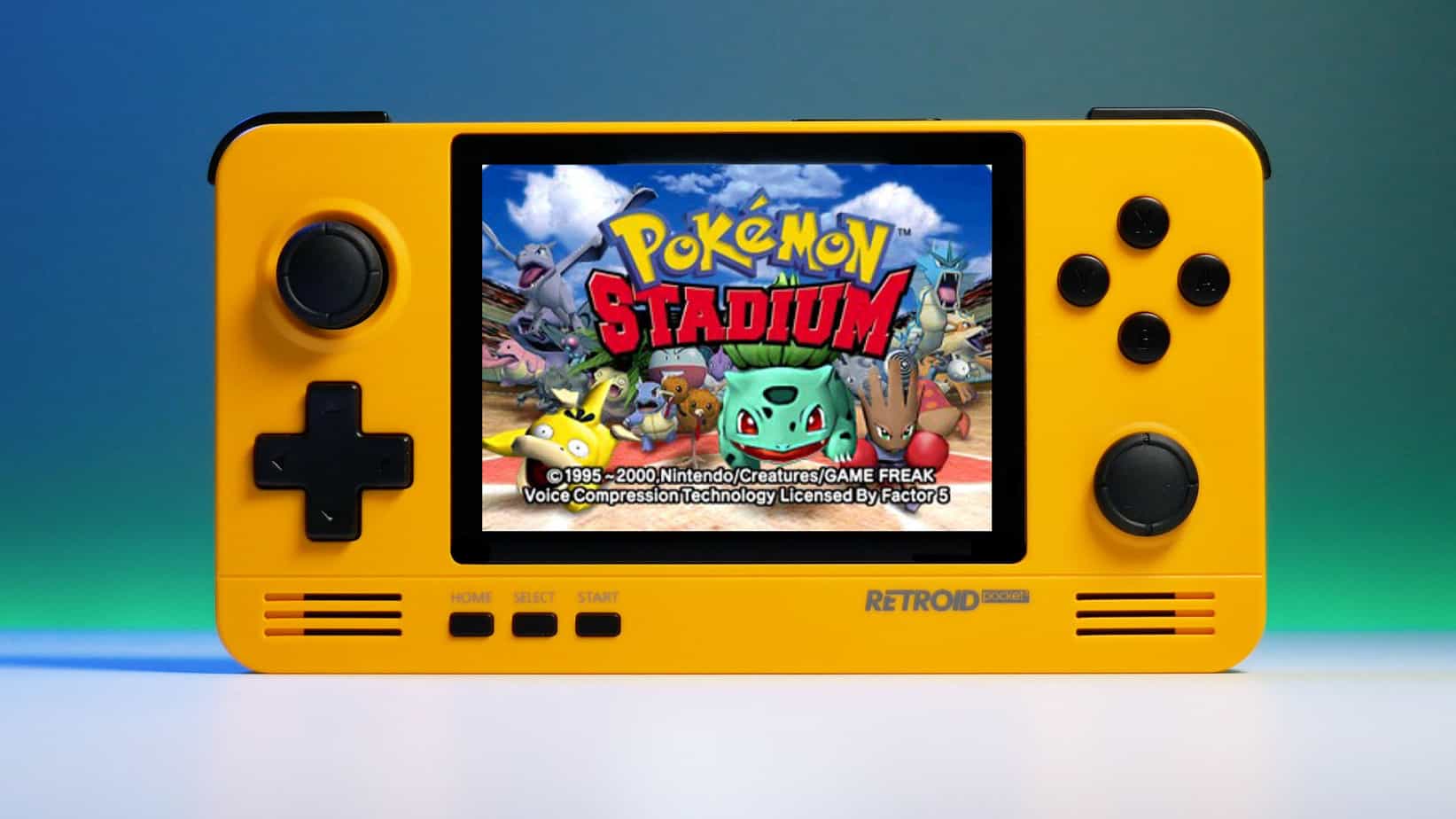
We have talked about gaming on old computers and have covered new and upcoming Steam deck handheld console. Today we are combining old gaming with a handheld console and our target of talk is Retroid pocket 2. This product is packed with really high-quality plastic and with some great features in it. retroid pocket 2So let's dive into this cool handheld in more detail and find out why we like it so much.

Good manufacturing quality

Plastic and overall manufacturing quality are really, really good. The battery is great, packing 4000mAh that can hold over 3 hours of nonstop gaming, and all buttons and joysticks are great. The screen is a 640 x 480 60Hz 3.5″ IPS screen (4:3 aspect ratio) that performs really great for its purpose, retro gaming. There is a Digital D-Pad and dual analog joysticks. The right joystick is the lower profile to avoid being accidentally moved when pressing the four gaming buttons. There are three buttons at the bottom which are Home, Start, and Select. On either side are good-quality stereo speakers. On the bottom of the device are a Micro SD Card slot and a 3.5mm headphone port. On the top of the device are Left and Right shoulder and trigger buttons. There are the power button and volume adjustments. There are a USB Type-C OTG port and a Micro HDMI output for connection to a TV.

Good technical statistics

Good, not great but then again since this is retro handheld you cannot really expect some crazy stuff like alder lake inside. So the console is punching ARM Cortex A7 CPU with 2 cores and a clock of 1.5GHz paired with ARM Mali 400-MP2 500MHz GPU. The console has 1GB LPDDR3 RAM memory and 8GB eMMC Storage where 5GB is freely available, the rest is taken for OS. As mentioned before the display is 640x480 resolution with a size of 3.5″. The battery is Lithium-Ion with a power of 4000mAh and on the handheld, there is a USB Type-C connector, 3.5mm headphone jack, and Micro-HDMI. It also has Wifi/Bluetooth 4.0

Retroid Pocket 2 OS and support

Pocket 2 comes with Android 6 but you can update its firmware to the 8.1 version on the official site that I would highly recommend. New versions of the handheld will come with 8.1 on it from the box. Having Android as OS opens many possibilities like you can download Android apps such as Steam Link, allowing you to play actual PC games on your Retroid Pocket 2. Not just that, if it does get a newer version of Android it could even have the ability to use xCloud, Xbox’s cloud gaming service. Of course, hardware will not be able to handle modern games but the option is still there and for some old PC titles available on steam like Commander Keen, for example, this is a great option. The console can emulate basically everything up to Dreamcast, including N64, PSP, and Playstation 1. It can emulate Nintendo DS also, but it can only do so with one screen. The only problem with this console is you will need to install and update Apps. You’ll need to learn about RetroArch, an app that lets you download emulators or cores to play games.

Retroid price

The last thing on the list is the price of the console itself. Going just under the 100$ mark this really makes it an affordable option for plenty of people that would like to experience retro handheld gaming or for ones like me, nostalgic gamers wanting to relive some era of playing games on the road.

Conclusion

Among Chinese handheld devices for retro gaming, Retroid Pocket 2 is really on top of what the market can offer. If you are looking for a great handheld retro console and are not afraid of little dive-ins into the OS and various configurations, Pocket 2 will reward you with plenty and wide emulation support.
Read More
Easy Guide to Resolving Error Code 16

Error Code 16 - What is it?

Code 16 is a type of Device Manager error code. Windows XP users are most likely to encounter it. This error pops on XP systems that are running legacy or not plug-and-play hardware.

Error code 16 is displayed in the following format:

‘Windows cannot identify all the resources this device uses. (Code 16)’

Solution

driverfix boxError Causes

Error code 16 occurs when you use a peripheral device such as an external drive or a printer and that device is not properly or completely configured. Though the device may have been recognized before Windows fails to verify its configuration. Simply put, error code 16 appears when devices are partially configured.

In addition to this, another cause of error 16 is outdated or corrupt device drivers. Devices often fail to run successfully because of driver problems.

Device drivers are programs that provide instructions to control different devices attached to the computer system such as audio devices and printers to name a few.

Though error code 16 is not fatal like other PC error codes such as BSoD; however, it may hamper your ability to use certain devices installed on your system and lower your work productivity.

To avoid inconvenience, it is advisable to resolve the error immediately to avoid inconvenience.

Further Information and Manual Repair

PC error codes are often considered technical and difficult to resolve which is why many prefer to hire a professional for the repair job rather than doing it themselves.

Small repair jobs like fixing error code 16 by a professional computer programmer may cost you hundreds of dollars.

So, why incur so much cost when you can repair it easily by yourself even if you are not a technical whiz.

Error code 16 is easy to repair.

Here are some effective DIY methods that you can use for resolving error code 16 on your PC. These methods require no technical background, knowledge or expertise for that matter. Just simply follow the instructions and resolve the error code 16 issue.

Let’s get started…

Method 1 - Setup from the Disk that Came with the Hardware Device

Run setup from the disk that came with the hardware device, or you can simply copy the setup software file to your hard drive/flash drive. Refer to the vendor’s direction to set up.

If for any reason you’re unable to find the directions, simply uninstall the device. Then go to the start menu, Control Panel, and select ‘Add New Hardware’.

Now pick the appropriate hardware and follow the steps that the Wizard suggests. This is most likely to resolve the error code.

Nonetheless, if the error code still persists, then try method 2.

Method 2 - Allocate More PC Resources

Another alternative method to resolve error code 16 is to allocate more PC resources to the device. To specify additional resources:

  • Go to the start menu
  • Type Device Manager
  • Then go to the Device properties and click the resources
  • Here specify the device in the Device Manager
  • If you see a resource with a question mark, assign that resource to the device
  • However, if for any reason the resource is unable to change, then simply click ‘Change Setting’.
  • If Change Settings is not available, then click the box to the ‘Use Automatic Settings’ box. This will make the option available.

Method 3 - Install DriverFIX

As previously stated above, device manager error codes like error code 16 may also occur due to driver problems. If this is the underlying reason for error code 16 on your system, then the best way to resolve it is to install DriverFIX.

DriverFIX is user-friendly, advanced, and feature-filled software deployed with an intelligent programming system, which detects all problematic device drivers automatically in seconds.

It matches these drivers with their latest versions and updates them smoothly without any hassle, resolving error code 16 right away.

And furthermore, once you install this software on your PC, you don’t have to worry about driver problems anymore typically because it updates drivers on a regular basis with compatible and new versions, ensuring that your computer functions properly. It is easy to install and is compatible with all Windows versions.

Click here to download DriverFIX to repair error code 16

Read More
Error: 0x80070035. Network path was not found
As you know, Windows allows you to share files between systems that are on the same network even though they are not connected physically. All you have to do is to make sure that the folder administrator allows access to the intended use and that your computer should be connected to the internet. Once you meet these conditions, you can share files between systems. However, recently a number of users reported that despite fulfilling these conditions, they end up getting errors instead when they try to access the shared drive. The error states:
“Error code: 0x80070035. The network path was not found.”
One of the common causes of this error is the antivirus program or the Firewall installed on your computer. It could also be that the drive is not shared in the first place or there are some issues with your network drivers. Whichever the case is, here are some potential fixes you need to check out to fix the Error code: 0x80070035.

Option 1 – Try to temporarily disable anti-virus and Windows Defender Firewall

As mentioned, the error could be due to the antivirus program or the Windows Defender Firewall installed on your computer. Thus, disabling them or any security software installed in your computer is always a good idea you can try when you’re not able to access the shared drive on your computer. There are times when you encounter problems like Error code: 0x80070035 due to interference of antivirus or security programs. Thus, you have to disable both your antivirus program and Windows Defender Firewall for the meantime and check if it fixes the error or not.

Option 2 – Check if the drive is shared

Before you further troubleshoot the problem, make sure that the drive you are trying to access is shared first. To do so, follow these steps:
  • Right-click on the folder and select Properties.
  • Go to the Sharing tab and check the status of the Network File and Folder Sharing.
  • And if the status is “Not Shared”, you need to select Share.
  • Next, select the intended Network User for sharing the file and choose the permission level for the user.
  • After that, click on the Apply and OK buttons to save the changes made. You or the intended user should now be able to access the shared folder or file.

Option 3 – Try to ping the IP address of the targeted computer

Even though the shared folder or file is shared correctly, it is possible that the network channel is not connected properly which is why you have to test it by pinging the IP address of the targeted computer from the primary computer.
  • Tap the Win + R keys to launch the Run dialog box.
  • Type “cmd” in the field and tap Enter to open Command Prompt.
  • Next, type the “ipconfig/all” command and tap Enter to execute it. This will populate various details.
  • From the given details, take note of the IPv4 address.
  • Afterward, open Command Prompt on the primary computer and then type the “ping <IPv4 address of the target computer>” command and hit Enter.
  • Now check if you get 4 confirmation replies or not. If not, you can try to access the Network Adapter Troubleshooter.
To run the Network Troubleshooter, refer to these steps:
  • Open the Search bar on your computer and type in “troubleshoot” to open the Troubleshoot settings.
  • Next, scroll down and select the “Network Adapter” option from the right pane.
  • Then click on the Run Troubleshooter” button.
  • After that, your computer will check for any possible errors and will pinpoint the root cause of the problem if possible.
  • Restart your computer.

Option 4 – Verify if Network Discovery is enabled

All you have to do is go to Start > Settings > Network & Internet and from there, click on the “Change connection properties” option and shift the radio button for Network profile to Private. After that, check if folder sharing is now working.

Option 5 – Try to modify the Network Security settings

There are times when the Network Security settings interfere with the folder or file sharing process. And if that’s the case, you can modify it to resolve the problem. How? Refer to these steps:
  • Tap the Win + R keys to open the Run dialog box.
  • Then type “secpol.msc” in the field and tap Enter to open the Local Security Policy manager window.
  • After that, go to Local Policies > Security Options located on the left pane.
  • Next, double click on Network security: LAN Manager authentication level in the right pane to open its Properties.
  • And then select the “Send LM & NTLM-use NTLMv2 session security if negotiated” option from the drop-down menu.
  • Now click on Apply and OK buttons to save the changes made.
  • Reboot your computer.

Option 6 – Try to enable NetBIOS over TCP/IP

  • Tap the Win + R keys to open the Run dialog box.
  • Then type “ncpa.cpl” in the field and tap Enter to open the Network Connections window.
  • After that, right-click on your network and select Properties.
  • Next, double click on Internet Protocol Version 4 and click on the Advanced button.
  • From there, go to the WINS tab and shift the radio button to Enable NetBIOS over TCP/IP.
  • Now click OK to save the changes made and then restart your computer.

Option 7 – Update the Network Adapter drivers

You might also want to update the Network Adapter drivers by following these steps:
  • Tap the Win + R keys to launch the Run window and then type in the “MSC” command and hit Enter to open the Device Manager window.
  • Under the Device Manager, you will see a list of drivers. From there, look for the Network Adapters and expand it.
  • Then right-click on each one of the Network drivers and update them all.
  • Restart your PC and see if it helped in fixing the BSOD error.
Note: If updating the network drivers didn’t help in fixing Error code: 0x80070035, you can also try to uninstall the very same drivers and restart your Windows 10 PC. After that, the system itself will reinstall the drivers you just uninstalled. Alternatively, you can also download and install the drivers from the manufacturer’s website directly. To reinstall the network adapter driver, refer to these steps:
  • Open the Devices Manager from the Win X Menu.
  • Then locate the device drivers and right-click on them to open the Properties.
  • After that, switch to the Driver tab and click on the Uninstall Device button.
  • Follow the screen option to completely uninstall it.
  • Finally, restart your computer. It will just reinstall the device drivers automatically.
Read More
Best free cloud storages

In today's age, free cloud storage is no longer anything exclusive and plenty of companies will offer some free amount of it in hopes that you will buy a premium plan. Among plenty of starter and free options, there are of course some that are more generous and more appealing and offer a larger quantity of free space and even some other services.

cloud storage

In this article, we are taking a look and recommending some of the best ones in our opinion.

Google drive

First on the list is of course google with its google drive. With an amazing 15GB of free could storage just given to anyone who makes a google account this had to be the first recommendation. Also since google drive is requiring a google account you will be given all google office tools for free as well as the Gmail service. Completely free 15GB at your fingertips if you do not mind google tracking policies.

Microsoft one drive

Another company on the list, with only 5GB storage seems little compared to google this entry was simply included because google Microsoft also offers you Office 365 WEB for free with skype along with their Hotmail. So all in all another full package of apps with some free storage that requires also just an account.

IceDrive

With the free offer of 10GB this comes as an easy recommendation, IceDrive is a cloud storage company that is not offering anything of productivity apps but it has some great features in their cloud solution like being able to see encrypted files in your cloud. All you have to do to get this 10GB of storage is to make a free account.

MEGA

With an amazing 20GB of free storage, MEGA is certainly one that gives the most space for free. Sadly a few years ago it was hacked and files and user information were leaked, for that reason, it is on our last place of recommendation but if you are not worried about their security and plan just to use this as a temporary file sharing service with that amount I am sure it will fill your needs.

Read More
DirectX function GetDeviceRemovedReason
DirectX function GetDeviceRemovedReason error is a DirectX error that comes up during playing games on Windows 11 operating system. Usually, the error occurs in gaming systems powered by AMD and very rarely if any times at all on Nvidia or intel platforms. DirectX function GetDeviceRemovedReason errorIf you are one of the gamers affected by this error, fear not because we have a solution for you. Follow provided fix guide in order to correct this error and get back to gaming asap.

1. Update drivers

The first thing of course is to update your graphic card driver, you can do this with your graphic cards panel software or directly in Windows itself but the best practice and one that I would recommend is to go to your graphic card manufacturer’s website and download the latest driver there, and then install it inside Windows 11.

2. Change power mode

Changing power mode inside Windows 11 can solve this issue since sometimes Windows power manager if it is set to anything except best performance can interfere with the proper functioning of the graphic adapter, and because of this error. To change the power setting do the following:
  1. Press ⊞ WINDOWS + I to open settings
  2. Click on the System tab
  3. Select power & battery on the right part
  4. Click on the menu beside power mode
  5. Select the best performance

3. Run SFC scan

Corrupted system files can also cause this error and if previous steps have not resolved it we will use Windows built-in tool SFC scan to find and repair all bad files in windows.
  1. Press ⊞ WINDOWS + S to open the search menu
  2. Type in Windows terminal and run it as administrator
  3. If prompted click on YES on UAC
  4. Press CTRL + SHIFT + 2 to run command prompt
  5. Type in sfc /scannow and press ENTER
  6. Wait for the whole process to finish and then reboot your system

4. Reinstall the problematic game

Sometimes game files can get corrupt and maybe even overwritten, try with game reinstallation if the problem still persists.
Read More
1 2 3 171
Logo
Copyright © 2023, ErrorTools. All Rights Reserved
Trademark: Microsoft Windows logos are registered trademarks of Microsoft. Disclaimer: ErrorTools.com is not affiliated with Microsoft, nor claims direct affiliation.
The information on this page is provided for information purposes only.
DMCA.com Protection Status