Logo

Windows PC advantages over Apple Mac

In the last article, we have covered various advantages of Apple hardware over Windows PC, however, PC has their own strengths and advantages over MACs as well. Join us as we explore why would you choose Windows PC over MAC.

Windows PC

Hardware customization

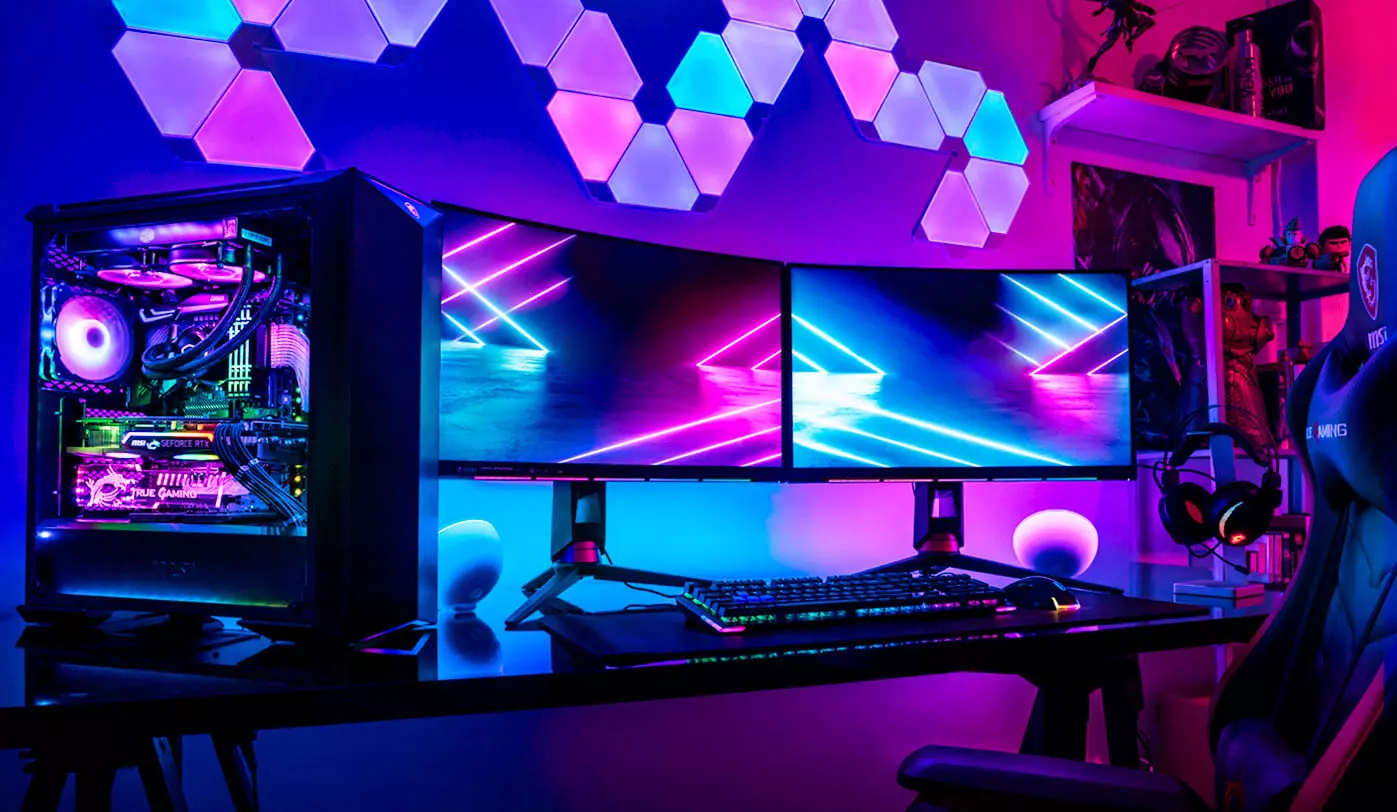
If you like to customize and build your own hardware and customize your existing computer then MACs are out of the picture, on other hand, computers based on Windows operating system are much more flexible in terms of customization.

While Apple hardware is locked and only allows small changes to it, computers running on Windows are free and open to various upgrades and modifications so if you like to play with hardware Windows is your platform.

Gaming

There are games on MAC true but their numbers can not compare to games available for the Windows platform. On top of that, most latest and best gaming hardware is not even available on Apple platforms so if you plan to game in high resolutions and play the latest games there really is no option other than Windows.

Windows Platforms also has multiple emulators that you can use to play games from other older platforms and Microsoft since it owns Xbox has some great plans for both PC and Xbox gaming.

Software back compatibility

Since the introduction of the new MAC OS X, apple really lost a lot of application back compatibility, and a lot of old legacy software can not be run on modern Apple computers. Windows on the other hand have always tried and succeeded in keeping maximum compatibility with older and legacy software.

Also on the Windows platform, there is a lot of community support for old and legacy software so even if it is not officially supported it is backed up by the community.

Software variability

In terms of where can you find the most different software, you need to look no further than the Windows platform. How Windows itself has great backward compatibility and a lot of developers are using it to create new software thanks to Visual Studio and .NET Windows has cemented itself as a platform with the most available software.

The popularity of Windows as the home operating system and as a gaming platform has made it quite interesting in eyes of various developers and tons of small applications are made daily for it. Windows 11 has also brought native android support to it and that has just expanded its already impressive catalog of applications.

Freedom of choice

Overall Windows PC is most appealing for users that like to be able to choose everything, from hardware components to software they would like to use. No other platform will give you larger freedom of choice and better personalization options.

Do You Need Help with Your Device?

Our Team of Experts May Help
Troubleshoot.Tech Experts are There for You!
Replace damaged files
Restore performance
Free disk space
Remove Malware
Protects WEB browser
Remove Viruses
Stop PC freezing
GET HELP
Troubleshoot.Tech experts work with all versions of Microsoft Windows including Windows 11, with Android, Mac, and more.

Share this article:

You might also like

How to Get Rid of GifsGalore

The GifsGalore Toolbar from Mindspark Interactive Network, Inc. is proposed to active Web users who like to embed GIFs into their emails and share entertaining GIFs with friends via social media services. The GifsGalore software can be added to your Internet client for free but you need to be using Google Chrome, Internet Explorer or Mozilla Firefox for the GifsGalore Toolbar to be activated.

When installed it hijacks your New tab page and default search engine changing them to search.myway.com. This extension also monitors user browsing activity recording information such as: visited websites, clicked links, viewed products, etc. This information is later used to better target ads. While browsing the internet with this extension enabled you will see additional pop-up ads, as well as sponsored links and injected ads throughout your browsing session, especially in search results.

About Browser Hijackers

Browser hijacking is actually a form of unwanted software program, often a browser add-on or extension, which causes modifications in web browser’s settings. There are various reasons why you may experience an internet browser hijack; however commercial, advertising, and marketing are definitely the main reasons for their creation. The idea would be to force users to visit specific sites that are aiming to improve their site visitor traffic and generate higher ad earnings. It could seem naive, but most of these sites are not legitimate and could present a serious risk to your online safety. Browser hijackers can even let other vicious programs without your knowledge further damage the computer.

Find out how to identify a browser hijack

When your web browser is hijacked, the following can happen: the browser’s homepage is modified; bookmark and the new tab are also changed; the default search engine has been changed and your browser security settings have been lowered without your knowledge; you see unwanted new toolbars added; unstoppable flurries of popup ads appear on your computer screen; your web browser gets sluggish, buggy, crashes very often; you are prohibited access to particular web pages, including the site of an anti-malware software developer like SafeBytes.

How browser hijacker finds its way onto your computer system

Browser hijackers might use drive-by downloads or file-sharing networks or perhaps an email attachment to reach a targeted computer. They may also come from any BHO, browser extension, toolbar, add-on, or plug-in with malicious purpose. Other times you might have unintentionally accepted a browser hijacker as part of an application package (usually freeware or shareware). Examples of well-known browser hijackers are Fireball, CoolWebSearch. save, Ask Toolbar, RocketTab, and Babylon Toolbar.

Removal

Some browser hijacking could be quite easily reversed by discovering and removing the corresponding malware software from your control panel. Yet, certain hijackers are far harder to find or eliminate since they might get themselves associated with some crucial computer files that enable them to operate as a necessary operating system process. Additionally, manual removals demand deep system knowledge and therefore can be a very difficult job for novices. Installing and running an anti-malware program on the affected computer could automatically erase browser hijackers and other malicious applications. Safebytes Anti-Malware has a sophisticated anti-malware engine to help you prevent browser hijacking in the first place, and mop up any pre-existing problems. And use a PC optimizer, like Total System Care, to get rid of all related files in the registry and repair browser issues.

What you can do if Malware Stops You From Downloading Or Installing Anything?

All malware is bad, but certain types of malware do a lot more damage to your computer than others. Some malware is created to restrict or prevent things that you want to do on your PC. It may well not let you download anything from the internet or stop you from accessing some or all websites, particularly the antivirus websites. If you’re reading this article, you may have infected by a virus that stops you from installing security software such as Safebytes Antimalware on your PC. There are some actions you can take to circumvent this problem.

Remove malware in Safe Mode

The Windows OS includes a special mode known as “Safe Mode” in which just the bare minimum required programs and services are loaded. If the malware is obstructing internet access and affecting the computer, launching it in Safe Mode allows you to download anti-virus and run a scan whilst limiting possible damage. To enter into Safe Mode or Safe Mode with Networking, press the F8 key while the computer is starting up or run MSConfig and find the “Safe Boot” options in the “Boot” tab. After you restart into Safe Mode with Networking, you can download, install, as well as update the anti-malware program from there. At this point, you could run the antivirus scan to remove computer viruses and malware without any interference from another application.

Download the security software using an alternate web browser

Web-based viruses can be environment-specific, aiming for a particular browser or attacking specific versions of the browser. If you are not able to download the anti-malware software program using Internet Explorer, it means the virus could be targeting IE’s vulnerabilities. Here, you should switch over to a different browser like Firefox or Chrome to download the Safebytes Anti-malware program.

Install and run antivirus from your USB drive

Another solution is to create a portable anti-malware program onto your USB stick. Adopt these measures to run the antivirus on the affected computer system. 1) Make use of another virus-free computer to download Safebytes Anti-Malware. 2) Plug the Thumb drive into the uninfected computer. 3) Double click on the executable file to run the installation wizard. 4) Select flash drive as the place when the wizard asks you where you wish to install the software. Do as instructed on the screen to finish up the installation process. 5) Now, transfer the USB drive to the infected computer system. 6) Double click the Safebytes Anti-malware icon on the thumb drive to run the software. 7) Click on “Scan Now” to run a complete scan on the affected computer for malware.

How SafeBytes Anti-Malware Keep your Computer Virus Free

If you’re planning to purchase anti-malware for your desktop, there are plenty of brands and utilities for you to consider. A few of them are good but there are lots of scamware applications that pretend as legit anti-malware programs waiting around to wreak havoc on your computer. You need to go with a tool that has obtained a strong reputation and detects not only viruses but other kinds of malware as well. Amongst few good applications, SafeBytes Anti-Malware is the strongly recommended software program for the security-conscious individual. SafeBytes anti-malware is a trusted tool that not only protects your PC completely but is also extremely user-friendly for people of all ability levels. With its cutting-edge technology, this application can help you remove multiples types of malware which include viruses, trojans, PUPs, worms, ransomware, adware, and browser hijackers.

SafeBytes anti-malware provides a myriad of enhanced features that sets it aside from all others. Below are a few of the good ones:

Robust, Anti-malware Protection: Built upon a greatly acclaimed anti-virus engine, this malware removal tool can identify and remove several stubborn malware threats like browser hijackers, PUPs, and ransomware that other common antivirus software will miss. Live Protection: SafeBytes gives you round-the-clock protection for your personal computer restricting malware intrusions instantly. They’re extremely effective in screening and removing numerous threats because they are regularly improved with new updates and alerts. Web Filtering: SafeBytes inspects the links present on a web page for possible threats and alerts you whether the website is safe to browse or not, through its unique safety ranking system. Fast Scan: SafeBytes’s virus scan engine is one of the quickest and most efficient in the industry. It's targeted scanning greatly increases the catch rate for viruses which is embedded in various computer files. Very Low CPU and RAM Usage: SafeBytes is a lightweight and easy-of-use anti-virus and anti-malware solution. Since it uses low computer resources, this application leaves the computer power exactly where it belongs to: with you. 24/7 Premium Support: You will get 24/7 technical support to quickly resolve any issue with your security tool. To sum it up all, SafeBytes Anti-Malware offers superb protection combined with very low system resource usage with both great malware detection and prevention. You now may realize that this particular software does more than just scan and eliminate threats from your computer. You’ll get the best all-around protection for the money you spend on SafeBytes AntiMalware subscription, there isn’t any doubt about it.

Technical Details and Manual Removal (Advanced Users)

To remove GifsGalore manually, go to the Add or Remove programs list in the Windows Control Panel and select the program you want to get rid of. For internet browser extensions, go to your web browser’s Addon/Extension manager and choose the add-on you would like to remove or disable. You’ll probably also want to reset your web browser. If you choose to manually delete the system files and registry entries, use the following list to make sure you know precisely what files to remove before undertaking any actions. However, editing the registry is usually a difficult task that only experienced users and professionals should try to fix it. Moreover, some malware is capable of replicating or preventing deletion. Carrying out this malware-removal process in Safe Mode is recommended.
Files: %LOCALAPPDATA%\GifsGaloreTooltab %UserProfile%\Local Settings\Application Data\GifsGaloreTooltab %UserProfile%\Local Settings\Application Data\Google\Chrome\User Data\Default\Sync Extension Settings\fnjgjdfhhakkbojkgmiihabbbjhgbchh %UserProfile%\Local Settings\Application Data\Google\Chrome\User Data\Default\Extensions\fnjgjdfhhakkbojkgmiihabbbjhgbchh %LOCALAPPDATA%\Google\Chrome\User Data\Default\Sync Extension Settings\fnjgjdfhhakkbojkgmiihabbbjhgbchh Registry: HKEY_LOCAL_MACHINE\Software\[APPLICATION]\Microsoft\Windows\CurrentVersion\Uninstall..Uninstaller GifsGaloreTooltab Uninstall Internet Explorer HKEY_CURRENT_USER\Software\Microsoft\Internet Explorer\LowRegistry\DOMStorage\gifsgalore.dl.tb.ask.com HKEY_CURRENT_USER\Software\Microsoft\Internet Explorer\LowRegistry\DOMStorage\gifsgalore.dl.myway.com HKEY_CURRENT_USER\Software\GifsGalore

Read More
What to do if Windows 10 Disk Management is not working
The Disk Management tool in Windows 10 is a built-in tool that contains a user interface used to manage disk partitions to administrators of the computer. There are lots of instances when you have to change the size of the hard disk partition or reduce the size and so on. This is where the Disk Management tool comes in. It’s useful as the command line interface can be quite confusing and risky for some users. However, there are cases when this tool stops working. A proof of this the reports submitted recently by some Windows 10 users. Based on the reports, the Disk Management does not load or respond. If you are having the same problem, read on as this post will give you some suggestions on what you can do to resolve the problem.

Option 1 – Try restarting the Disk Management Service

  • Tap the Win + R key combination to open the Run dialog box.
  • Then type “services.msc” in the field and hit Enter or click OK to open the Windows Services Manager.
  • Next, scroll down in the service list until you see the Virtual Disk Service. Double click on it to open and then select Automatic.
  • Click on Apply and OK to save the changes made.
  • If it hasn’t started yet, you can just click on the Start button to start the Service. The Virtual Disk service provides management services for disk, volumes, file systems as well as storage arrays.
  • Now save all the changes you’ve made and restart your computer. Then check if you can now use the Disk Management tool without any problem.

Option 2 – Try using the System File Checker scan

System File Checker or SFC is a built-in command utility that helps in restoring corrupted files as well as missing files. It replaces bad and corrupted system files with good system files that might be causing some issues with the Disk Management tool. To run the SFC command, follow the steps given below.
  • Boot your PC into Safe Mode.
  • Tap Win + R to launch Run.
  • Type in cmd in the field and tap Enter.
  • After opening Command Prompt, type in sfc /scannow
The command will start a system scan which will take a few whiles before it finishes. Once it’s done, you could get the following results:
  1. Windows Resource Protection did not find any integrity violations.
  2. Windows Resource Protection found corrupt files and successfully repaired them.
  3. Windows Resource Protection found corrupt files but was unable to fix some of them.

Option 3 – Try using the DISM tool

Aside from the System File Checker, the DISM tool can also help you resolve the issue with the Disk Management tool. It helps in restoring the health of your computer.
  • Open the Command Prompt as admin.
  • Then type in this command: Dism /Online /Cleanup-Image /RestoreHealth
  • Do not close the window if the process takes a while as it will probably take a few minutes to finish.

Option 4 – Try using Diskpart and Fsutil

If both the System File Checker and DISM tool didn’t work, you can use command-line tools like diskpart and fsutil. These command-line tools are powerful but you need to be careful especially if you’re not that familiar with using them. However, it’s recommended that you have somebody who knows if you’re really inexperienced with this kind of stuff.
Read More
Fix Qualcomm Atheros Qca61x4a Driver Issue
Qualcomm Atheros Qca61x4a Driver is a software driver used in WI FI communication between OS and device itself. When this driver stops working usually it means loss of connection and no internet available. This error knows to comes frequently and repeat itself over long periods of time which makes it quite annoying. If you are one of the unlucky users of Windows who get this error please keep reading in order to eliminate it and continue working on your computer normally.
  1. Disable & Enable the Qualcomm Adapter Driver

    Press ⊞ WINDOWS + X to open the secret menu, click on the device manager. In device manager expand network adapters. Right-click on Qualcomm Atheros Qca61x4a wireless network adapter and click on disable Right-click on Qualcomm Atheros Qca61x4a wireless network adapter and click on enable
  2. Rollback the Qualcomm Adapter driver

    Press ⊞ WINDOWS + X to open the secret menu, click on the device manager. In device manager expand network adapters. Right-click on Qualcomm Atheros Qca61x4a wireless network adapter and click on properties Under properties, window click on Driver tab and left-click on Roll Back driver (if the option is greyed there is no previous driver, follow next step) Choose your reason and click on OK
  3. Update Qualcomm Atheros driver to the latest version

    Press ⊞ WINDOWS + X to open the secret menu, click on the device manager. In device manager expand network adapters. Right-click on Qualcomm Atheros Qca61x4a wireless network adapter and click on Update Driver
  4. Install the new driver in compatibility mode

    Right-click on the installer package and choose properties Go to the compatibility tab Choose compatibility settings and install.
Read More
Fix Libmysql.dll is Missing Error in Windows
Libmysql.dll is missing or not found error appears in Windows when the user is trying to open and run the application. In this guide, we will offer you solutions on how to fix and remove this annoying error.
  1. Check recycle bin

    Some applications or purely by accident itself libmysql.dll gets deleted. If you have not turned recycle bin off go to it and check to see if the file is by any chance there. If you find it, right-click on it, choose restore, the error will be gone.
  2. Update drivers

    Press ⊞ WINDOWS + X to open the Windows menu and click on Device manager In device manager locate device which has alert mark next to it Right-click on it and choose update driver Reboot your computer
  3. Run SFC scan

    Press ⊞ WINDOWS + X and choose command prompt (admin) In command prompt type in sfc /scannow and press ENTER wait for the operation to complete and Reboot your system
  4. Reinstall application

    if you are getting an error only on one application or an error has started to appear after the installation of a particular application go to Windows applications, uninstall it and then install it again. There is a chance that the file has been corrupted during the installation process.
Read More
How to Fix Failed to load DLL file Error
If your operating system cannot or is not able to load a required DLL file on your Windows startup and you encounter a message saying, “Failed to load DLL”, then you’ve come to the right place as this post will guide you in fixing this problem. When you encounter this kind of issue, you will see either of the following error messages on your screen:
“The dynamic library dll failed to load.” “Failed to load dll library.”
This kind of error can occur when your Windows operating system fails to locate the DLL library which the system needs to access during startup. It can also occur when the DLL file is not in a directory specified in the path or when the DLL file is corrupted or has gone missing. Moreover, you can also encounter this error if the DLL file is infected with some malware. Whatever the case is, here are some suggestions you have to check out to resolve the problem.

Option 1 – Try to reinstall the program

The first thing you can do is to reinstall the program that’s giving you this error. Once you’ve uninstalled the program, download its latest setup file from its official site and then install it again.

Option 2 – Try checking the startup programs

You might also want to check the startup programs on your computer, especially the Windows Registry startup paths, and then remove the startup entry to the concerned DLL file.

Option 3 – Try to re-register the problematic DLL file

You may have to re-register the ntdll.dll file using the regsvr32.exe before you can successfully install the program and fix the ntdll.dll file crash error. The Regsvr32 tool is a command-line utility that can be used to register and unregister OLE controls like DLL and ActiveX (OCX) control in the Windows operating system. Follow the steps below to use it.
  • Open Command Prompt as admin from the WinX menu.
  • Next, type the following commands in the elevated Command Prompt and hit Enter to execute the command. This will re-register the affected DLL file using the Windows operating system tool, regsvr32.exe.
    • exe /[DLL file]
    • exe [DLL file]
Note: Replace “[DLL file]” with the name of the DLL file that was pointed out in the error.
  • After you execute the given commands, you should see a message saying, “DllRegisterServer in vbscript.dll succeeded” if the Regsvr32 tool was able to run successfully. After that, try to install the program again and see if it now works.

Option 4 – Try to replace the DLL file with a trusted source

  • First, you need to get the new DLL file from another computer with preferably the same file version number.
  • After that, you need to boot your PC into Safe Mode and navigate to the paths listed below and then replace the file using a USB drive or other external storage devices.
    • x86: This PC > C:/Windows/System32
    • x64: This PC > C:/Windows/SysWOW64
  • Next, type “cmd” in the Cortana search box and right-click on Command Prompt, and select “Run as administrator” to open it with administrator privileges.
  • Now type the “regsvr32 ntdll.dll” command and hit Enter.
  • Restart your PC and check if the error is now fixed.

Option 5 – Try checking the details in the Event Viewer

Checking the details in the Event Viewer can also help you find out the root cause of the problem as the Event Viewer usually contains detailed information about the error.

Option 6 – Try running the DISM tool

You might want to repair potentially corrupted files in your system as having them could also trigger the “Failed to load DLL” error. To repair these corrupted system files, you can run the DISM commands:
  • Tap the Win + X keys and click on the “Command Prompt (Admin)” option.
  • After that, input each one of the commands listed below sequentially to execute them:
    • Dism /Online /Cleanup-Image /CheckHealth
    • Dism /Online /Cleanup-Image /ScanHealth
    • Dism /Online /Cleanup-Image /RestoreHealth
  • Once you’ve executed the commands given above, restart your computer and check if the “Failed to load DLL” error is now fixed.

Option 7 – Try scanning your computer using Windows Defender

The DLL file might also be infected with malware or virus and to eliminate it which could explain why you’re getting the “Failed to load DLL” error. Thus, you have to scan your computer using security programs like Windows Defender.
  • Tap the Win + I keys to open Update & Security.
  • Then click on the Windows Security option and open Windows Defender Security Center.
  • Next, click on Virus & threat protection > Run a new advanced scan.
  • Now make sure that Full Scan is selected from the menu and then click the Scan Now button to get started.
Read More
Use the Installation Media to Repair or Boot
If you are not able to access the Windows 10 Advanced troubleshooting options within Windows then you’ve come to the right place as this post will guide you on how you can repair or boot the Windows 10 installation without losing data using the bootable installation USB or DVD media. To repair or boot Windows 10 using the installation media, you have to download the Windows ISO, create a bootable USB or DVD drive, boot from the media and select “Repair your computer” and then select Startup Repair under Advanced troubleshooting. To get started, follow the given steps below carefully. Step 1: Frist, download the Windows ISO. Although this is not necessarily needed, it’s still better if you download the Windows ISO first so make sure that you download the same ISO version as installed on your computer. Step 2: Next, create a bootable USB or DVD drive.
  • Insert your USB drive into your PC.
  • Tap the Win + R keys to open the Run dialog box and type in “cmd” and tap Enter to open the Command Prompt. Alternatively, you can also search for “cmd” in the Cortana search box to open Command Prompt.
  • Once you’ve opened CMD, type in this command to open the DISPART utility – diskpart
  • After that, you should see a new black and white window that would say, “DISKPART>”.
  • Next, type in “list disk” in the command line and tap Enter to see the list of all the Storage devices as well as your hard disk connected to your PC. Here, you have to identify your disk’s number.
  • Type in this command where “X” is the disk number you have identified and then tap Enter – disk X
  • Type in this command and hit Enter to clear the table records and all the visible data on the drive – clean
  • Now you have to recreate a new primary partition of the drive so you’ll have to type in this command and tap Enter right after – create part pri
  • A new primary partition has been created so you have to select it by typing this command and tapping Enter – select part 1
  • Now you have to format it to make it visible to normal users by typing – format fs=ntfs quick
Note: If your platform supports the Unified Extensible Firmware Interface or UEFI, replace the “NTFS” with “FAT32” in the command on Step 10.
  • After that, type in this command and tap Enter after – active
  • Finally, type this command and hit Enter to exit the utility – exit
  • After you prepare the image for the operating system, save it to the root of your USB Storage device.
Step 3: After creating a bootable drive, boot from the media and select the “Repair your computer” option. Once you boot from the USB drive, it will start the Windows 10 installation right away. So you must not keep on clicking Next as you will end up installing Windows. You need to look for the “Repair your computer” link on the first installation screen and click on it and then boot your computer into Advanced Recovery. Step 4: Select Startup Repair under the Advanced options screen
  • Once you’re at the Advanced Recovery screen, select Advanced Options and select Troubleshoot.
  • After that, look for the Startup Repair and click on it and then follow the next on-screen instructions. This solution will help you fix issues that do not allow you to boot into your computer.
  • On the next screen, you will see the admin account with its name. Click on it and verify using the account password associated with the email.
  • After verification, it will start to diagnose your computer and automatically resolve any detected issues related to boot.
  • After the issue is fixed, your computer should reboot normally and you should now be able to use it. Note that your personal files are still intact since the process didn’t delete or wipe them out.
Read More
Malware Guide: How to Remove Webguard

What is Webguard?

Developed by Interesting Solutions, Webguard is a tool supposedly used for tracking those online who’ve developed a habit of tracking you. The application would provide logical analysis into a user’s website history, providing insight on what websites you’ve visited and also how persons are able to track your every move while browsing. While Webguard is unable to dispose of who specifically is tracking your computer usage, they’re able to determine what computer installed tracking codes or cookies on your computer system. In this case, it’s then left up to the user’s discretion to determine who they want to allow or block from tracking their online use.  Overall, this application allows the user some measure of freedom and control over their online experience. Like any other application, however, which has landed themselves a spot on Virus Total, Web guard has hidden agendas. At a distance, Webguard installs a service for Windows but later distributes advertisements. Technical details about Webguard include:
Product Version: 1.0.0.0 Original File Name: crss.exe Entry Point:  0x000C5AAE

Assessment of Webguard Potentially Unwanted Program

While Webguard claims to track your computer usage, information reported by the application isn’t sufficient for the common computer user. This brings us back to the ulterior motive or principal objective of developing Webguard – to advertise and generate revenue from clicks made by users on Ads displayed on Internet Browsers – namely Chrome, Internet Explorer and Firefox. Why should a computer user remove Webguard? Simply, it compromises one's Internet privacy and security and it keeps abreast of your Internet history. If you’re online for an extended period, you’ll see what Webguard does. While the publishers behind the application did not alert users to the use of web beacons, cookies for tracking, and other related tracking technology, that’s not why Webguard is considered unwanted. The program is potentially unwanted because of the unpredictable advertisements it displays. Not all sites are trusted and so it’s difficult to determine, in some cases, what websites are legit for business.

Remove Webguard with Spyhunter

In most cases, at least from what I’ve seen, Webguard is installed as a single application. After it was installed for this assessment, it could be found in ‘All Programs”. This meant that one could manually delete the application from their computer system (see manual steps below). However, is that really sufficient to completely rid your PC of Webguard’s blueprints? While you might opt to remove Webguard manually – maybe because it’s more economical – an automated process is able to completely eradicate hidden threats from Webguard. In comparison to manually removing Webguard, Spyhunter penetrates your computer system for all infections. In most cases, nasty threats are unable to be removed manually. Additionally, Spyhunter not only removes installed threats, but it detects incoming ones – hence, acting as a preventative tool. Furthermore, Spyhunter detects cookies placed on your computer by Webguard. These are all undetectable threats and so an automated tool, as Spyhunter, should be used to remove Spyhunter effectively from your computer.

Manual Steps for Removal of Webguard

I found this removal pretty simple. Depending on your Operating System, there will be slight discrepancies in the manual removal steps. Using the Windows 8 (8.1) OS on your computer:
  • Step 1: Locate the CONTROL PANEL on your computer using the SEARCH option.
  • Step 2: Once the search box appears , input 'CONTROL PANEL'.
  • Step 3: The Control Panel option will then appear. From the menu, choose the "Programs" option.
  • Step 4: Another menu will appear. Select "All Programs and Features".
  • Step 5: From the 'Programs list', search for the Webguard application.
  • Step 6: Right-click on Webguard when it's found.
  • Step 7:  Choose the "Uninstall" option.
  • Step 8:  Follow the uninstall wizard instructions until the Webguard application is fully removed.
To completely remove Bandoo from your computer, click here to download and install Spyhunter
Read More
Fix rtf64x64.sys Blue Screen error on Windows
rtf64x64.sys Blue Screen error happens in random intervals but it is a regular occurrence, it can happen when playing games, when watching movies, or even when the computer is idle. in this article we will guide you on how to resolve this error from the most simple steps you could take and do not worry, altho the error seems dreadfully and scary, it is nothing to worry about. If you can boot Windows normally after error great, proceed with instructions, else reboot into safe mode or use installation media to boot.
  1. Use official Microsoft online troubleshooter Microsoft has an online blue screen troubleshooter that was made specifically for this kind of situation. Go to Troubleshoot screen error and answer questions needed. Most of the time this will be enough to solve any blue screen issue.
  2. Update network and sound drivers How is this error traced back to Realtek devices, go to the Realtek website and download drivers. Install them and reboot the system.
  3. Use a dedicated software solution DRIVERFIX is an application made for these and other kinds of driver issues and problems, it is one click automated solution for driver fixing. Visit the Driverfix site and download the application
  4. Perform system Restore If you have not managed to fix the issue with previous steps roll back to a previous restore point when everything was working.
  5. Replace network or sound card If everything failed including system restore then it is likely that it is a hardware malfunction. Replace faulty components and you should not receive errors anymore.
Read More
Enable or Disable Windows 10 Boot Log
Booting the Windows computer system includes loading it from the various boot devices such as drivers, network as well as USB drives when the computer is turned on. The instant the startup sequence is done loading the operating system the system hardware will be ready to perform some complex operations – in this process, the Boot Log in Windows 10 is a record that maintains the list of success or failure of many pieces of Windows 10 system during the booting process. In other words, the Boot Log is the one that keeps a record of all that has happened while loading from the computer storage system to the memory during the boot process. It is available for several devices like network, hardware devices, and the operating system which assist in detecting issues during the boot process and other issues with regards to troubleshooting. Through Boot Log, you’ll know which drivers were unloaded and loaded from the start of the system during the boot process. You have the option to either disable or enable this feature on your Windows 10 PC. Named as “ntbtlog.txt”, the log file lists all the successfully loaded processes and the unsuccessful ones during the boot process. It is saved to the drive C:Windowsntbtlog.txt. As mentioned, you can enable or disable this feature in two ways – the first one is by using the System Configuration or MSConfig while the second one is using the Command Prompt. In this post, we’ll show you how you can enable or disable Boot Log in Windows 10 either way.

Option 1 – Enable or Disable Boot Log using System Configuration

Enable Boot Log:
  • Tap the Win + R keys to open the Run dialog box.
  • Then type in “msconfig” and click OK to open System Configuration.
  • After that, go to the boot tab and check the checkbox labeled “Boot Log” under the Boot options so that you can enable the Boot Log feature.
  • Then click on OK to save the changes made.
  • Next, click on the Restart button in the prompt window to get started with the Boot Log process.
  • After restarting your PC, go to C:Windowsntbtlog.txt to open the boot log.
Note: As pointed out earlier, the log file contains a list of all the successfully loaded drivers and also the list of drivers that failed to load during the boot process and every time you restart the system, the boot log file will keep on updating and will eventually increase the list of entries. For you to locate the drivers and make your troubleshooting a lot easier, I advised disabling the boot log after troubleshooting. To disable the boot log using System Configuration, refer to the steps below. Disable Boot Log:
  • Tap the Win + R keys to open the Run dialog box.
  • Then type in “msconfig” and click OK to open System Configuration.
  • After that, go to the boot tab and unmark or uncheck the checkbox labeled “Boot Log” under the Boot options so that you can disable the Boot Log feature.
  • Then click on OK to save the changes made.

Option 2 – Enable or Disable Boot Log using Command Prompt

Enable Boot Log:
  • Go to the Start Menu and then type in “command prompt” in the search bar.
  • After that, right-click on the Command Prompt option and select the “Run as administrator” option.
  • After opening Command Prompt, type in “bcdedit” and tap Enter.
Note: You have to find the Identifier of the current operating system first to enable the Boot log. You can find it under the Windows Boot Loader section in the “Description” field and in this case, it’s Windows 10. You can also find the operating system identifier under the Windows Boot Loader section next to the field name identifier.
  • To check if the boot log entry is disabled or enabled, go check the “Bootlog” field under the Windows Boot Loader. And if it turns out that the “bootlog” entry is enabled, the entry will be “Yes”. Otherwise, the entry will be “No”.
  • Next, type in the following command with the operating system identifier to enable the boot log.
bcdedit /set {identifier} bootlog Yes
Note: In the command given above, make sure that you replace the given system identifier with your computer’s system identifier. For instance: In this example, the identifier was replaced with the actual operating system identifier as current.
bcdedit /set {current} bootlog Yes
  • Afterward, restart the system to start the Boot log process.
  • After the restart, go to C:Windowsntbtlog.txt to open the boot log.
Note: Every time you restart your computer, the boot log file will keep on updating which will increase the size of the log eventually. So if you want seamless and easier troubleshooting, it is advised to disable the Boot log after you troubleshoot. To disable it using the Command Prompt, here’s what you have to do. Disable Boot Log:
  • Go to the Start Menu and then type in “command prompt” in the search bar.
  • After that, right-click on the Command Prompt option and select the “Run as administrator” option.
  • Once the Command Prompt is opened, type in the following command and then tap Enter to disable the boot log feature.
bcdedit/ set {identifier} bootlog No
Note: In the command given above, you need to replace the given system identifier with your computer’s system identifier. For instance: In this example, the {identifier} was replaced with the actual operating system identifier as {current}.
bcdedit /set {current} bootlog No
  • Now close the Command Prompt.
Read More
Apple gaming is coming!!!

New Apple's upscaling technology called MetalFX will place iOS and macOS devices back into the gaming world. Apple had great games back in the old days and some all-time hits like the prince of Persia have been made first for apple but along the way, it just lost it.

Same as NVIDIA's DLSS and Intel's XeSS systems, Apple MetalFX also uses AI algorithms to upscale the resolution of output game frames. So, for example, the GPU inside your MAC might render the game at 1080p, but through MetalFX and AI upscaling it will look like a 4K image but have a good frame rate since it is rendered in base resolution.

apple metalfx

The ability to make AI strike a good balance between performance and image quality is a key to technology in today's modern gaming and having this technology will help developers a ton to be able to achieve great results on Apple hardware.

The First MetalFX Games

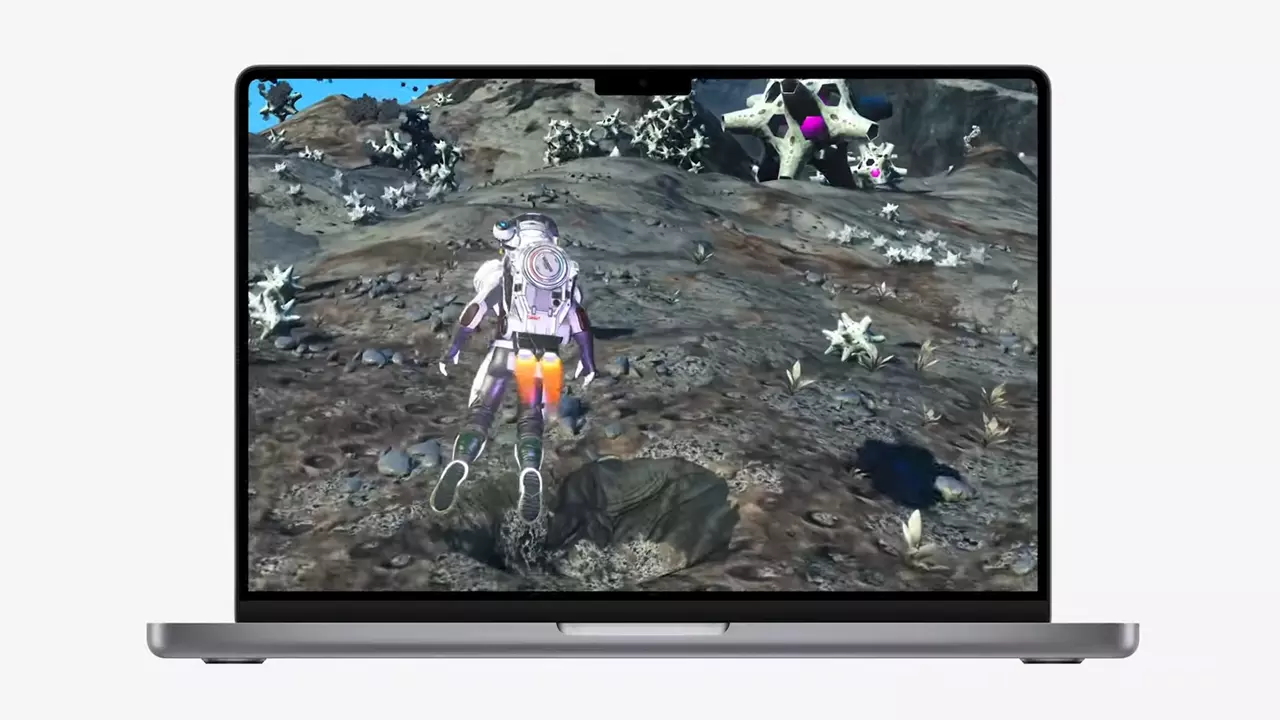
So far three official games that will use this technology and be released natively for Appl hardware are Resident Evil 8 Village, GRID legends, and No Man's Sky. All three games have been confirmed and Resident Evil 8 Village is already sent for review people are impressed since the game can run smoothly on all Apple devices, even ones with an M1 CPU.

Apple is back into gaming

When you say Apple gaming is probably the last thing that comes to your mind but truth be told Apple makes more money from games than Microsoft, Nintendo and Sony combined. Also, Apple itself was a big player once regarding computer games as well, Myst and Prince of Persia are games that were made and have been released for Apple first. Bungie was also founded by Apple developers and Halo was originally announced as a Mac game.

Apple has been trying and pushing gaming on its platform since it kind of died down. Today all Sony, Nintendo, and Microsoft controllers work without any issues with all Apple products. Apple also has its own gaming subscription service, Apple Arcade, and its Apple TV is packed with GPU that can rival Xbox ones.

MetalFX API ties and brings it all together, it is designed to get the most performance from the hardware by minimizing overhead.

Now, computers and laptops do not hold any large numbers if we look at the user base, and that could deter developers but if we look at iPad and iPhone things are different there, much different. How same CPU power these devices and how MetalFX is available across all products it is clear that there is a market for games there. No Man's Sky is coming to iPad using these technologies and bringing full computer experience to tablets.

Read More
1 2 3 171
Logo
Copyright © 2023, ErrorTools. All Rights Reserved
Trademark: Microsoft Windows logos are registered trademarks of Microsoft. Disclaimer: ErrorTools.com is not affiliated with Microsoft, nor claims direct affiliation.
The information on this page is provided for information purposes only.
DMCA.com Protection Status